
Invoicing
A travel expense claim can be marked as billable by specifying an account code in the main account that is billable; this will automatically set each sub-row in the travel expense claim as billable.
You can find the invoicing information under the following icon in the registration view.
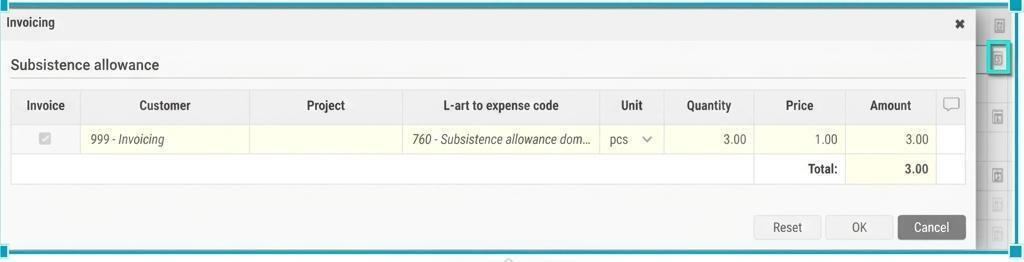
If the main account code is not billable and you have made a sub-account code on one row that is billable, only that row will be set as billable.
If an account code used as standard is not billable, you can still mark the row as billable (provided that no account code in use is set to Aldrig be invoiced) by ticking Invoice.
All sub-items in the invoicing dialogue are editable so you can change the values that will appear on the invoice. For example, the entire amount of an expense may not need to be re-invoiced. Items manually modified turn black, inherited items appear in grey italics.
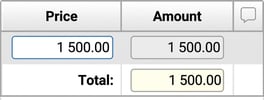
Invoice different parts of a travel expense claim item
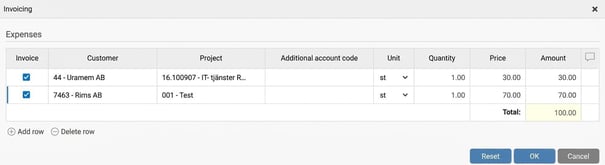
You can split an item to be invoiced to different customers by adding one row in the invoicing dialogue and choosing the account code for the new row as well as specifying the price.
External Comment
An external comment can be added to each invoicing item.  This comment will then appear on the invoicing basis.
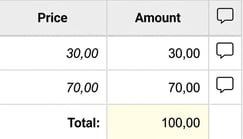
An external comment can be added to each invoicing item, not to be confused with the internal comment which is linked to the individual travel expense claim row and only visible in HRM Travel.
Please note: This article is AI-translated. This means that linguistic errors or misunderstandings may occur.