
Under Reports > Travel you will find reports for payroll specification.
- Payroll specification, preliminary: Use this report to extract information about travel expense claims that you have not yet transferred to payroll. It is only used for HRM Travel.
- Payroll specification, settled: Use this report to extract information about all items that have been transferred to payroll for any payment date of your choice (by default, the last payment date is displayed).
The report Payroll specification, settled is shared with HRM Time. If you are licensed for both HRM Time and HRM Travel, you can obtain information about payroll specifications from both modules in the same report.
Make a selection for Payroll specification, preliminary
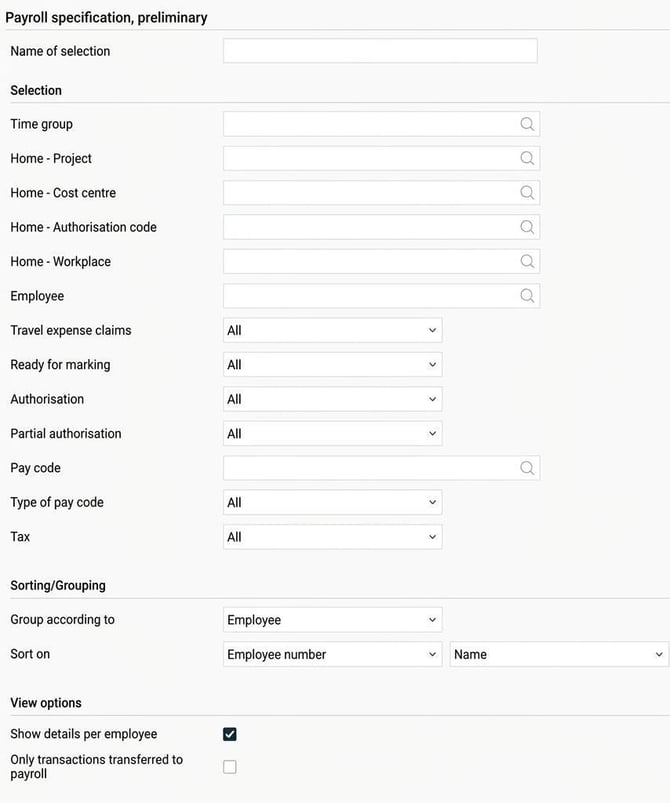
When you generate the report Payroll specification, preliminary you can customise the content using the following selections:
- Employees: Select which employees to include by filtering on employee number, home account code, or time group.
- Travel expense claims and pay codes: Choose to show only certain travel expense claims, pay codes or pay code types (allowance, deduction, benefit, tax, passive).
- Tax: Filter based on the setting for tax (taxable or not taxable).
- Status: Choose to only show items with a specific status, for example all travel expense claims that are authorised.
If you do not make any selections, all preliminary travel expense claims are included in the report.
Grouping and details
You can choose how the report will be structured:
- Group according to employees: You can sort employees on employee number or name.
- Group according to pay code: If you group by pay code, you can select Show details per employee to see all employees. If you do not select Show details per employee the report will only show summaries per pay code.
If you select Only transactions transferred to payroll you will only see those transactions that would be included in a payroll run.
Make a selection for Payroll specification, settled
Selections and display work essentially the same way for Payroll specification, settled as for Payroll specification, preliminary.
The difference is that you filter by payment date instead of audit status. By default, the selection is set to the last payment date, but you can change this and pick any previous date from earlier transfers to payroll.

Please note
The option Only transactions that are transferred to salary only applies to transactions in HRM Travel, not to transactions in HRM Time.
Ticking Only transactions that are transferred to salary means the following:
- The report only includes pay codes set to be transferred to payroll under Settings > Payroll > Pay codes, on the tab Travel.
- The report does not include expense transactions marked as paid by the company, unless the company uses the setting to transfer these to payroll under Settings > Travel > Expenses & Entertainment > General.
- The report does not include credit card transactions that are company purchases, unless the company uses the setting to transfer company purchases to payroll under Settings > Travel > Expenses & Entertainment > Credit card.
The setting for creating payroll transactions under Employees > Other information does not affect the Payroll specification report. An employee set to be excluded from the transfer will still appear in the report if the person has payroll transactions.
Please note: This article is AI-translated. This means that linguistic errors or misunderstandings may occur.