
Main account code
Account codes on items in the travel expense claim are inherited from the main account code
Account codes from project
Account codes from expense code
Account code for connected codes (sub-expenses)
Rules for account codes
Main account code
The main account code is displayed at the top of the travel expense claim and on the first tab in the registration popup. There, you see all account code levels set to be visible in the general details of the travel expense claim.
Account code fetched automatically
If an account code has been fetched automatically from a setting, for example your home account code, the text appears in grey.
Account code you specify manually
If you enter an account code manually, the text appears in black.
When you enter something manually, the following applies:
- Manual entries have the highest priority: What you enter manually will always apply and will not be overwritten by your home account code. For example, if you have manually entered cost centre 5, it will not be changed by your home cost centre.
- The entire main account code becomes manual: If an automatic account code has been fetched and you then change another level manually and save, the entire main account code is counted as manually specified. All account codes will then be in black text. They will no longer be overwritten, including those account codes that were initially fetched automatically.
Even blank account codes are counted as manual and will not be overwritten.
Reset to default account code
If you want to remove all manual changes and go back to the default account code, click the button Reset.
Account codes on items in the travel expense claim are inherited from the main account code
Travels, car trips and expenses inherit account codes from the main. There is no check against home account codes; the check is done against the main. If home account codes are applied there, they will also apply to the transaction row. If I have made manual changes in the main, these are inherited to the transaction row.
Travels, car trips and expenses that have inherited account codes from the main show the codes in grey text. If I make a change in the account codes, it only affects the row and never the main. If I make manual changes to the transaction's account code, it appears in black and is no longer affected by the main.
Changes I make in the main affect transaction rows without manual changes, while those with manual changes are unaffected.
If I click Reset in the main, transaction rows without manual changes are affected, while those with manual changes are unaffected.
If I click Reset on a row, only that row is affected.
Note
There may be more account codes for travel expense claims and their items than are displayed in the travel expense claim.
For example, if the cost centre is set to post the home account code, the home cost centre is posted, regardless of whether the cost centre is shown in the main and/or on transactions.
Account codes from project
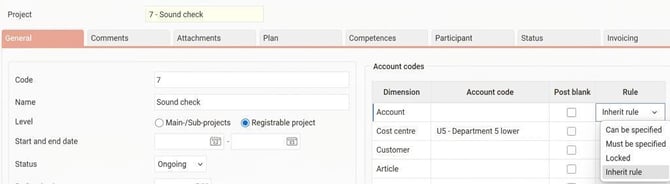
In the project register you can specify account codes per project, for instance if you want cost centre U5 to always be triggered when someone registers project 7.
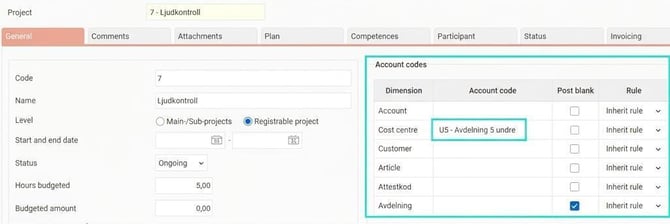
Post blank is ticked if you want the cost centre to be blanked when the project is specified.
A prerequisite for account codes to be triggered from the project and for Post blank is that, in the account code dimension settings, you have ticked Post account code from Project.
If it is not ticked, the cost centre will not be triggered even if it is specified in the project register.
Account codes from expense code
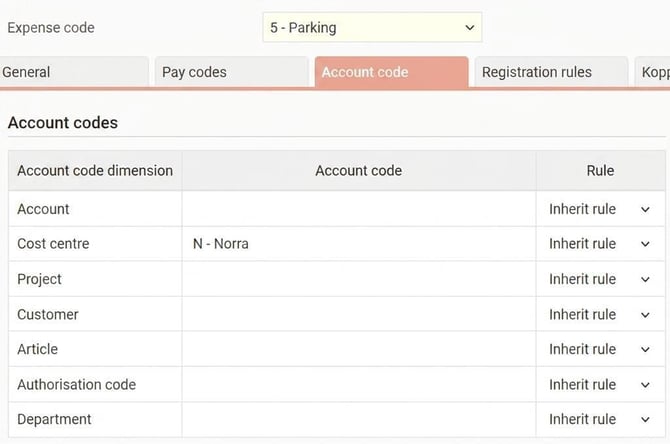
You can specify an account code per expense code under Settings > Travel > Expenses & Entertainment > Codes. This is used, for example, to specify that the expense code Parking should always receive a certain cost centre.
Priority order
If an account code is specified on both the expense code and the project, the following priority applies:
- Project (provided the account code dimension is set to be posted from the project)
- Expense code
Example
In this example, cost centre is set to be posted from both the project and the home account code. The settings are as follows:
- Project 7 has cost centre U5.
- The expense code Parking has cost centre Norra.
- Employee 1 has home cost centre Södra.
This is how the account code changes as you create the travel expense claim:
- You create a travel expense claim. The main is automatically assigned home cost centre Södra.
- You create an expense with the expense code Parking. Södra is then replaced by Norra, from the expense code's account code setting.
- You specify project 7. Norra is then replaced by U5, because account codes from project have higher priority.
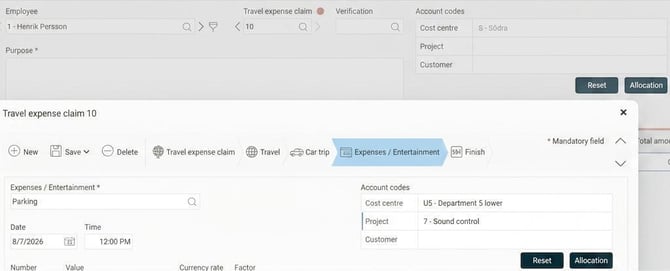
- If you remove project 7, cost centre U5 remains. This is because you set the project manually, which also saved the cost centre as a manual option. You need to click Reset to reset the account code to what would have been generated automatically (cost centre Norra from the expense code).
Account code for connected codes (sub-expenses)
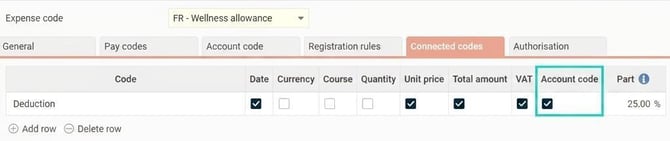
Connected codes are codes that are posted automatically when you register another expense (here called main expense). For instance, registering wellness is linked to a deduction of 25 percent, which will always be triggered when you register wellness.
Inherit account code from the main expense
When you connect a code under Settings > Travel > Expenses & Entertainment > Codes, the tab Connected codes, you can select that the account code is to be taken from the main expense.
This means the following:
- The sub-expense receives the same account codes as are triggered for the main expense.
- If you change the main expense, the sub-expense also changes.
- If you make a manual change to the sub-expense, it is counted as manual. Then, changes to the main expense will no longer affect the sub-expense.
Priority
If both the main expense and the sub-expense, for example, have a cost centre specified in the expense code register, the main expense's account code will apply. The main expense has higher priority than the sub-expense's own account code.
When the code does not inherit account code
If the connected code is notset to inherit the account code from the main expense, the sub-expense is not affected by the main expense's account code or changes to it.
Rules for account codes
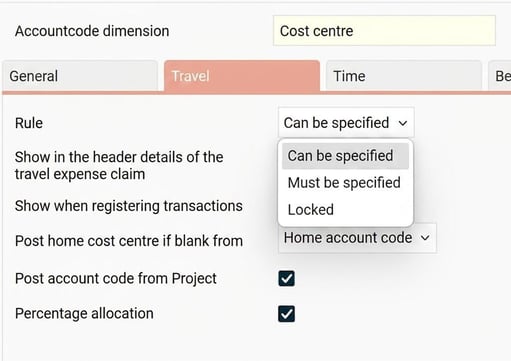
When you set up an account code dimension, you can choose between three different rules:
- Can be specified: It is possible to specify the information, but it is not mandatory.
- Must be specified: You can save without specifying the information, but you cannot audit. For example, if you do not specify a cost centre when it is set to Must be specified, you get a yellow warning when you save and a red, blocking validation error when you try to submit.
- Locked: It is not possible to specify the information. This may be because you always want the home cost centre to be posted on travel expense claims. The field is then write-protected so that it is posted automatically and can't be changed by mistake.
|
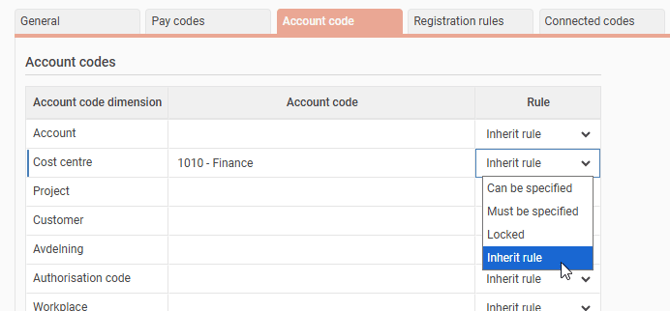
Where do you set the rules? You can set the rules in three different places in the system:
|
 |
|
 |
|
 |
What priority do the rules have?
If rules have been set in several places, the following priority order applies:
- Project register
- Expense code
- The general rule on the account code dimension.
What does the Inherit rule option mean?
The option Inherit rule means that the rule is taken from the previous level. If cost centre, for example, is set to Must be specified on the general level, and an expense code is set to Inherit rule, the cost centre must be specified when using that expense code.
Example of how the priority works
- Cost centre is set to be Locked on the general level.
- The expense code Parking is set so that cost centre Must be specified.
- Project 7 is set so that cost centre Can be specified.
When an employee registers a travel expense claim, the cost centre is first Locked.
When the employee registers an expense and selects the expense code Parking, the cost centre is unlocked and must be specified for it to be possible to audit the travel expense claim.
If the employee then accounts for the expense with project 7, the cost centre remains unlocked. Now, however, it is possible not to specify it, and it is still possible to audit the travel expense claim.
Please note: This article is AI-translated. This means that linguistic errors or misunderstandings may occur.