
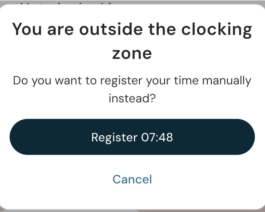
You can set up a location register under Settings > Time and Plan > Positions and by company, timegroup or employee specify that the correct location is required for time clocking and which locations are permitted. When clocking in the Flex HRM app, the mobile device’s location is checked. If you are not at a correct location, you will receive a notification informing you of this. If you have permission to edit your timesheet, you will be able to enter your time manually instead.
Please note
The user must allow the app to use the phone’s/device’s location services to be able to clock when this function is being used.
Set up Positions
Under Settings > Time and Plan > Positions you can create a register of positions. You may use the pin on the map to mark the location, or enter an address in the map’s search field.
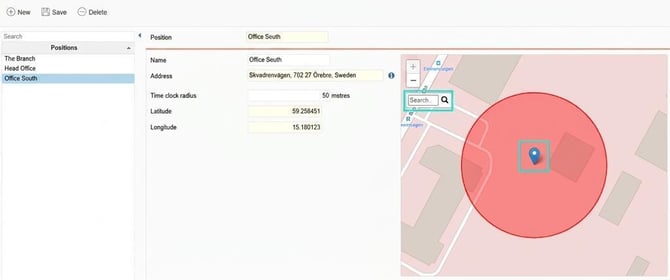
Set a time clock radius to capture time clockings near the position. In Settings > Time and Plan > Time reports you set a default value for the time clock radius, which is used if you don’t specify a deviating value for a particular position.
Set up permitted locations
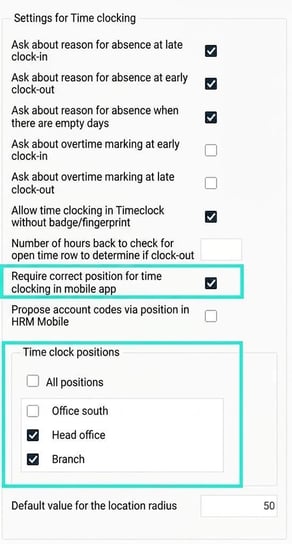
You can, by company, timegroup or employee set Require correct location for time clocking in mobile app, as well as which positions are permitted. Set per company under Settings > Time and Plan > Time reports, per timegroup under Settings > Time and Plan > Time groups, per employee under Employees > Time.
The most specific level applies. If you have specified in company settings that the correct location is required, but for a timegroup have stated that location is not required, location will not be checked for employees belonging to this timegroup.
Please note: This article is AI-translated. This means that linguistic errors or misunderstandings may occur.