
Manage benefit car with fuel benefit
This article describes how to handle company cars where the company pays for the fuel and the employee is taxed for private use (fuel benefit).
Prerequisites in the personnel register
For the management to work properly, you need to specify the following details for the employee:
-
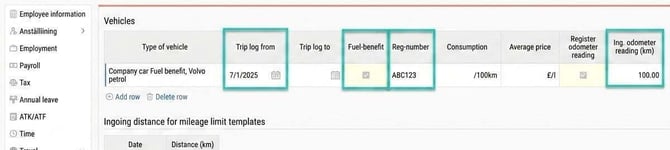
Go to Personnel > Employees and select the tab Travel - Vehicles.
-
Tick the box Fuel benefit.
-
Fill in the other mandatory details:
-
Trip log from
-
Reg-number
-
Ing odometer reading (km) - for ingoing value
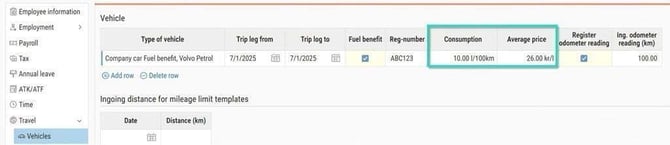
- Consumption (only if "Average" price is used as calculation method)
- Average price (only if "Average" price is used as calculation method)
-
Settings for calculation
You need to specify how the system should calculate the benefit value. You do this under Settings > Travel > Car trips > General.
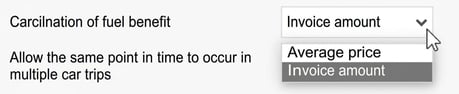
Invoice amount
If you use the invoice amount, the benefit value can vary from month to month depending on purchases and private miles. This provides an exact cost.
The system calculates the value according to the formula:
(number of private miles / total number of miles driven) x Invoice amount x 1.2
Average price per litre
If you choose this option, the system uses the values for the vehicle's consumption and average litre price that you have entered in the personnel register.
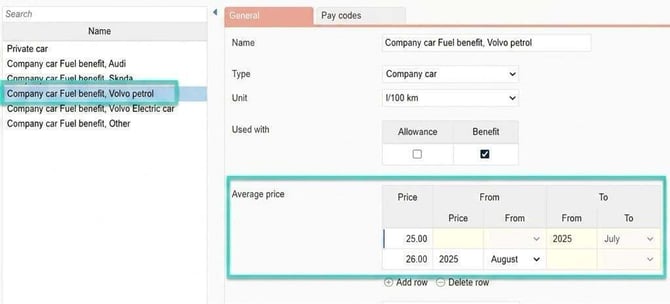
If the company has many similar vehicles, you can instead specify the price per type of vehicle under Settings > Travel > Car trips > Type of vehicles. The price is then applied to all employees linked to that type of vehicle.
Register miles driven
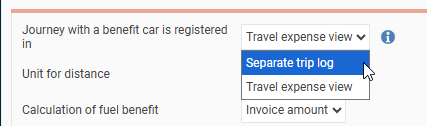
You choose where the employees should register their trips under Settings > Travel > Car trips > General.
-
Trip log: Trips are registered only in the trip log view.
-
Transaction view: Trips are registered in the standard travel expense claim view. It is still possible to see the trips in the trip log, but they cannot be changed or deleted from there.
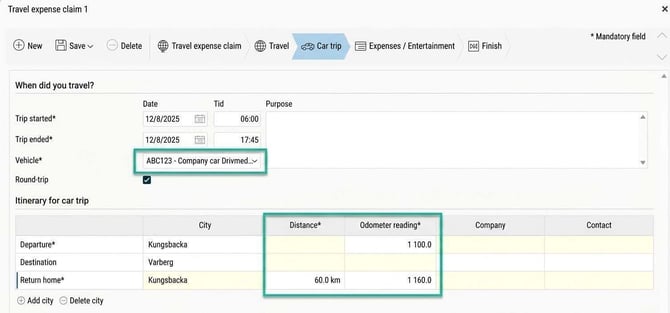
Register in Transaction view
Here you report miles directly in a travel expense claim.
-
If you have several vehicles, select the correct one from the list. If there is only one vehicle, it is selected automatically.
-
When you enter the distance, the outgoing odometer reading changes automatically. You can also choose to enter the outgoing odometer reading, and the system will calculate the distance for you.
-
Make sure all travel expense claims with miles driven for the period are submitted before settlement.
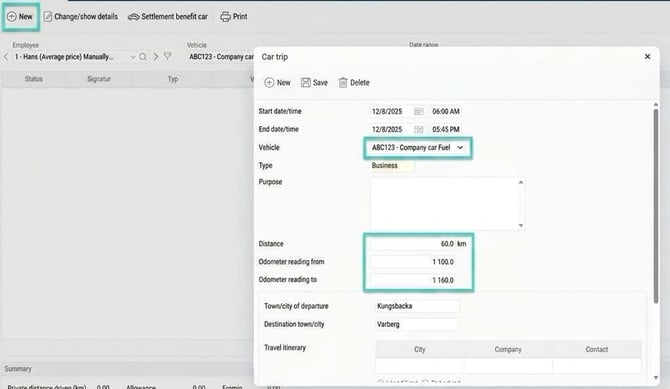
Register in separate Trip log
-
Go to the view Trip log.
-
Select a car and specify the correct date interval.
-
Click on New to start registration.
-
Fill in the details and click on Save.
-
Make sure the trips are submitted before settlement.

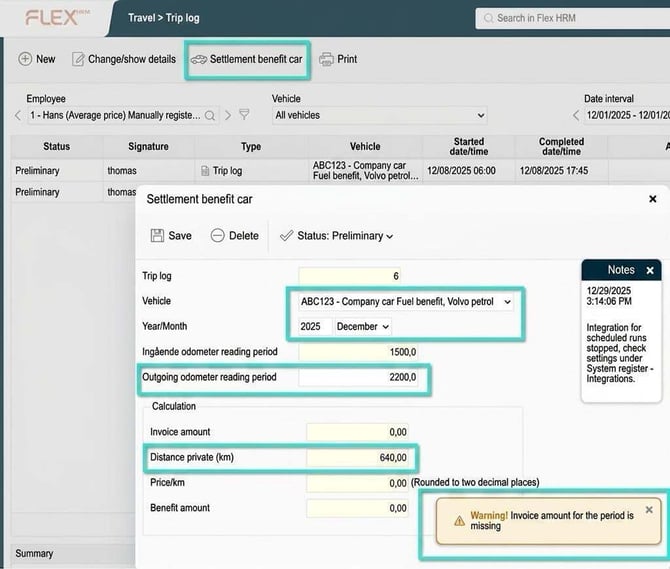
Settlement benefit car
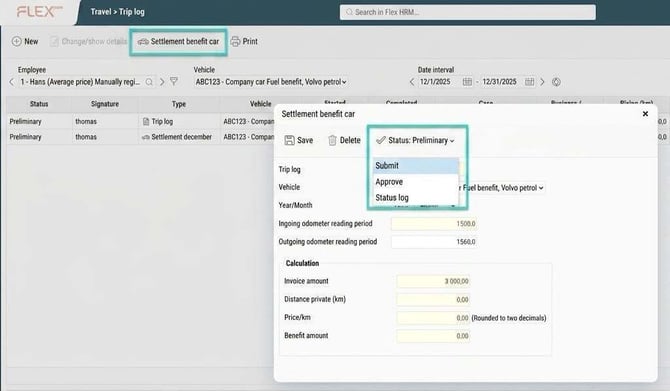
At the end of the month, the vehicle must be settled to calculate the amounts for the fuel benefit. This is always done in the view Trip log, regardless of where the trips were originally registered.
For employees: Submit settlement
-
Go to Travel > Trip log.
-
Select the car and period to be settled.
-
Specify Odometer outgoing as of the last of the month.
- The private mileage is calculated automatically.
-
Click on Save and then Submit.
-
If the invoice amount is missing, you will receive a warning, but you can still submit.
-
For administrators: Register Invoice amount
To complete the settlement, you need to enter the fuel cost:
-
Go to Actions processed > Registration of fuel invoices.
-
Click on Input new fuel invoices.
-
Enter the invoice amount for each employee in the list.
-
Click on Execute and confirm with Yes.
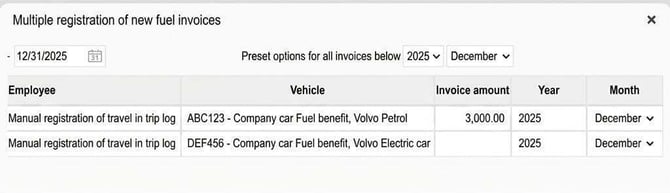
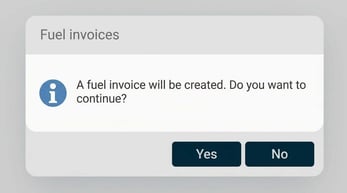
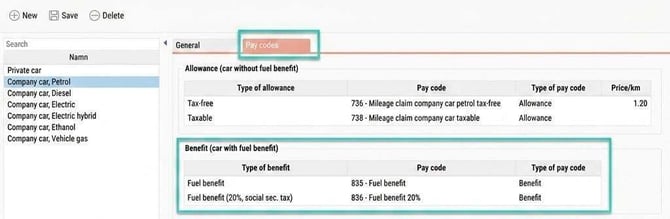
The settlement is now complete, and a fuel benefit has been created. The benefit amounts are recorded against the pay codes set under Settings > Travel > Car trips > Type of vehicles.
Approve the trip log
As a manager or administrator, you approve the documentation:
-
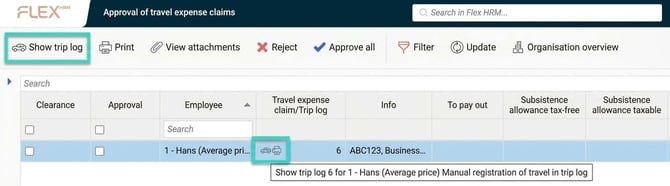
Go to the approval view. An icon for the trip log is shown next to the employee.
-
Click on the icon to check the information.
-
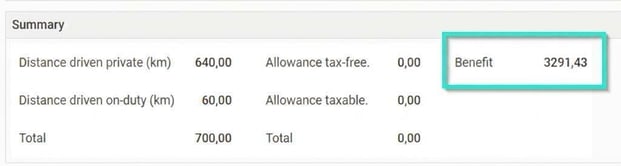
If the invoice amount has been entered, you will see the final values under Summary.
-
Click on Settlement benefit car to approve, or go back to the regular approval view and approve there.
Please note: This article is AI-translated. This means that linguistic errors or misunderstandings may occur.