
Quick help around the clock, for all
Flexie is available 24/7 and is designed to help all users, regardless of role – from employees and managers to system administrators.
Instead of searching in a manual, you can ask your question directly. A newly employed person can, for example, quickly learn how to apply for annual leave, while an administrator can get help finding a specific setting.
Flexie also provides you with links to specific articles in our knowledge base, where you can delve deeper into the subject.
Can Flexie perform actions in Flex HRM?
Yes. Flexie is constantly evolving and can answer specific questions about your own time report, travel expense claim, etc., and assist you with your reporting.
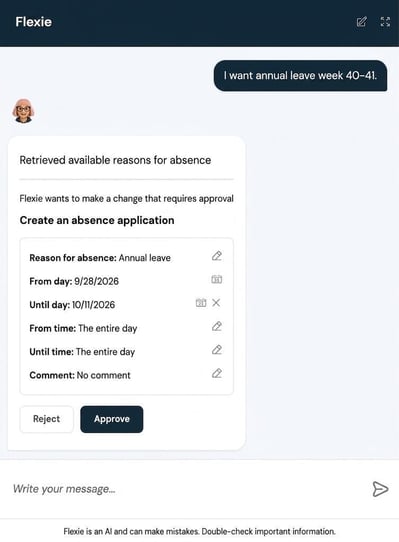
Among other things, Flexie can register car trips in your travel expense claim and respond to questions about your schedule and balances. Instead of, for example, applying for annual leave via the absence manager, you can ask Flexie to create the application for you. Flexie asks for your confirmation before saving.
What can Flexie do?
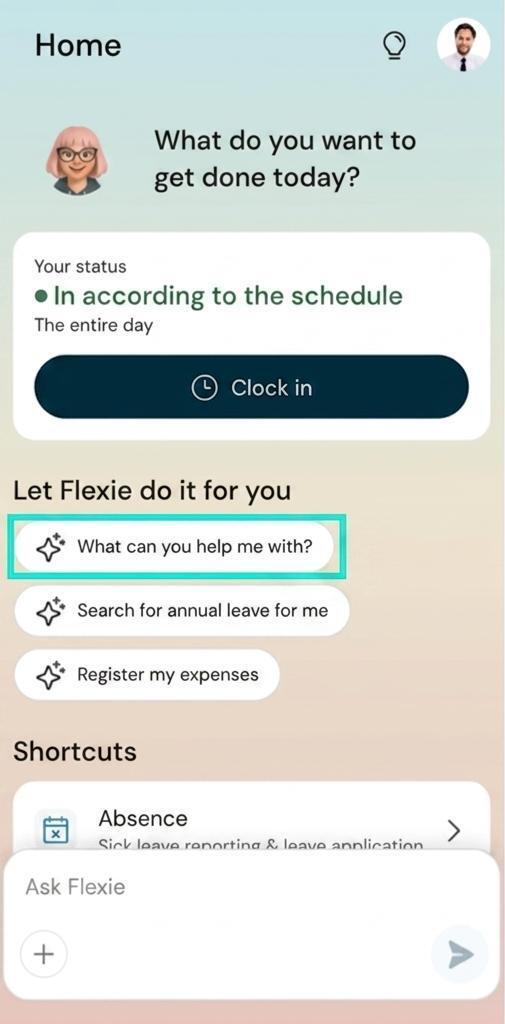
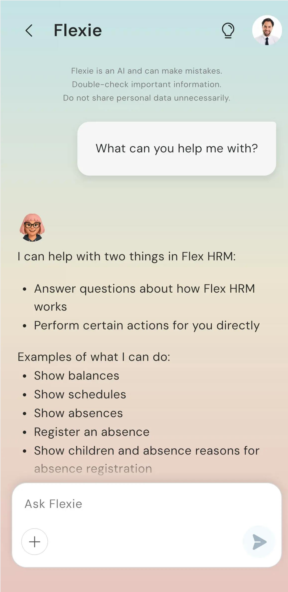
Flexie is continuously updated with new functions. You can ask Flexie what she can help you with. Type or speak your question. If you’re working in the Flex HRM app, the question What can you help me with? is available as a preset option on the front page.
|
|
How Flexie works
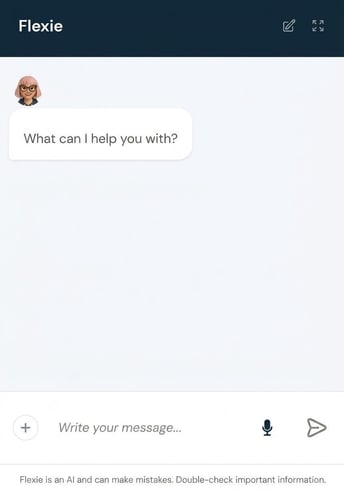
 You open Flexie via a icon in Flex HRM, which looks like a speech bubble. It appears by default in the bottom right, but you can move it.
When you click the icon, a chat window opens where you can type in your question.
When you ask Flexie a question, a stop button appears in the input box. Click this if you want to cancel. Your question will then be displayed again if you wish to adjust it and ask once more.
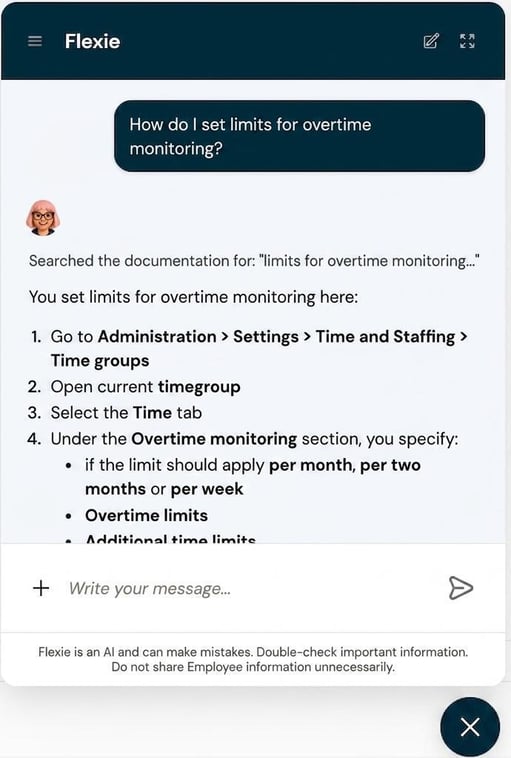
You can enlarge the window by dragging its left edge.
You can access earlier conversations using the three lines in the top left corner.
Use the plus sign to attach files (such as receipts, when you use Flexie to help create an expense).
Fullscreen mode and navigation
-
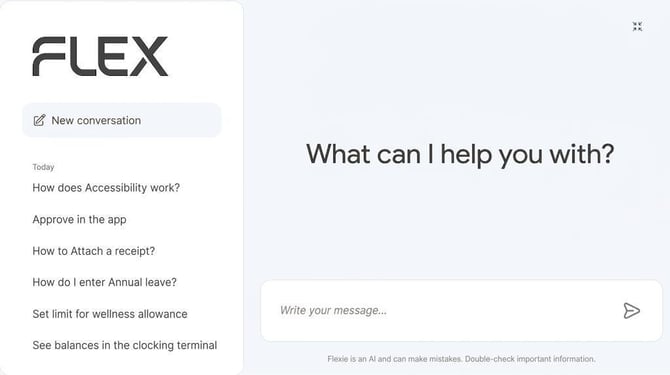
You can click the arrow icon in the top right to enlarge the window to fullscreen mode. You will then see earlier conversations and can choose to start a new one.
-
Exit fullscreen mode by clicking the icon in the top right corner again.
-
You can close Flexie by clicking the cross in the circle below the chat window.
-
If you have Flexie open and switch view in the system, the window will follow along and remain open when the next view loads.
How does voice control work?
You can communicate with your voice instead of typing to Flexie. Click the icon that shows a microphone to start speaking.
Currently this function is supported in the web browsers Google Chrome, Microsoft Edge and Safari on Mac, as well as in the Flex HRM mobile app. Please note it does not work in Firefox.
The microphone is found in Flex HRM’s text input window which will open automatically when you click in the box to communicate with Flexie.
Can’t see Flexie in your Flex HRM?
Flexie is being rolled out gradually to all customers. If you don’t have the speech bubble yet, it will appear in the future.
You don’t need to change any settings to enable access to Flexie.
Please note
Flexie is an AI and can make mistakes. Always double-check important information.
Please note: This article is AI-translated. This means that linguistic errors or misunderstandings may occur.