
💻Here you will find a description of the workflow for digital signing of documents in HRM.
Contents
Activate licence
Program link - Activate integration
Select document for e-signing
Authorisation
Integration with Scrive
With this module in HRM, you can send Contracts of employment, HR-forms and CVs for digital signing in Scrive, thereby avoiding paper handling and manual signatures. Managers and HR, among others, get a complete overview in HRM of all ongoing and signed documents and no longer need to work in several different systems to manage them.
Scrive handles email distribution to all signatories, reminders for documents that have not yet been signed, as well as the technical signing process. All documents are available in both HRM and Scrive.
To use the integration with Scrive, there must be an agreement between your company and Scrive. Contact Scrive for more information regarding terms and price for activating the integration.
Activation – step by step
Licence
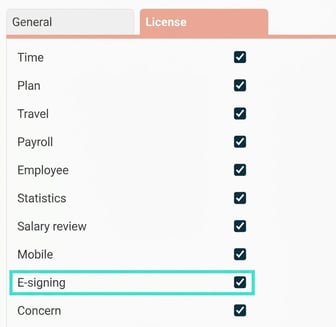
To activate the e-signing function, you must first activate the E-signing licence in HRM. In Administration – General – Company you can see that your company has the following licence:
Program link
To activate the function for e-signing, you must first create a program link to Scrive.
Go to Administration – Settings – Import/export – Program links.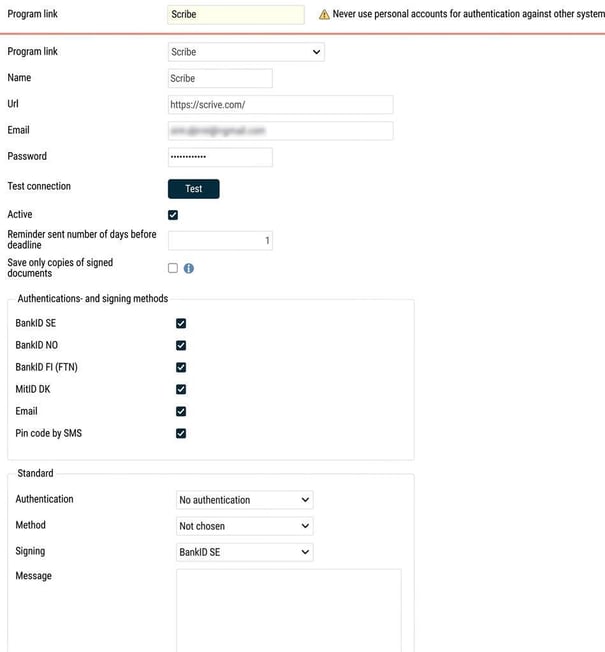
- Select program link Scrive
- Specify a name, e.g. Scrive
- Enter the URL https://Scrive.com/
Please note! Do not forget the / at the end of the URL. - Specify the user in Scrive that HRM should use to communicate with Scrive. We recommend that you specify an administrator account here with access to all HR-related documents in Scrive. All documents sent for signing from HRM will be linked to this account in Scrive.
- Click on the button Test to check that you have a connection to Scrive. You will see in the bottom right corner whether you succeeded or not.
- Specify how many days before the deadline Scrive should send a reminder to those who need to sign the document.
- Save only copies of signed documents – see separate heading below.
- Select which authentications- and signing methods should be used.
- Specify the default values that should be shown each time you send a document for signing. These can be adjusted for each individual signing, i.e. default values are only a suggestion.
Save only copies of signed documents
All e-signed documents in HRM are really a link to the document hosted in Scrive. The function to save copies of documents can be useful if you only want the documents stored in HRM and not in Scrive (separate setting in Scrive to delete documents there). This can also be used when changing e-signing provider – you can save your signed documents from the current provider before changing. If you do not save them before the switch, the documents (i.e. the links to them) will disappear from HRM when the program link is deactivated. As long as you can reactivate the program link, you can retrieve the links to the documents in order to then save down copies as outlined below.
Note that it is only fully signed documents for which a copy is saved, i.e. not documents with the status Discontinued, Rejected or Overdue. Once you activate the setting and save, you cannot undo it. This means that signed documents which have been copied will no longer be linked to Scrive. Documents that are not signed (Ongoing, Discontinued, Rejected or Overdue) will retain their connection to Scrive.
Please also note that you will not be able to see the copied document in the E-signing view after the copy has been saved or view the status of who has approved/signed in HRM (see image). You can still see who has signed the document in HRM if you open the document. Complete information about all approvers/signatories can be found in Scrive, provided that the document remains there. Approvers are shown only in Scrive.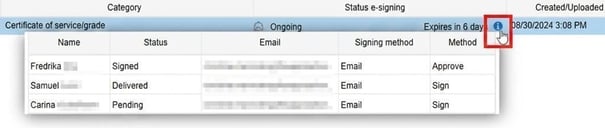
If it is important for you to see the full status of an e-signed document directly in HRM, we recommend only using this setting when discontinuing Scrive. Contact a consultant at Flex Applications if you have any questions.
Select document for e-signing
To be able to send a contract of employment or HR-form for digital signing as described earlier, you must first activate this in the document settings.
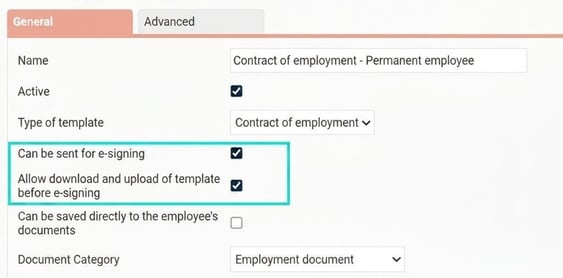
- Go to Administration – Settings – Personnel – HR-forms. (in this way, you control which documents can be sent for e-signing, as there is an ongoing cost per signing.)
- Tick the box Can be sent for e-signing for the relevant documents.
- Tick the box Allow download and upload of template before e-signing if you want to be able to edit a document before it is sent.
Authorisation
Set the authorisation for e-signing below for those roles who should see the e-signing overview.
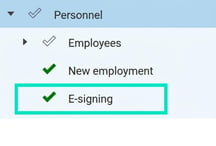
Remember that you must have authorisation to HR-forms/CV, document categories for relevant HR-forms, and authorisation for The report Contract of employment (applies only to HR-forms of the Contract of employment type) to be able to retrieve HR-forms for e-signing.
Authorisation that controls whether the role is allowed to retrieve HR-forms and CVs

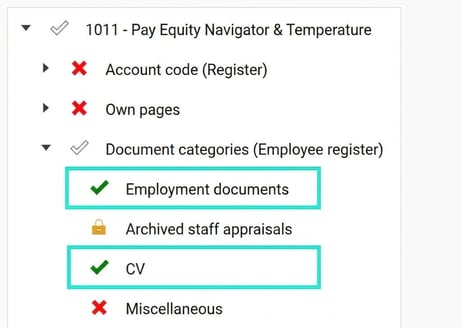
Controls which HR-forms can be retrieved (Document Category)
Below, HR-forms linked to the categories 'Employment documents' and 'CV' can be retrieved. If there are HR-forms linked to the category 'Miscellaneous', this role cannot retrieve those forms.
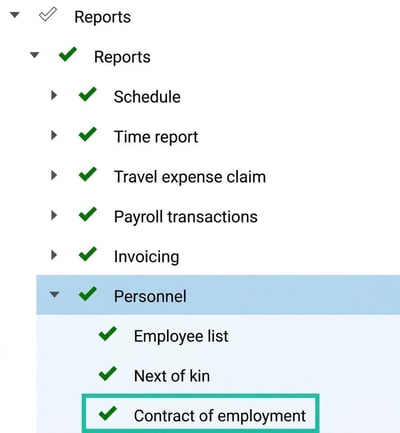
The report controls whether HR-forms of the type 'Contract of employment' can be retrieved
For contracts of employment, the above plus this authorisation is required
Please note: This article is AI-translated. This means that linguistic errors or misunderstandings may occur.