
Create employment templates
Employment templates are used to simplify the process when employees are to be added to the system.
We create different templates for various employment categories or other types of personnel divisions as needed. The template sets default values in HRM and is also important for the on boarding flow when you have HRM Employee.
If you have HRM Employee and several onboarding flows then the employment template will be the key for the system to identify which onboarding flow should be used for an employment.
Administration – Settings – Personnel – Employment templates
The image below shows commonly used templates. The names of the templates and what is needed for a unique company may vary. In your company, it may be relevant to have more or fewer templates.
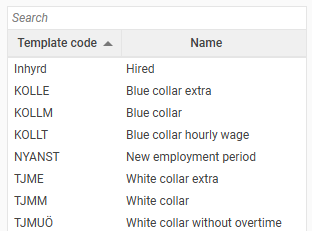
Set up templates
- Click on New to create a new template
 or open the requested template and make adjustments to suit your company.
 - Under General you set whether a user template should be linked automatically and, if applicable, other functions/default values to apply to the template.
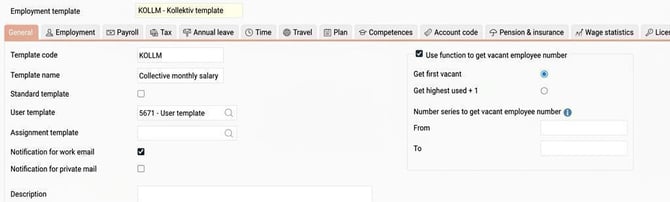
In the field User template you specify which user template is to be used when a new employee is added using the employment template. User templates are used to automatically create users when you add new employees and can be found under the menu item Administration – System register – User templates. We recommend that you use User templates to ensure the process is as efficient as possible.
In the field Assignment template you can also specify which assignment template should appear as a proposal when a new employee is added. You manage assignment templates under Administration – Register – Assignments, via the button Assignment template.
You can also specify whether notifications by default should be sent to the employee’s work email and/or private email. When you then add a new employee and choose this employment template, the selected settings will be proposed.
Under Description you can, if you wish, enter any text to serve as guidance regarding when/how the employment template is intended to be used.
Use the function to retrieve an available employee number
It is possible to use the same number series for multiple employment templates. In order to import a future employee in HRM without an employee number, you will also need to activate and set up a number series per employment template.
Here you can activate the function to retrieve an available employee number, which means that the system will automatically suggest the next available employee number when registering a new employee or importing via file/API.
Settings for number series can also be made for the entire company, see Personnel – Employees, under More and the button Settings.
- Go through each menu to set which default values should apply. Depending on the modules you have in HRM, you may see more or fewer of the menus.

- Save
Please note: This article is AI-translated. This means that linguistic errors or misunderstandings may occur.