
When working with the payroll mapping, you can flag jobs and employees if an action is required. In an ongoing analysis, you will see these in the view Documents & Actions, and you need to set up an action plan before you can close the analysis.
You can find action plans from completed analysis via Pay Equity Compass > Pay Equity Navigator. Here, the system gathers all remaining items, regardless of whether they originate from the latest mapping or a previous one. This gives you an overview to facilitate the effort to remedy identified unwarranted pay differences within the schedule.
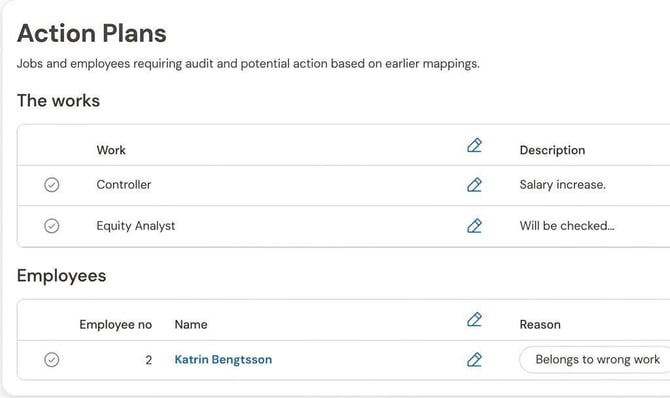
There you can see:
- which actions have been planned
- a cost estimate
- who is responsible
- a timeline indicating when the actions should be completed.
You can edit the action plans and mark them as completed once you have carried out the plan.
You can choose whether to hide the action plans that have already been completed or to show all. By default, all are shown.
| The leftmost column shows the status of the action plan: | |
| Completed |  |
| Not completed |  |
Click on the icon showing a pencil to edit an action plan and/or to Mark it as completed.
You cannot edit a completed plan, but you can mark it as not completed, which reopens it for editing.
Please note: This article is AI-translated. This means that linguistic errors or misunderstandings may occur.