
Approve time reports
Grouping in audit view per day
Approve time reports
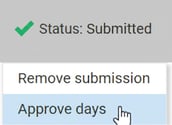
Approval of a time report can be done directly in the registration view using the option Approve days under Status.
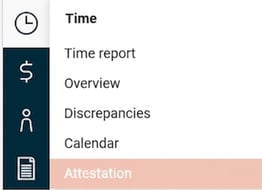
or via the overview view accessed via the menu Approval:
Please note
Here we use the term Submission for when an employee reviews their time report and Approval for when a manager reviews time reports. Your organisation may use a different term.
On the left in the overview view Approval of time reports all time reports that match the selection in the filter, chosen date interval, and the logged-in user’s authorisation are listed.
Click on a row to view the details to the right in the view.
The right section consists of two tabs, one for a quick overview of the entire time report and one for any entries under Allowances.
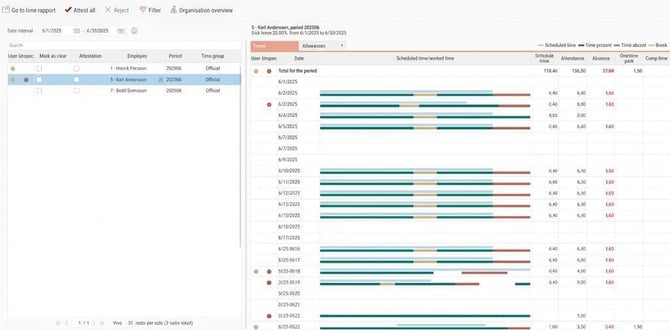
At the top, information about discrepancies, unspecified time and balances for the whole period is displayed.

For each day, information is shown in the same way as for the entire period, plus details on how the reported time appears.

Hover over an entry to get more information about:
- Attendance and how it is coded. All columns, except comments, that are shown in the time report are also displayed here to give the most possible information.

- Absence:

- Schedule time:
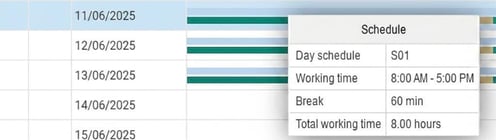
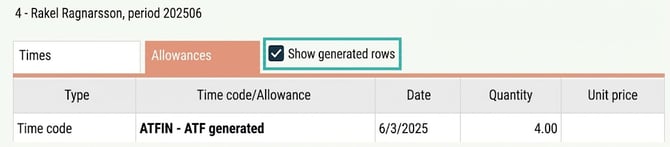
If there are entries under Allowances this is indicated with the symbol *. There is a check box that controls whether automatically generated rows should be displayed or not.
Approve the time report by ticking Approval in the list to the left. Your signature will then appear, and the time report is ready to be transferred to payroll. The blue information icon gives a pop-up showing which users can approve the selected employee.

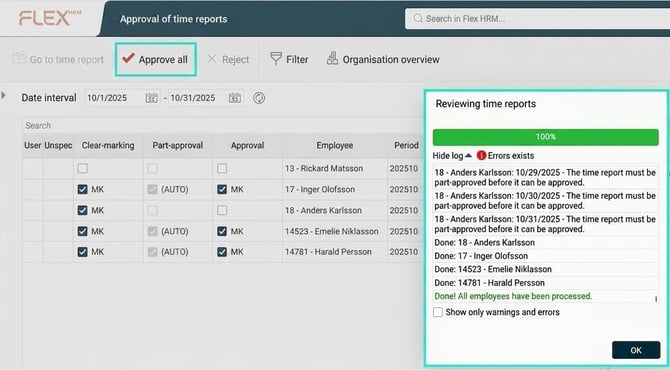
You can also choose to approve all time reports in the list using the button Approve all. All time reports on the loaded page will then be approved. If any time report cannot be approved, you can see the reason for this in a log.
Grouping in audit view per day
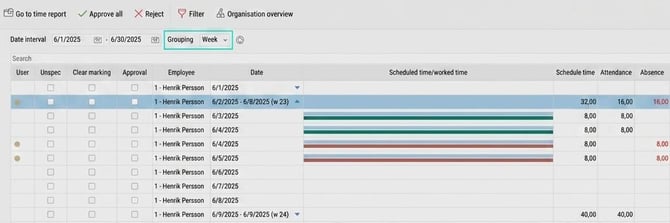
Sometimes you want to approve time reports weekly, for example to enable invoicing on a weekly basis. At the same time, transfer to payroll is done monthly. What Flex HRM enables is that you can set approval to be per day, but in the approval view you can group by week and still make the weekly approval smooth. Meanwhile, if a month ends with a Monday, there is an option to approve just the Monday to get the month fully approved without having to wait until the week is finished.
If you approve per day, there is an option for grouping in the Approve time reports view. There you can choose to group per week, and expand rows to view information for separate days.
Please note: This article is AI-translated. This means that linguistic errors or misunderstandings may occur.