
Export of balances from HRM Payroll to HRM Time
To always have updated balances such as annual leave and comp time in the time report, you want to be able to export current balances from the payroll system to the time reports. The main need for this is after the annual leave year shift, when new holiday days are allocated. As balances are sometimes adjusted directly in Payroll, you usually want to do an export after every payroll run to always have updated balances in the time system.
You choose which balances are to be exported from Payroll to the time reports under Administration > Settings > Payroll > Payroll runs > Balance export tab.
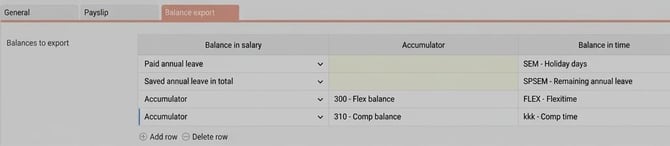
In the first column, you select whether it is a vacation balance or a balance from an accumulator to be exported. If it concerns an accumulator, you select in the second column which accumulator is involved. This is used, for example, for comp time balance and flex balance. In the third column, you select which balance in the time report the balance should be put into. The balance must be of the rolling type.
If a balance in Time is not activated for all time groups, the export will only occur for those time groups where the balance is activated.
If you only have one balance for annual leave in the time report, you can choose to export paid, unpaid, days in advance, and remaining annual leave to the same balance in Time.

When you export the vacation balance, the system checks whether the vacation quota is activated in Time. You can find this setting under Administration > Settings > Time and Plan > Balances > Define balances.
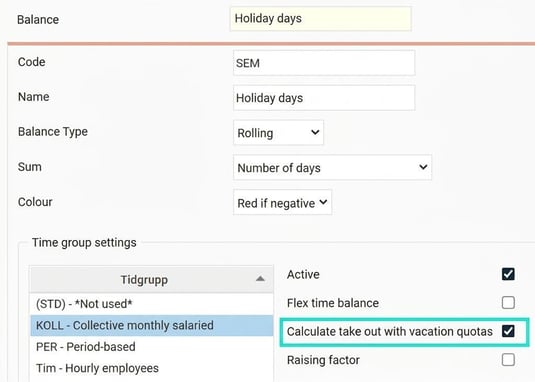
Vacation quota is a setting used to calculate net days, i.e., the actual number of holiday days an employee can take out when working intermittent (irregular) hours. If you have not ticked the setting for vacation quota, the net balance will be exported, which means that the balance in the time report will always show how many days are actually available for leave according to each employee's work schedule.
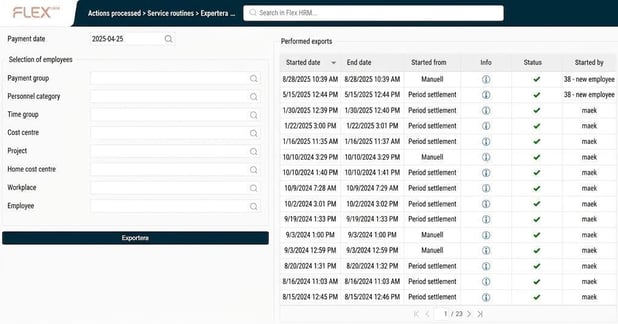
To actually perform the export, you can do it manually via the routine Export balance from Payroll to Time. At the top, select which payment date (which payroll run) the balances should be fetched from. Make the desired selection of employees and click Export to start the export. In the list to the right, you see all completed exports.
When you perform the export, the outgoing balances of the payroll run are retrieved and these are now set as ingoing balances in the time report for the day after the payroll run's discrepancy period. The payroll run with payment on 25 November usually has a discrepancy period 1–31 October. This means that incoming values will be set in the time report on 1 November.
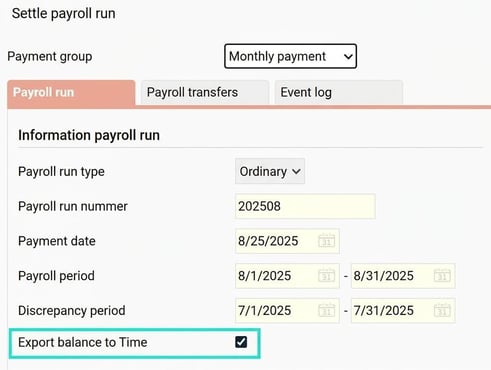
Once you have set the balance export settings, balances will by default also be exported every time a payroll run is period settled. If you want to do a period settlement without exporting balances, untick the checkbox.
Please note: This article is AI-translated. This means that linguistic errors or misunderstandings may occur.