
Reasons for absence are used to configure how absence management should operate and which time codes should be generated in the time report during absence. Reasons for absence are added per company and can, in the folder Time be adapted per time group.
Important to keep in mind:
When you adjust or add new reasons for absence, make sure to test the workflow from absence registration all the way through to payroll.
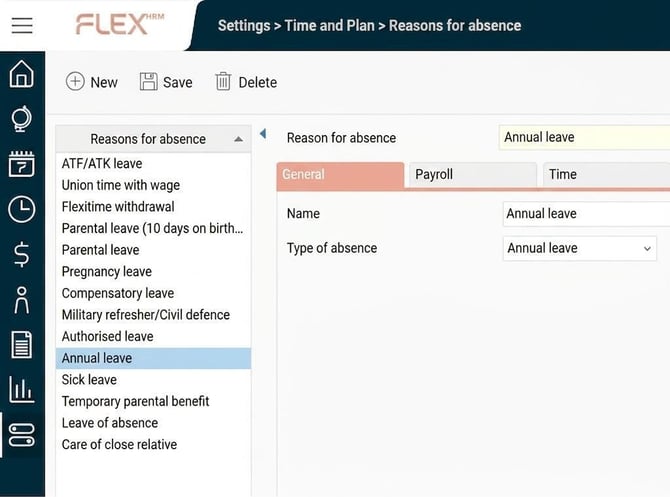
Reason for absence, folder General
Under the folder General you enter the name and select which type of absence the reason refers to.
For the type of absence Parental leave, you must also specify whether children are to be indicated in connection with absence, and how the child should be indicated (date of birth, national ID number, identification number).
Reason for absence, Time tab
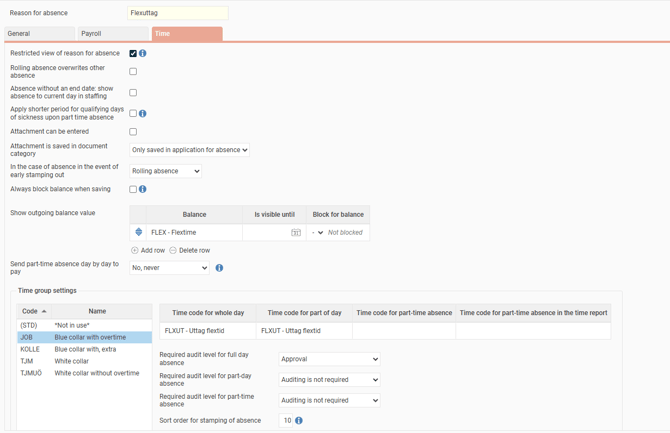
In this tab, the following settings are configured:
- Restricted view of reason for absence. Used to hide the reason for absence in, among others, the Attendance and the Calendar. If display is restricted, only "Absence" is shown instead of, for example, "Sick leave". You can configure authorisation to view the reason for absence even when restriction is in use.
- Rolling absence overrides other absence. Rolling absence is an absence without an end date. In a time report, annual leave might be recorded for 5 June. If a rolling sick leave starts 4 June, it takes precedence over the annual leave.
- For absence without an end date: show absence to current day in the staffing. Rolling absence (absence without an end date) can be tricky to handle in staffing because you do not know when it will be completed. With this setting, you can choose to show rolling absence only up to today's date. If you do not use the setting, rolling absence will be shown for all future days in the staffing until an end date is assigned.
- Give a shorter qualifying period for absence part time. Used if absence part time is to give a shorter qualifying period in the same way as a lower contractual working hours. This setting only has effect if "Days ahead of unsocial working hours" is set to "Only from the end of the qualifying period until day 14".
- Attachment can be entered: You can specify that appendices may be attached in the absence manager. This could apply, for example, to a medical certificate. There are role settings for who can view and upload attachments. If the company is licensed for HRM Employee and/or HRM Payroll, you can also specify that the attachment is saved in the employee register.
- When asking about absence at early clock-out. If you clock out before the end of working hours/before the flex frame starts, you may receive a question to specify reason for absence, which then creates an absence. This setting is used to decide whether there will be absence to the end of the day, a rolling absence lasting until the next clock-in, or whether the user can choose themselves during clock-out.
- Show outgoing balance value. Specify the balances to be shown in the absence manager. In an application for annual leave, for example, it is useful to see how many holiday days you have left.
- Shown up to Used for balances such as annual leave, where days are often topped up on 1 April. If you apply in March, you will not see the days to be added in April.
- Block for balance. Used if, for example, you should not be able to take annual leave when there are too few days in your balance. If you have five days in your holiday balance and a block for balance value 0 is set, you can apply for six days of annual leave, but the application cannot be approved because the balance value would fall below 0.
Absence that is not to be approved, but generated directly in the time report, will not be saved if it causes you to go below the set balance block.
- Always block the balance when saving. If the block for balance is used, it is not possible to approve an application for absence if it would result in the balance dropping below the block. By ticking this setting, the block applies earlier, so the application for absence will not be able to be saved.
- Send absence part time, day by day, to payroll. Absence part time is usually sent to payroll using a date interval and extent, regardlessof whether the reduction in absence part time is the same every day or intermittent. With this setting, you can choose to transfer absence part time to payroll per day instead. If absence part time is sent day by day, the absence time is calculated as the difference between number of hours full-time and the schedule time for absence part time. "Selectable" means it can be changed in the absence manager.
Time group settings
You configure per time group which time codes should apply for each reason for absence. Specify time code for full day, for part of a day, and for absence part time. If you do not specify time codes, the reason for absence will not be selectable in the absence manager for employees belonging to that time group. If you only specify a time code for a full day, you cannot create absence for part of a day.
Time code for absence part time in the time report is entered if you want the absence part time to be recorded as a time row in the time report. Without this, the schedule time decreases, and information about absence part time is displayed in the time report's day information and period information.
In companies with home country Denmark, Norway, or Finland, the setting Use interval for time codes is available. Checking this box allows you to control when different time codes apply within an absence period. For example, sick leave might use one time code for the first 14 days and a different time code from day 15 onwards.
In companies with Sweden as home country, the Use interval for time codes setting is not available. In the example above, this would instead be split across different pay codes in the payroll preparation via settings.
When Use interval for time codes is selected, the settings Number of permitted break days for consistent absence and Break days are counted as are also available. There, you can enter, for example, 5 days so that an absence is counted as the same interval if it recurs within a maximum of 5 days. Break days are counted as determines whether working days or calendar days are counted.
In companies based in Norway, absence reasons of the type Sickness are automatically set to 16 interruption days in calendar days. This cannot be changed.
You can also set the required audit level per time group. "Auditing is not required" means that absence is generated in the time report when it is saved in the absence manager. If an audit level is required, an application is created upon first save. The absence is recorded in the time report only once it has been fully audited.
By specifying a number for "Sorting sequence when clocking absence" you can, per time group, determine whether a reason for absence should be selectable when clocking absence, and control in which order reasons for absence are shown during clocking.
Please note: This article is AI-translated. This means that linguistic errors or misunderstandings may occur.