
The Feriesaldo setting is only available for companies with Denmark as the home country.
Activate vacation balance
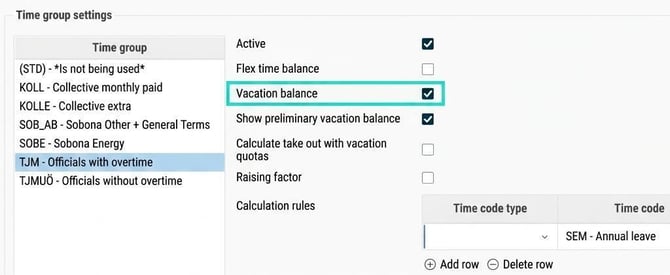
For the system to calculate earned annual leave in line with current rules, you need to activate the setting Vacation balance. This is done under Settings > Time and Plan > Balances > Define balances. Please note that balances are set per time group.
Permanent balance adjustment
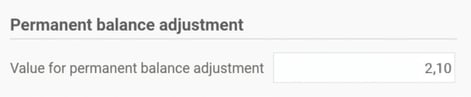
You add a permanent balance adjustment to adjust the balance with the annual leave earned in the previous month.
- Go to Settings > Time and Plan > Balances > Fixed balance adjustments.
- Select the balance that you have set as Holiday/ferie balance.
- Specify the fixed value to be earned per month:
- Leave in days: Enter the number of days earned per month (often 2.08).
- Leave in hours: Enter the number of hours earned per month (often 15.43). If you use leave in hours, you must also have a vacation balance with the type of summary set to Number of hours.
- Save.

View earned holidays/ferie in the time report
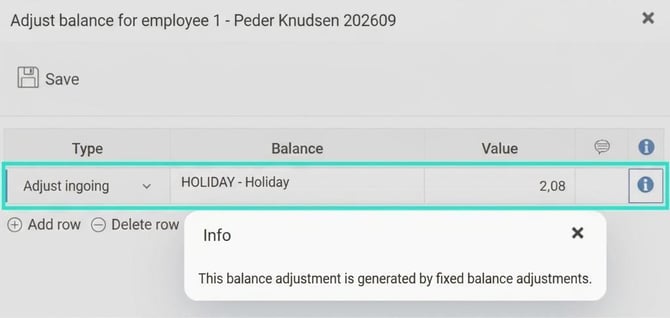
The earned holiday days are displayed to the user under More > Adjust balances in the time report.
Show preliminary vacation balance
You can find the setting Show preliminary vacation balance under Settings > Time and Plan > Balances > Define balances.
- Activated: The user can see calculations for their vacation balance going forward by stepping through the time report.
- Deactivated: Future periods are not included when stepping through the time report (except for future time reports that have been reviewed).
Handling for part-time employees
How annual leave is accrued for part-time employees depends on whether the calculation is in days or hours.
Accruing leave in days
For employees who accrue leave in days, the calculation is based on the number of days per week the person is, on mean, scheduled during the period. If an employee, for example, works four days a week on average, the number of earned holiday days decreases by one fifth.
The vacation quota affects the calculation and is automatically calculated from the schedule using the following formula 5 / arbetsdagar per vecka.
- Example: If they work four days per week, the formula is 5 / 4 = 1.25. The number of earned holiday days then becomes 2.08 / 1.25 = 1.66.
You will find the calculated vacation quota in the Employee register on the Employment tab.
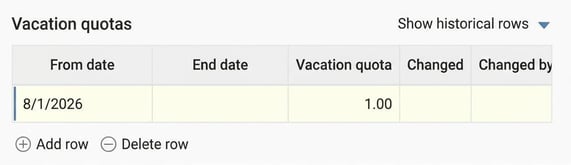
You can also enter a manual vacation quota here if it should be different from the schedule's quota. The manual quota overrides the calculated quota.
If neither a schedule nor a manual vacation quota is set, accrual will be 0.
Accruing leave in hours
For hourly employees (balance with type of summary Number of hours) the system uses the contractual working hours specified in the Employee register under the Employment tab.
If no contractual working hours are specified, accrual will be 0.
- Example: If the contractual working hours are 50% and the permanent balance adjustment is 15.43 hours, the accrual will be 0.5 x 15.43 = 7.72 hours.
Exception: Raising factor
If you want the full amount from the permanent balance adjustment to be accrued without regard to scheduled days or contractual working hours: Tick Raising factor for the balance under Settings > Time and Plan > Balances > Define balances.
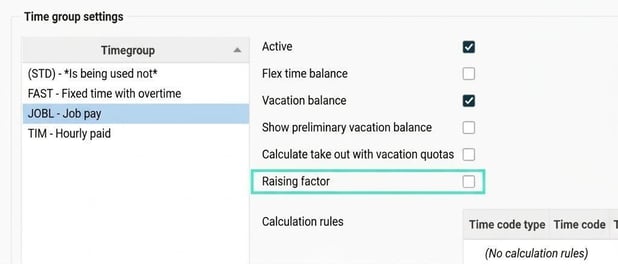
If you want part-time to reduce the earned vacation, Raising factor must be unticked.
Other settings and special cases
Absence part time
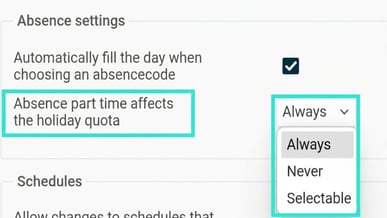
The setting Part-time absence affects the holiday quota is found under Settings > Time and plan > Time reports. It determines whether a temporary part-time absence will affect the vacation quota, which in turn affects the vacation balance.
New employment and termination
- New employment in the middle of a month: The employee accrues leave for the following month based on how many days they were employed. For holiday days, this is 0.07 days per day (for full time). For hourly employees, it is about 0.52 hours per day.
- Termination of employment: The final month's earned days are added to the balance in the same month the employee leaves, together with the previous month's earned days.
Leave without pay (Orlov)
Under Settings > Time and Plan > Reason for absence you will find the absence type Leave without pay. If an employee has an absence of this type, they will not earn leave during these days.
- For full time, 0.07 days are deducted per day if the original value is 2.08.
- For part-time, a proportionately lower daily rate is deducted.
- For hours, about 0.52 hours are deducted per day if the original value is 15.43.
Customise at employment level
You can use Fields in the personal register when setting up fixed balance adjustments.

This retrieves individual values from each employee so you can adjust the number of holiday days directly at the employment level (the Time tab in the employee register).
If the adjustment goes to the vacation balance, the outcome is affected by part-time, date of employment and orlov without pay in the same way as with a fixed value.
Senior days
You can add extra senior days for employees above a certain age. Specify an age under Fixed balance adjustments so that the calculation only applies to employees turning the specified age during the relevant year or older. The days are accrued throughout the year, not just from the birthday onwards.
The senior days are added as an extra adjustment to the balance, in addition to your ordinary adjustment. When the adjustment is made to the vacation balance, the outcome is affected by part-time, date of employment and orlov without pay in the same way as the ordinary vacation adjustment.
Broken period
If you use a broken period in time reports (for example, the 21st to the 20th), the vacation balance is still calculated per calendar month. Holiday days accrued during a calendar month are added to the balance on the first calendar day of the following month.
Note - A temporary issue meant that the saved vacation day balance was not updated at the turn of the leave year
In version 2026.176.0.789 an update was made to the Danish leave handling process. Leave is accrued during the month and added to the balance on the 1st of the following month, even when the reporting period is broken.
In connection with this change, an error occurred that affected other balance adjustments. For example, adjustments at the turn of the leave year which move remaining holiday days from active days to the saved vacation day balance. This only affected Danish companies.
The error has been corrected in version 2026.178.0.792. If any employee submitted the previous period while the error was out, the time report for that period needs to be recalculated. Do as follows:
- Go to Actions processed > Service routines > Recalculation of time reports.
- Select a selection of employees.
- Specify the days included in the previous period.
- Click Recalculate.
After recalculation, the balance adjustments are completed for the employees included in the selection, including the transfer to the saved vacation day balance.
Please note: This article is AI-translated. This means that linguistic errors or misunderstandings may occur.