
Import trip logs
In Flex HRM, you can import trip logs from external providers of electronic trip logs. The import can be done either from a text file or via the Flex HRM web API. It is also possible for you to import your own car trips if you have a vehicle that can automatically record trip logs to a text or CSV file.
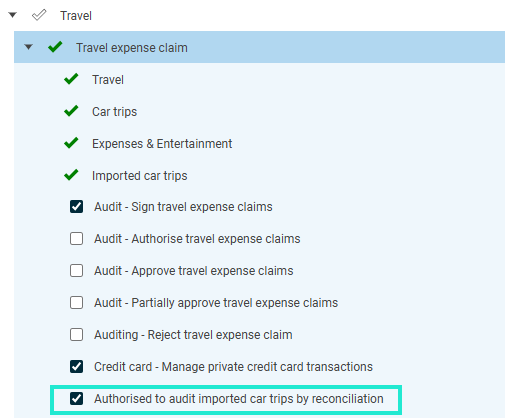
To use this function, you need an employee role with the correct authorisation for imported car trips. For this role, you can also choose whether you should be able to edit the imported car trips during a reconciliation.
Set up car trips in HRM Travel
The function Import car trips requires that company cars are registered in the Transaction view. Therefore, make sure this setting is in place.
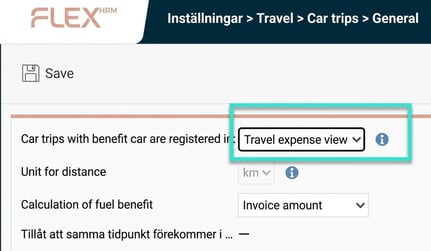
This means that employees who want to use the built-in trip log, instead of importing, must register their journeys in the Transaction view. They can still use the Trip log menu to check and reconcile registered journeys.
User role and authorisations
To access this function, you must have an employee role that authorises you to import car trips. For this role, you can also set whether you should be able to edit imported car trips in connection with reconciliation.
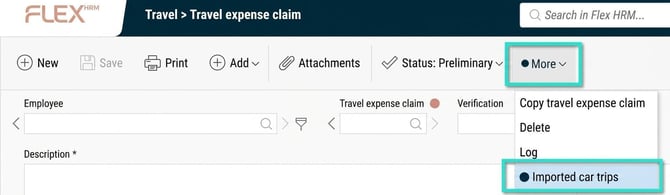
Authorised users get a new option under the More menu to reconcile imported car trips.
Create an import template
To be able to import trip logs from a text file, you first need to create an import template that describes the file format.
Here's how to do it:
-
Go to Administration > Settings > Import/Export > Import templates.
-
Specify a name for the template and choose whether it should be active.
-
Select import type Car trip.
-
Specify the field delimiter, for example semicolon.
-
If the file has a header row that you want to skip, select that option.
-
If the file contains fields that you do not wish to import, such as odometer reading, add these as empty fields in the template.
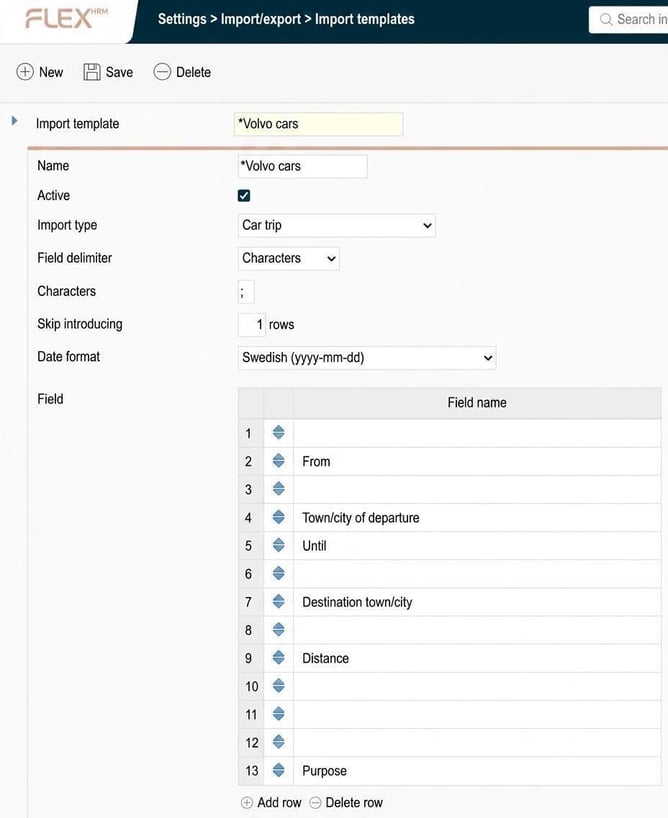
An import template that does not contain an employee number can only be used for personal imports.
Create an import
Once you have an import template, you can create an import.
-
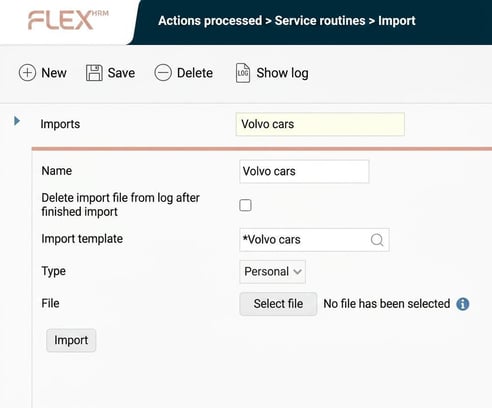
Go to Administration > Actions processed > Service routines > Import.
-
Specify a name for the import. This name will be shown when you import car trips to your travel expense claim.
-
If the import template contains employee number, you can choose to create a personal or general import. Imports that do not have employee number can only be personal.
- In the example below, the import template does not contain employee number and can thus only be of Type "Personal"
Tip! Do you want to know how an employee imports a trip log into a travel expense claim? Click here
Please note: This article is AI-translated. This means that linguistic errors or misunderstandings may occur.