
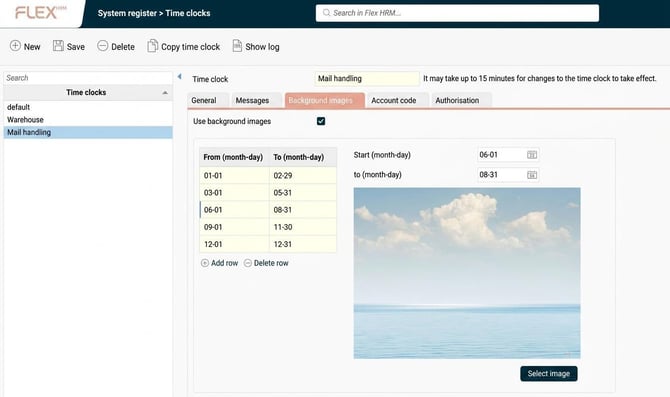
Under System register > Time clock > Background images you can select a clock and tick Use background images.
Once you've done this, an image will automatically be assigned for each season; a winter image for the period December – February, a spring image for the period March – May, a summer image for the period June – August and an autumn image for the period September – November. You can adjust these dates yourself if you wish. You can also choose to add any of the other available images.
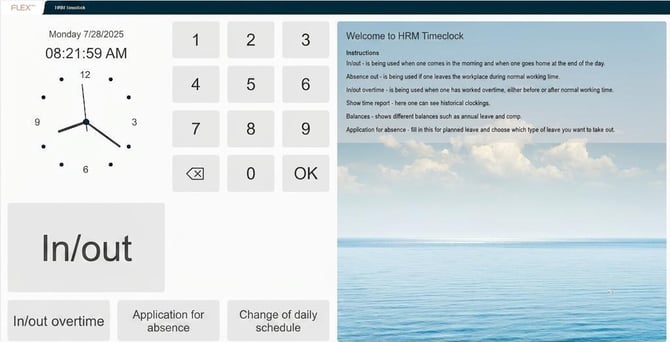
In HRM Timeclock, the current background image will be displayed in the right section of the time clock.
Please note: This article is AI-translated. This means that linguistic errors or misunderstandings may occur.