
Under System register > Time clock you can create and edit the appearance and function of the time clocks.
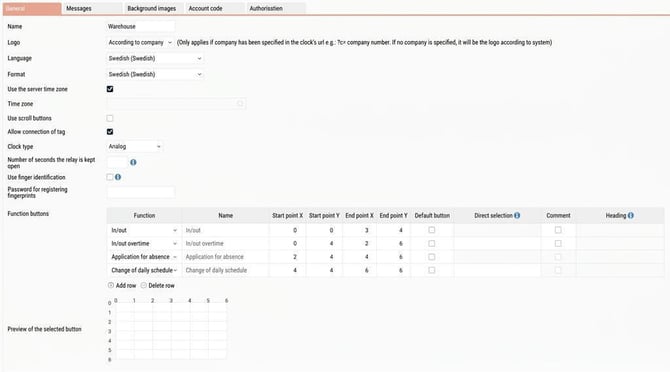
Name
Here you give the time clock a name.
Logo
Here you have the option to include your company's logo at the top left of the clock. You do this by choosing one of the options According to system or According to company.
Language, Format
Here you choose which language the current time clock should have. Available languages besides Swedish are English, Norwegian, Danish and Finnish. You can also choose the format, which then adapts the way date and time are displayed to the standard format of the selected country.
Time zone
By default, HRM Timeclock retrieves the time from the server where the system is installed, but you can select another time zone by marking the wanted option in the selection menu. All time clockings on the current clock will then be according to the time in the selected time zone.
More information regarding time zones
When you clock in with Flex HRM Mobile, the clock uses the server’s time but adjusts it by the difference between the server’s time zone and the phone’s time zone setting. The attendance list (both in HRM and in Timeclock) as well as My colleagues in Mobile, which shows employees’ current status, will take into account the time zone they clocked in from.
Use scroll buttons
If you run Flex HRM Timeclock on a device that cannot scroll by swiping your finger on the screen (for example, Timespot 37), you have the option to choose whether scroll buttons should be displayed. To activate them, tick this setting.
Allow connection of tag
Tick this setting to enable the possibility, on user level, to connect a tag for clocking in/out. When clocking in/out with a tag-ID that is not saved on any other user, the person clocking in will be given the option to specify a user to link the tag-ID to.
Clock type
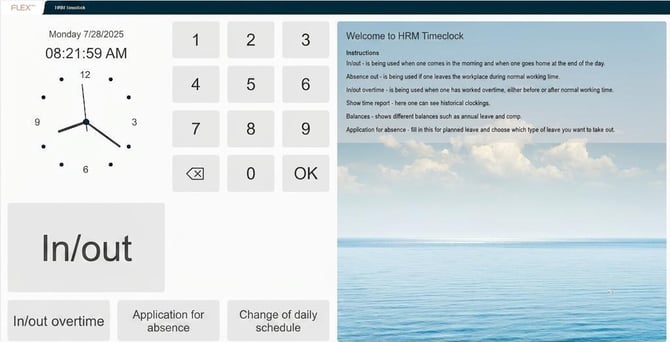
Here you have the option to choose whether the clock will be displayed digital, analogue or both. If you do not make a selection here, the clock will be digital.
HRM Timeclock with digital and analogue clock:
Use finger identification, Password to register fingerprints
If the company uses a fingerprint reader, there is the possibility here to let users use fingerprints when clocking on the terminal. You can also choose whether a password should be required to register a new fingerprint on the terminal if, for example, you want an Administrator or similar to be involved when a new fingerprint is registered. You then also need to add a button for registering fingerprints, which is done under Function buttons (see below).
Please note that it is only possible to connect fingerprints to numerical User-IDs.
Function buttons
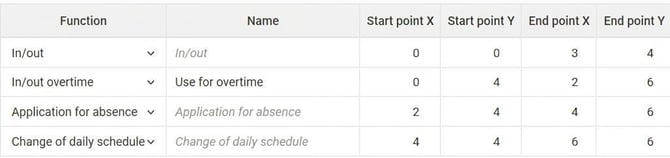
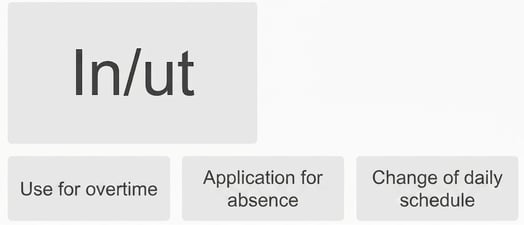
Under Function buttons you specify which buttons should be displayed on the clock, what text should appear on the buttons, as well as the size and position of the buttons. You can also choose which button will be the default button, meaning the button that is shown when you only present the badge without selecting any function button. The size and position of the buttons are adjusted by specifying X and Y coordinates for the start and end point. Accepted values are the numbers 0–6. Picture a grid where the position at the top left is 0,0 and the position at the bottom right is 6,6.
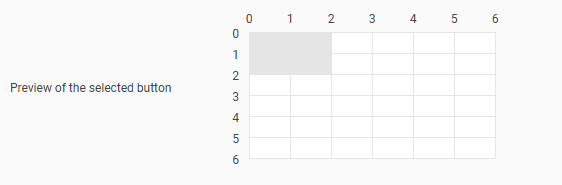
To make it easier to create new or change the button layout in existing time clocks, there is a preview that shows where the selected button will be displayed according to the settings you have made. The area of the time clock where the function buttons are placed contains a grid of 6x6 squares where you can select which squares each function button should cover.
Below you see an example of setting up the button layout and the result in the time clock:
Please note: This article is AI-translated. This means that linguistic errors or misunderstandings may occur.