
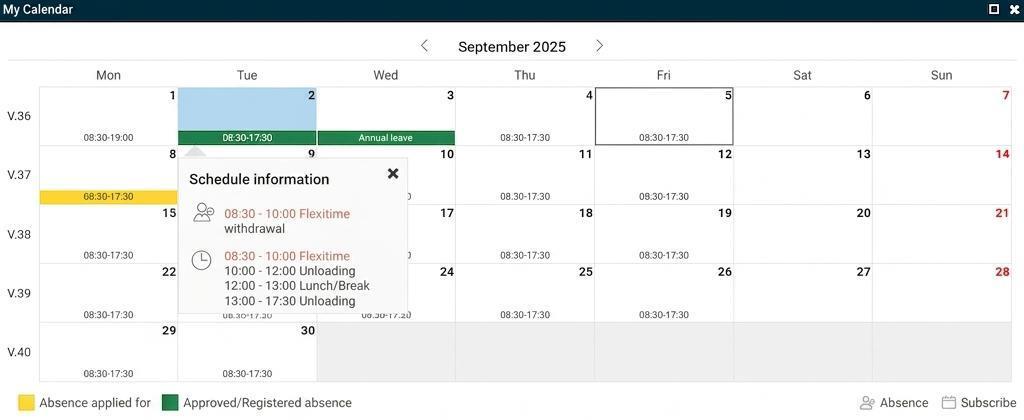
View details in the calendar
You can click on a day to see more information in a tooltip. The details shown depend on how you record time in the system:
-
If you report by day you will see the times for your working time, absence and breaks.
-
If you report by period you will see the number of hours for the day, not the times.
-
If your company uses HRM Plan and schedules on an account code, you can view details of your work shifts.
Apply for absence
You can apply for absence directly from the calendar.
-
Click on Absence at the bottom right of the panel.
-
You can also drag and drop to mark the dates you wish to apply for absence for. The absence manager will then open with the dates pre-filled.
Subscribe to your schedule
If your company uses the function Subscribe to schedule you can add your schedule to your usual calendar application (Google, iPhone, MacOS or Outlook).
-
Click on Subscribe at the bottom right. You will then receive a link that you can use to subscribe to the schedule.
Please note: This article is AI-translated. This means that linguistic errors or misunderstandings may occur.