
Activation of Invoicing
To activate the function, you can choose here whether you want to activate both Time and/or Travel. You select the account code dimensions you want to be able to export and invoice.
Settings - General - Invoicing - General tab
The “Field name / Priority” column
Add the account codes (the field name column) you want to include in the release in both Time and Travel, and set the priority order for searching for price. This also controls which account codes appear in the function “Edit of invoice basis”
Priority controls the order in which the system should search for the pricing. The system looks for the price in the account code on row 1, then the account code on row 2, and so on.
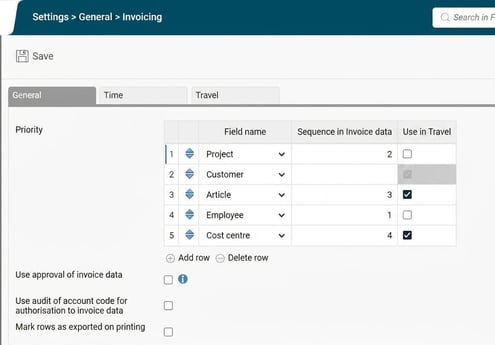
The “Sequence in Invoice data” column
Controls only how you want to group the Report printout under the function “Release to invoicing”.

The “Used in Travel” column
Activate the account codes to be used in Travel.
Article is most commonly used for pricing. For export to Fortnox it is mandatory.
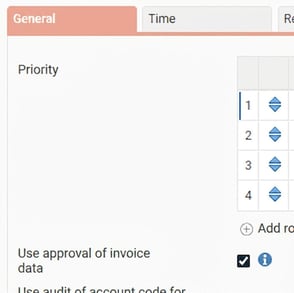
Use invoice documentation approval
If you wish to have approval of released rows before exporting.
See more under the section “Edit and approval of invoice basis”.
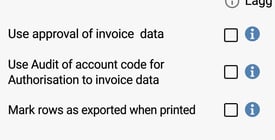
Use audit of account code for authorisation to invoice data
If you want to control the authorisation so that only those responsible for review on the projects can edit and approve.
See more under the section “Edit and approval of invoice basis”.
Mark rows as exported upon printout
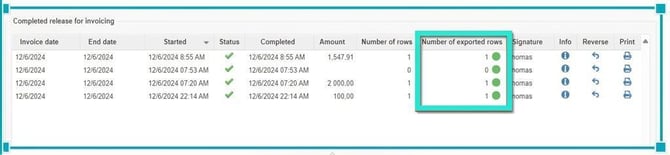
If you do not extract export files and only want report printouts of the invoice data, you can activate this option so that exports are marked with a “green” icon.
If you export the invoice data as a file, the green icon appears automatically after the file export has been completed.
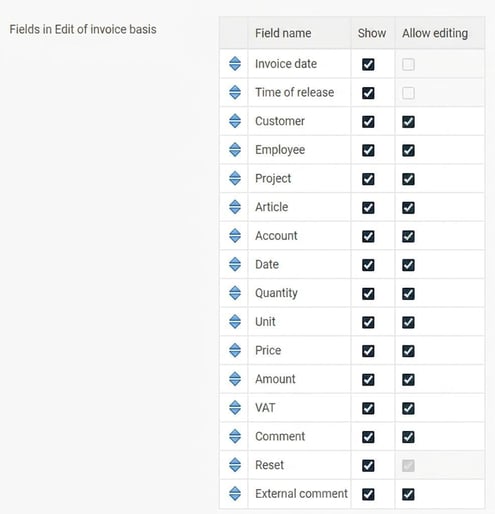
Fields in editing invoice data
The selectable account codes are controlled by which account codes you have activated.
See section below “Edit and approval of invoice basis”.
Settings - General - Invoicing - Time tab
Use invoicing must be activated for the function to be available in Time.
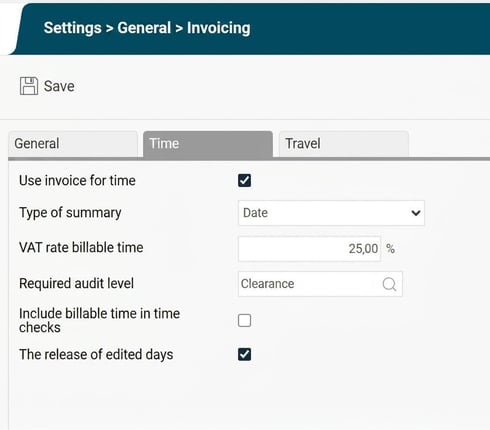
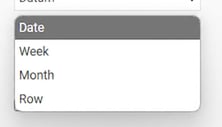
Type of summary
There are 4 options for how you want to sum up your released hours.
Per “Row” means the summary is per time row (so there can be several rows on the same day).
Per date means that rows on the same date are merged as long as price and account code are the same.
VAT rate billable time
Only used if you wish to cross-invoice released hours directly to the customer. If you do not invoice the customer directly, enter 0%.
Required audit level
Specify which audit level (Clear, project approval, approval) is required for a time row to be “released”. A released row can never be released again (unless you use the correction function for invoice data).
Include billable time in time monitoring
If you activate this function, the check will be made against the number of “billed hours” from the budget instead of against “actual hours worked”.
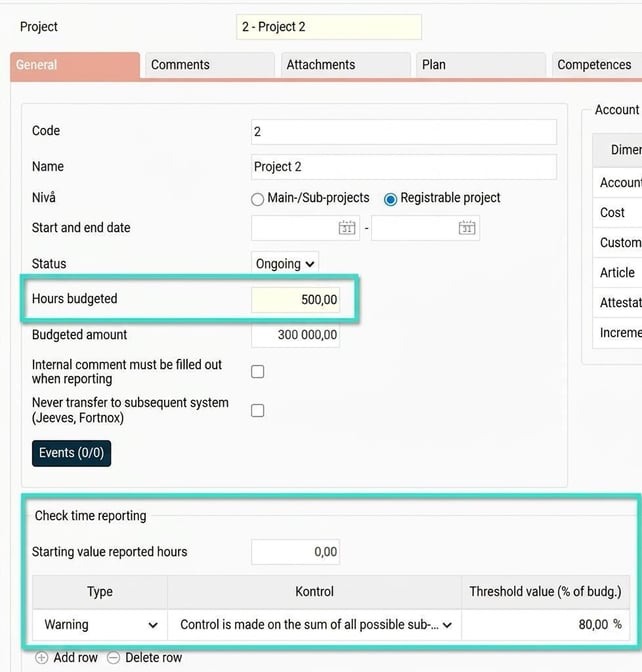
On the account code with “Expanded project” you can use a function with warning/registration stop when reaching amount ceilings/limits.
Warning = you get a warning but can still save.
Registration stop = It is not possible to save the entry if the registered hours limit is exceeded.
The release of edited days
With this setting, you can control whether times on days that have been edited in the time report should be released or not. If you do not select this setting, time rows on a day that has been edited will not be released again. The same applies to allowance rows, i.e. if the day on which the allowance is entered has been edited, then allowance rows from that day will not be included in the release if this setting is not selected.
Invoicing logic per time row.
Within the account codes you have selected for Invoicing, you can activate different options per account code as shown in the example from the Product Register below:
Can be billed - propose no
Can be billed - propose yes
Yes always
No never
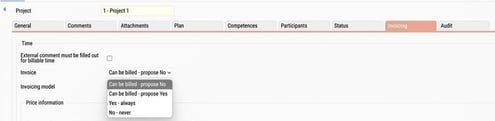
The logic if you have different settings on different account code dimensions is as follows:
Step 1 applies first and if that does not apply, it's step 2 and so on.
- If there are no account codes, we never invoice.
- If there is any account code set to “No, never”, then we should never invoice.
- If there is any with “Yes always”, then we always invoice.
- If there is one with “Yes”, we use that.
- If none of the above match, then it becomes “No”.
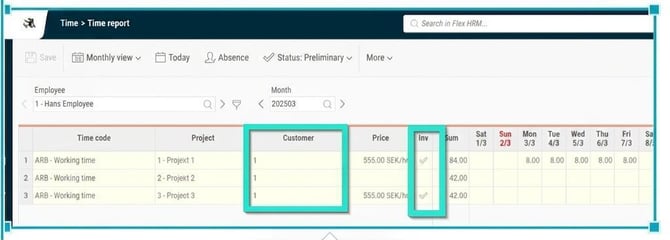
To release, both customer and invoice tick-box must be included. As shown in the example below, on row 2 you have customer 1 but no price or invoice tick-box, which means this row will not be released. If you have chosen, for example, “Can be billed - propose no”, you can optionally tick manually if you still want to invoice. The same principle applies if you have chosen “Can be billed - propose yes”, you can remove the invoice tick.
Edit of invoice basis
Invoice data can be edited and approved in HRM before being transferred to your accounting system.
Activate “Edit of invoice basis”
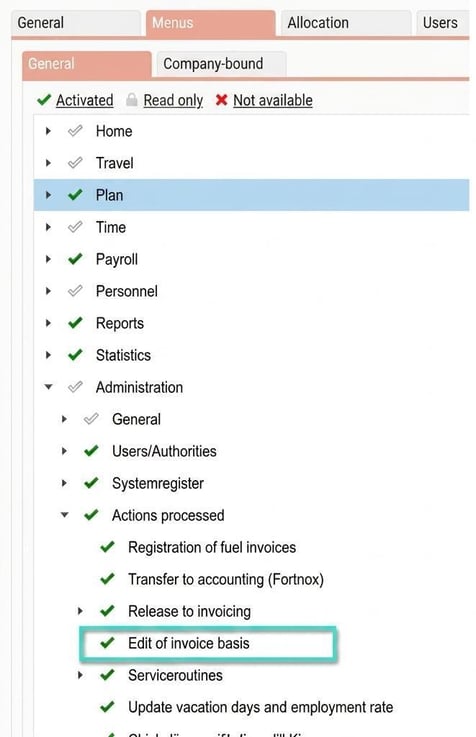
Under Administration – General – Roles, set which roles have authority to the “Edit of invoice basis” view under Actions processed.
Approval of invoice documentation
Activate “Approval of invoice documentation”
Under Administration – Settings – General – Invoicing, you can choose whether to use approval of invoice data. This means, for example, a project manager or customer manager can approve the invoice data rows before they are exported to the accounting system. Authorisation is required for the “Edit of invoice basis” menu.
Settings - General - Invoicing
Edit and approval of invoice basis
The Edit and approval of invoice basis view looks like this:

All rows in the invoice data that have been released are shown here per invoice date and customer. You can make any corrections and approve the rows (if that function is used).
Columns displayed in the view
Which columns should be visible in the edit view and their order is set under Administration – Settings – General – Invoicing.
Reset an edit
You can also reset all rows to their original state if you wish.
Comment on the editing
There is also the option to add a comment to your editing.
Approve invoice rows
There are functions to print the invoice data and approve all. If you change your mind with an edit, you can reset that row to its original state.
Authorisations to approve
There you can also set whether you want the authorisations to follow the account code audit (often called partial approval). This means that a user, for example, authorised to partially approve Project A will only get invoice rows for Project A. Otherwise, regular authorisation for employees is used. If a user has a role that gives access to the edit view for Department 1, all invoice rows from employees in Department 1 will be shown.
Info about who approved/edited a row
Under the info column, you can see who approved the row and when. If the row has been edited, you can also there see the original values.
Reminders to approve invoice documentation
It is possible to set a reminder to approve invoice documentation. As with other reminders, this is set under Administration – Settings – General – Reminders.
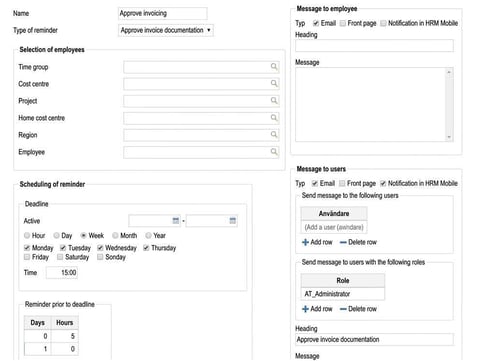
In the image above, it is set that the deadline to approve invoice documentation is on Tuesdays at 15:00. A reminder will be sent 1 day before and 5 hours before the deadline to those users who still have invoice data rows left to approve.
The reminder, just as with other reminders (such as approval of travel expense claims or time reports), can be sent via email, as a notification in HRM Mobile and also displayed on the front page in HRM.
Tip! If you want to read more about Invoicing Click here
Please note: This article is AI-translated. This means that linguistic errors or misunderstandings may occur.