
Administration > Actions processed > Release to invoicing.
In this function, the times in the time reports and/or the travel/expenses in the travel claims marked as billable are released. This locks the time reports/travel claims and generates invoice data.
The release takes place according to the rules specified under Settings > General > Invoicing.
New
Name of saved filter
In Flex HRM there is an option to use a saved filter when releasing to invoicing. In the saved filters, you can use dynamic dates, allowing you to reuse the same filter multiple times without making any changes. Here, you can name your filter and save it using the Save filter button at the bottom of the view. All filters saved in this view are personal and are visible only to the user who saved them.
System
Choose whether you want to release from Time and Travel simultaneously or solely from Time or solely from Travel.
Release to date
Specify here the end date for the release. All time rows and travel claim rows up to and including this date that have not been released earlier will be released. You cannot specify any from date.
Invoice date
Specify here the invoice date for the time reports to be released. This date is simply a label for the rows being released and does not affect which time or travel claim rows will be released.
Release (button)
Click here to start the release to invoicing.
Selection
Here, you specify the desired selection for account codes (for example, cost centre, project, customers, and articles) as well as employees to include in the release to invoicing.
Company filter (button)
When you click this button, a window opens where you can create and edit release filters for the company. These filters are visible to all users who have access to release to invoicing. If they choose to save the filter, the saved version is personal and does not affect other users. Once you have saved release selection as a company filter, you can create a new scheduled task running of the release under Administration – Settings – Import/export – Scheduled task runs.
Completed release for invoicing
Here you can find information about already completed releases.
Invoice date
End date
Started
Status
Completed
Amount
Number of rows
"Number of rows" is the number of rows according to the invoice data
Number of approved rows
Here you can see how many rows from a certain release were approved (shown only if that function is being used). You can also see how many rows were exported. 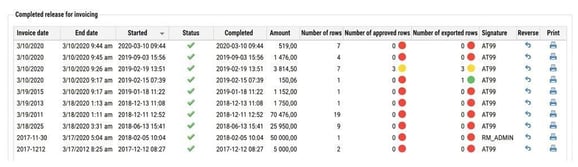
Number of exported rows
If you do not export the invoice data to an accounting system but instead print the invoice data to manually enter it into the accounting system, it's possible to set up so that printed rows in the invoice data are considered exported to use the above functionality.
Signature
Signature of the user who started the release
Reverse
Click the icon in the Reverse column if you want to reverse the current release. The released times for this occasion will then be read back, enabling you to make any changes to the days/time rows.
Tip! If you want to read more about Invoicing Click here
Please note: This article is AI-translated. This means that linguistic errors or misunderstandings may occur.