
A prerequisite for being able to calculate the final salary is that an end of employment date has been entered for the employment in the employee register.
When an employee leaves and an end date is specified, it is usually best to set the end date for fixed transactions, monthly salary, hourly wage, contractual working hours and schedule at the same time. This is particularly important for fixed transactions when employees leave mid-month, so as to avoid them mistakenly receiving a full month's salary.
You can find the final salary function in Payroll > Payroll process, in the button bar above the payroll process.
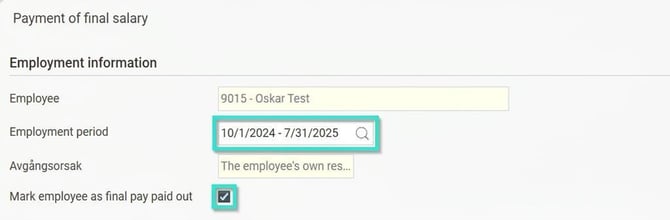
 At the top of the final salary window, you can see details about the employee. Here you can choose which employment period you want to pay out the final salary for. Final salary will be calculated for all employment periods up to and including the selected period where final pay has not previously been paid out. You can have a new ongoing employment and pay out the final salary for an earlier employment, for example in the case of retirement when the person continues with an hourly contract.
Normally, you select Mark employee as final pay paid out. What happens then is that the employment periods, when generating the final salary, are marked as Final pay paid out in the employee register to indicate that the final salary has been paid and all debts settled. In this way, the system knows whether the employee should be included or not in upcoming payroll runs or in the future holiday pay liability calculation.
In some situations, you may want to pay out the final salary in instalments.
One example is if an employee has a current qualifying year for annual leave and has taken all their holiday days during the summer, and then leaves, resulting in a debt. It can then be difficult to offset such a debt in the month after the employee has left. For this reason, it is common to try to settle whatever caused the debt in the last month the employee receives a monthly salary, and then finalise the final salary in the next payroll run. The function allows you to select which parts of the final salary you want to include in the calculation, so that you can split the final salary across different payroll periods if required.
In the lower part of the function, under Settings there is a list where you can select which parts to include in the final salary calculation by ticking or unticking each row for whether final salary should be calculated. The setting for what is proposed and which pay code should be usedcan be found under Administration > Payroll settings > System fixed pay codes.
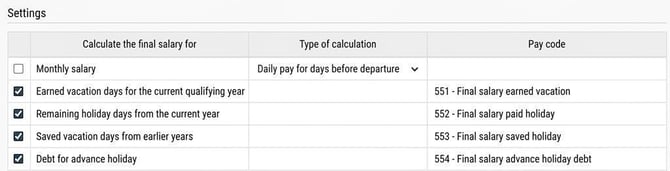
What do the different rows in the list mean?
- Monthly salary
For monthly-paid employees who leave in the middle of the month, how the wage for part of a month should be calculated can vary depending on the collective agreement. It is common to handle this directly in the usual pay code for monthly salary, but if you wish, you can let the final salary function assign a different pay code for part of the month here. You can then choose between assigning Daily salary for days before leaving, or Daily salary deduction for days after leaving. - Accrued holiday days for the current qualifying year
This applies both when you have the current year or the previous year as the qualifying period for annual leave. For the current qualifying year, the calculation is accrued days minus days taken out. If you have the previous year as the qualifying period, the number of accrued days is calculated here from the previous vacation change up until the end of employment. - Remaining holiday days from current year
Payment of this year’s remaining paid days if the previous year is used as the begin accruing annual leave year. - Saved vacation days from previous years
Payment of remaining saved vacation days. - Debt for advance holiday
If you have a remaining debt for advance holiday and the reason for leaving is coded as 'own request', 'employee’s decision' or 'none' under the LAS settings, it is settled here. If the employee did not have vacation in advance, if the debt is depreciated, or if the reason for leaving is coded as something else, no amount will be generated.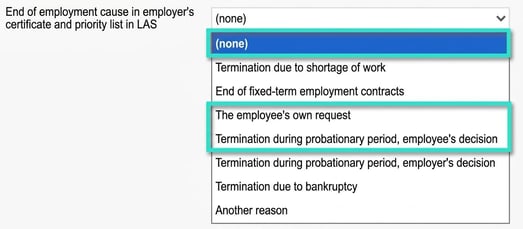
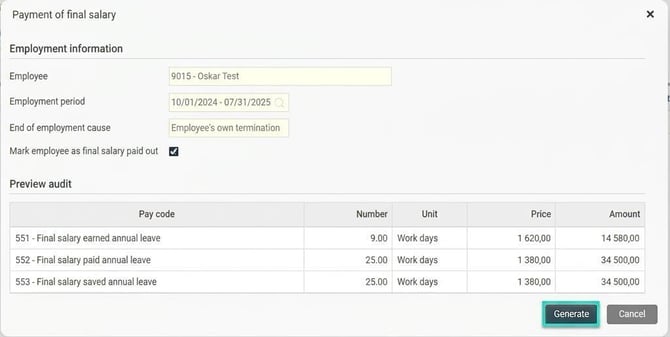
Once you have made your selections, click Calculate. The calculation will then be performed, and a preview audit will be displayed showing the calculated amount for each pay code.
If the result looks correct, click Generate to assign the pay codes in the payroll process. It is also at this stage that the employment period is marked as final pay paid out in the employment register.
In the payroll process, you can see which transactions have originated from the final salary function. These have their own icon in the 'Ursp' (original) column.

Please note: This article is AI-translated. This means that linguistic errors or misunderstandings may occur.