
Checklist before changing master

Registers to check

Create a control report in Flex Payroll

Important to know when Flex HRM is master

Step-by-step: How to change master
Flex HRM – Change master for employee information
In this article, we describe how to make Flex HRM the master for employee information instead of Flex Payroll. The process requires you to first ensure that all information from Flex Payroll has been transferred to Flex HRM before changing the controlling system.
Note! We do not recommend changing master if you use pay grades for hourly wage or monthly salary in Flex Payroll. When the flow is reversed, these pay grades will be removed. This is common in the construction industry if you use Construction password. Therefore, check this before continuing.
In this article, you'll find a walkthrough of what you need to check, how to carry out the change, and how to ensure everything works as it should.
Checklist before changing master
Use this checklist as support to ensure all necessary steps are carried out in the correct order.
Preparations
- Check that the register Personnel category in Flex HRM matches the register in Flex Payroll (matching is based on code).
- Check that the register Form of Employment in Flex HRM matches the register in Flex Payroll.
- Ensure that correct email addresses are registered for the employees in Flex Payroll.
- Check that the field Position exists in both Flex HRM and Flex Payroll.
- Export clearing and bank account numbers from Flex Payroll and import to Flex HRM. You may find it useful to use a report from the report editor.
- Check that the setting for first and surname in Flex Payroll matches that in Flex HRM.
- Ensure that Person templates in Flex Payroll have the same name and code as Employment templates in Flex HRM.
- Review which fields may be affected by synchronisation between the systems.
- If needed, create an assignment in Flex HRM to remind yourself to manually enter Reason for departure in Flex Payroll when an employment is completed.
- Decide which account codes should be sent from Flex HRM to Flex Payroll and consider any account code allocation.
- If new employment flows are activated in Flex HRM, temporarily deactivate these while you export data from Flex Payroll.
Transfer from Flex Payroll
- Ensure that the tick-box Use Flex HRM web service is ticked in Flex Payroll and that a user named FlexIntegrationHRM exists and is active in Flex HRM.
- Try exporting ONE employee from Flex Payroll to Flex HRM and check that the result is correct.
- Export ALL employees from Flex Payroll to Flex HRM and check the outcome.
- Untick Export employee information in Flex Payroll. Let Export balances remain active.
- Check that the number of employees is the same in both systems.
Activate Flex HRM as master
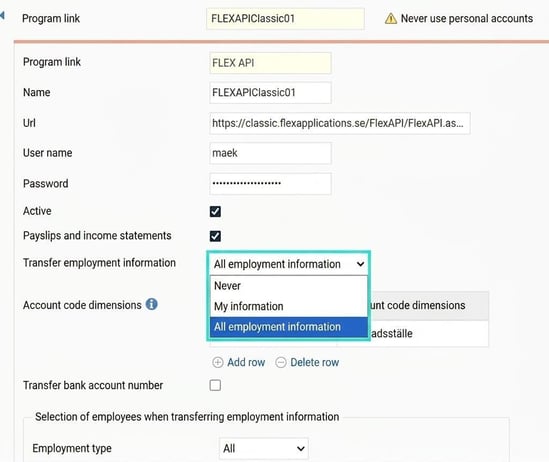
- Go to the program link for Flex API in Flex HRM and select All employment information under Transfer employment information. Set a selection if not all are to be transferred.
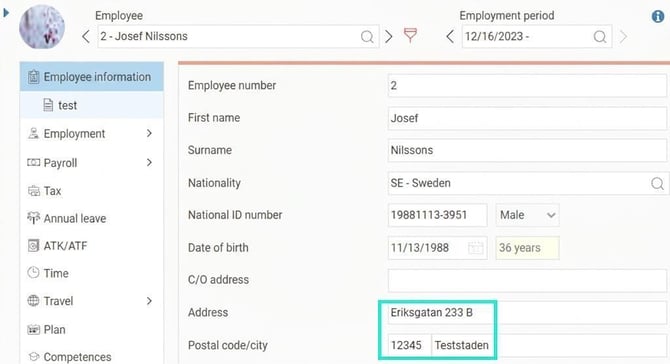
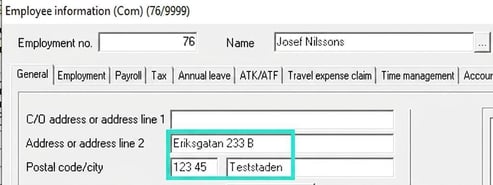
- Check that synchronisation works by temporarily changing an address for an employee in Flex HRM and see that the change appears in Flex Payroll.
Registers to check
The following registers are synchronised between Flex HRM and Flex Payroll. It's therefore important that they match for the integration to work properly.
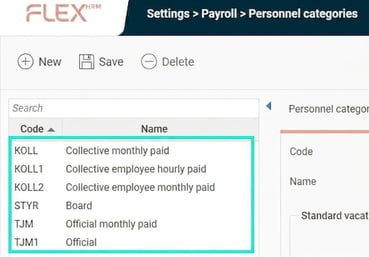
Personnel category
Ensure the personnel category registers are identical in both systems.
-
Check in Flex HRM: Go to Settings > Personnel categories.
-
Check in Flex Payroll: Go to Settings > Personnel categories.
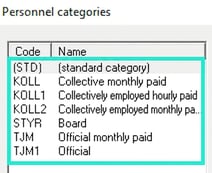
If a personnel category from Flex HRM is missing in Flex Payroll, the employee will be linked to the standard category (STD) in Flex Payroll.
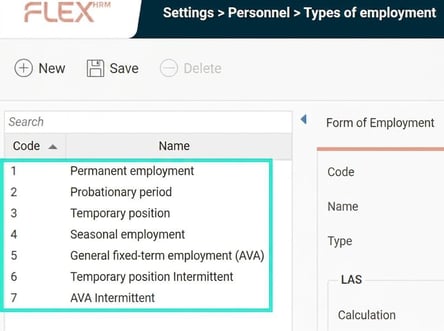
Form of Employment
Ensure the registers for Form of Employment are identical in both systems.
-
Check in Flex HRM: Go to Settings > General > Types of employment.
-
Check in Flex Payroll: Go to Settings > Types of employment.
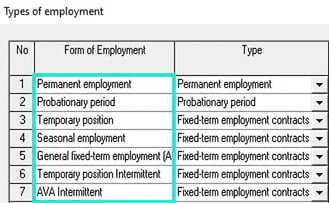
If a Form of Employment used in Flex HRM doesn't exist in Flex Payroll, it will be created, but settings related to LAS/AVA will be missing.
Check that email addresses are registered for employees in Flex Payroll. If an address only exists in Flex HRM, it will be overwritten and disappear during the final export from Flex Payroll. Also, ensure the addresses are correctly formatted (with @ and .) to avoid export failures.
First name and surname
Check the name setting in Flex Payroll under Settings > Control tasks > the tab General. The field must not be set to Undefined.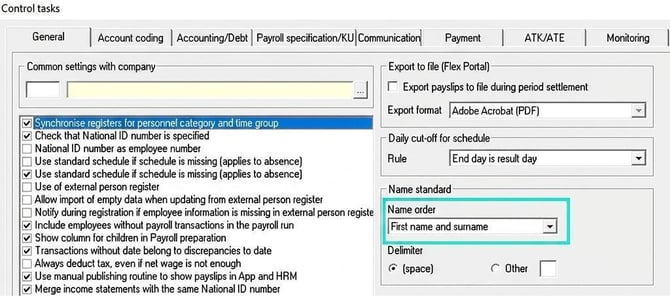
Person templates and Employment templates
The Employment template in Flex HRM is matched against the person template in Flex Payroll via the template code/number. Check that these correspond. Information sent from Flex HRM takes precedence over template settings in Flex Payroll.
Create a control report in Flex Payroll
You can create a report in the report editor in Flex Payroll to check information such as employee number, name, bank account, position, email, and personnel category.
-
Go to the menu Work with > Report editor.
-
Enter a free number and give the report a name.
-
Paste the report code below into the code field and click Save.
Report code:
fdr023.anstnr AS anstnr,
fdr023.namn AS namn,
fdr023.bank AS bank,
fdr023l.bankkto_lon AS bankkto_lon,
fdr023l.befattning AS befattning,
fdr023.email AS email,
fdr023.email_privat AS email_privat,
fdr023l.perskatlon AS perskatlon
FROM fdr023
LEFT JOIN fdr023l ON fdr023.ftgnr=fdr023l.ftgnr AND fdr023.anstnr=fdr023l.anstnr
WHERE #fdr023.anstnr#anstnr$OPT+TXT@ANST#A10# AND (fdr023.ftgnr = '¤FTG¤')
ORDER BY fdr023.anstnr, fdr023.namn, fdr023.bank
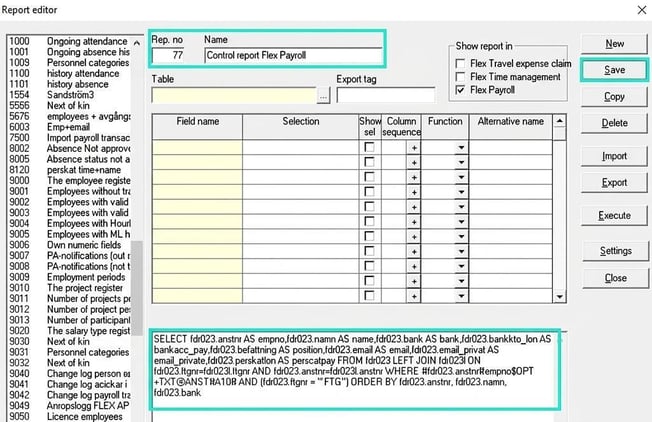
Click on Execute to generate the report you can use for your checks.

Important to know when Flex HRM is master
Reason for departure
Reason for departure mustbe entered manually in Flex Payroll. To avoid forgetting this, you can create an assignment in Flex HRM to remind you when an employment is completed.
Contractual working hours
Contractual working hours in Flex HRM must always have a start date, as this is required during the transfer to Flex Payroll.
Account codes
It is possible to send home account codes from Flex HRM to Flex Payroll. Note, however, that Flex Payroll can handle allocation of account codes (for example 25% to one cost centre and 75% to another), which Flex HRM cannot. If you activate transfer of account codes from Flex HRM, they will overwrite any allocation in Flex Payroll.
Note also that Flex HRM uses date control for account codes, which Flex Payroll lacks. Future changes to account codes in Flex HRM will therefore not immediately appear in Flex Payroll. This can be addressed by scheduling a nightly export to update with the current value.
Change employee number
If you need to change the employee number for an employee, it's important that you follow the steps below to avoid duplicates.
-
Change first in Flex Payroll Begin by changing the employee number in Flex Payroll.
-
Then change in Flex HRM Once the change is made in Flex Payroll, you can change to the same employee number in Flex HRM. Now the numbers match and the systems can communicate correctly.
Step-by-step: How to change master
Below is the practical routine for synchronising assignments and changing the master data system.
1. Export employees from Flex Payroll to Flex HRM
All employees, including completed employments, must first be exported from Flex Payroll. This is so Flex HRM gets information about all existing employee numbers and does not risk overwriting current employments later.
-
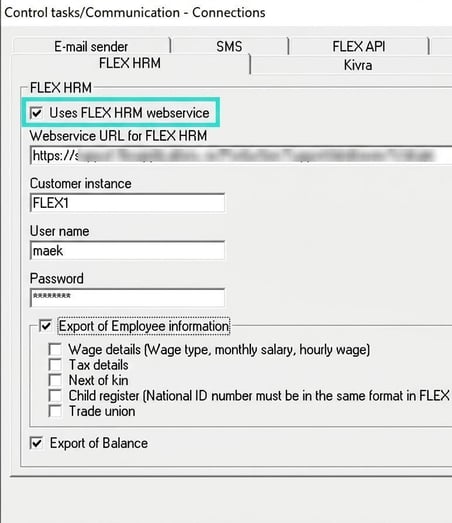
Check in Flex Payroll under Settings > Control tasks > Communication > Connections that the tick-box Use FLEX HRM web service is ticked.
-
Start by exporting a single employee to test that everything works as expected.
-
Then export all employees from Flex Payroll to Flex HRM.
Note that the Employment template in Flex HRM marked as Standard template will be used for the export. If you have employees in Flex Payroll who are not in HRM and who should be linked to a specific template, you need to do the export in several batches. Then you make a selection and change the standard template in Flex HRM between each export.
2. Deactivate Flex Payroll as master
When all employees are exported and you've checked that the assignments match in Flex HRM, do the following:
-
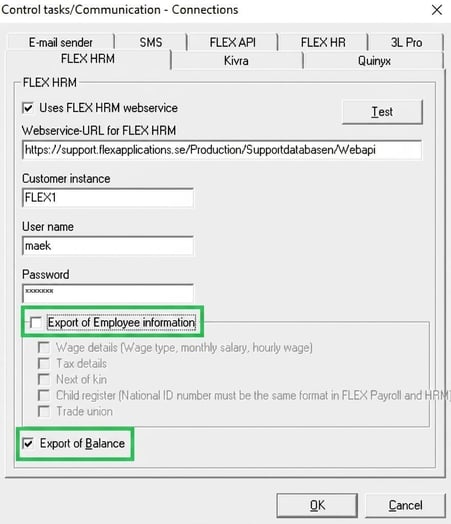
Go to Flex Payroll and untick Export employee information.
-
Ensure that Export balances is still ticked.
-
Check that the number of employees is now the same in both systems. In Flex HRM, you can see the number under Personnel and the view List.
3. Activate Flex HRM as master
It's now time to make Flex HRM the master for employee information.
-
In Flex HRM, go to Settings > General > Program links.
-
Enter the details for the program link Flex API.
-
At Transfer employment information, select All employment information.
-
If you don't want all employees transferred to Flex Payroll, you can make a selection, for example based on employment type.
4. Check the functionality
To ensure everything works, make a test change.
-
Temporarily change the address of an employee in Flex HRM and save.
-
Verify that the new address is correctly shown in Flex Payroll.
Once you have completed these steps, the process is finished and Flex HRM is now master for employee information.
Please note: This article is AI-translated. This means that linguistic errors or misunderstandings may occur.