
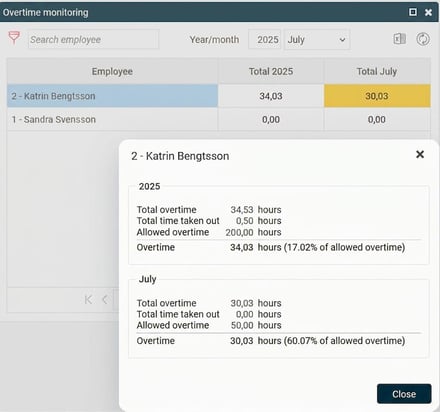
With Overtime monitoring in Flex HRM, you can easily keep track of employees' overtime so you don't authorise more overtime than is permitted. It's common for an employee to be allowed to work a maximum of 50 hours overtime per month and 200 hours per year.
Overtime monitoring panel
Overtime monitoring appears as a panel on the front page and shows how much overtime the employees you are authorised to view have.
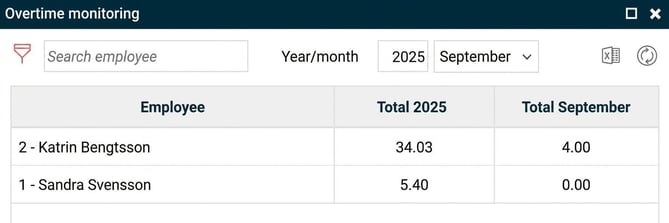
The colours in the panel serve as a visual guide to quickly see how much overtime employees have worked:
-
White: 0–25%
-
Yellow: 25–50%
-
Orange: 50–75%
-
Dark orange: 75–100%
-
Red: 100%
The panel is sorted by the overtime value for the current year. Employees with the most overtime are shown at the top. You can change the sorting order by clicking on the different headings. The monthly and yearly totals are calculated up to today's date.
Detailed information
To get more information about an employee, hover the cursor over the person's row. You can then choose to click either the blue information icon or the graph icon.
Updating values
The panel's values are updated automatically every night. If you need to update them manually, click the updating icon at the top right corner of the panel. The updating is performed three months back and up to today's date. Please note that a manual updating can take a long time for larger companies. Hover the mouse pointer over the icon to see an estimate of the updating time and when the panel was last updated.
Filter and export
-
Filter: If you want to display a selection of employees, you can click on the filter icon.
-
Export: To export the information to Excel, click on the Excel icon. The Excel file contains all information shown in the overtime panel, with one row per employee. You will also be asked if you want to include home account codes in the export. If you answer yes, these are added as extra columns.
Please note: This article is AI-translated. This means that linguistic errors or misunderstandings may occur.