
How to build the report
Make selections and choose level of detail
Authorisation for Project follow-up
The report Project follow-up allows you to monitor your projects. For instance, you can view budgeted, worked, and billed time as well as costs. The report is similar to Allocation of time but has more project-specific functions.
Note
Here we use the term Project. You may have chosen to refer to the extended project register differently in your system.
For example, if you have named the extended project register Assignments then your report is called Assignment follow-up.
How to build the report
You can select up to four groupings. For each grouping, you can choose to group according to the following:
-
Employee
-
Project manager
-
All registered account codes
-
All home account codes
-
Time code
-
Day
-
Week
-
Month
Example: If you group by project, employee, and day, the report will first display the projects. Under each project, the employees who have worked on the project will then be shown. Finally, under each employee, the days that employee has worked on the project are displayed.
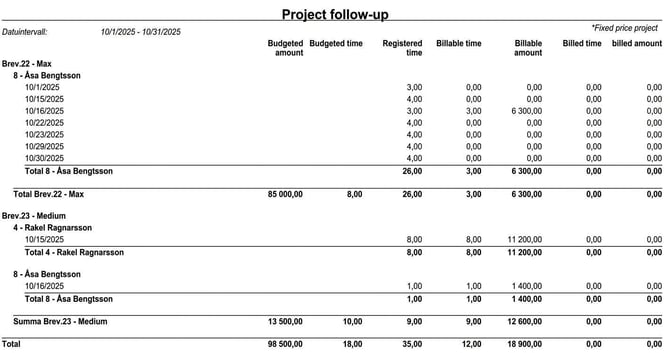
You can choose to display the following values:
-
Budgeted amount (the projects' budgeted amounts)
-
Budgeted time (the projects' budgeted time)
-
Registered time
-
Billable time
-
Billable amount
-
Billed time (time released to invoicing)
-
Billed amount (amount released to invoicing)
Make selections and choose level of detail
You can choose whether comments should be displayed and make selections based on employees, account codes, project status or time report status.
Via the option Project details you can control the level of detail in the report.
-
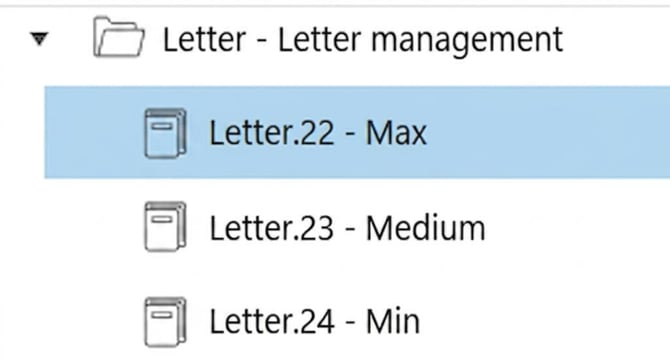
If you choose Show registrable projects details for projects where time can be reported are displayed, for example Letter(brev).22 and Letter(brev).23 in the earlier example.
-
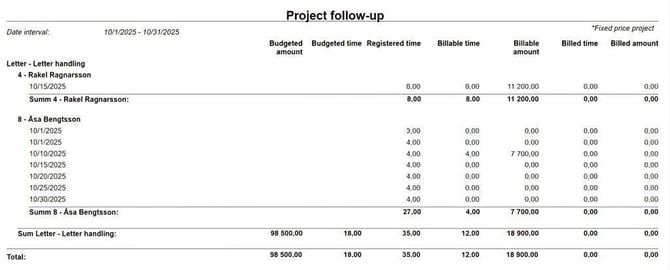
If instead you want to view a summary at a certain level in the project tree, select Summarize project to level. For example, you can choose Summarize project to level 1 if you only want to see time summarised for the main project Letter.

|
|
Authorisations for Project follow-up
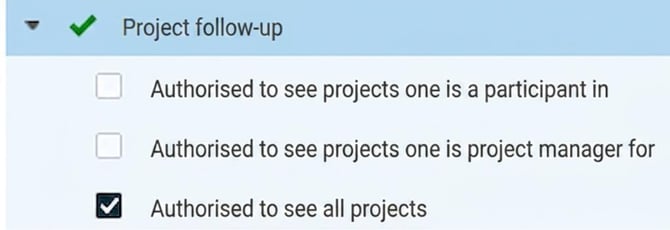
The authority to view data in the report is controlled by settings in the role tree. Under the report Project follow-up there are three settings:
|
|
Participant and project manager can be set per project under Register > Project. You can also set all employees as participants in a project.
Example of authorisation:
You have authorisation for the report Project follow-up for an employee.
-
If you have ticked Authorised to see all projects you can see all project-reported time for the employee.
-
If instead you have ticked Authorised to see projects one is a participant in you can see all the time the employee has reported on the projects you are entered as participant, but not other time.
Related article
What is a project register - Tab Participant
Please note: This article is AI-translated. This means that linguistic errors or misunderstandings may occur.