
Which app should I use?
|
The mobile app HRM Mobile has been available for some time now. We are currently developing a brand new, fast, and user-friendly Flex HRM app with a completely fresh design. The new app is being developed and will continuously gain more functions. You can read more about it in the article What is the Flex HRM app and why are there two apps? |
 |
Clocking
Follow-up questions
Log
Missing clocking button
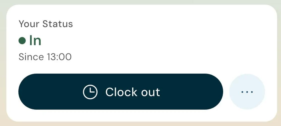
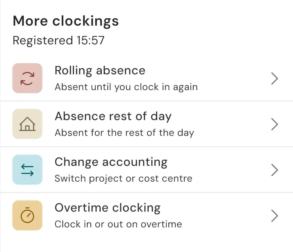
How to clock in and outThe home screen features a button for clocking in and out. The text on the button changes depending on your current status. If you are not clocked in, it says Clock in. If you are already clocked in, it says Clock out. If you clock out during a time when your schedule includes a rule for breaks, the system will register a break. Click More clockings (the light blue button with three dots) for additional clocking options. You can clock in or out with overtime, absence for the rest of the day, ongoing absence until you clock in again, and account code changes. Which options are available depends on your permissions. An Estimated end time is displayed if you report daily and have flexitime limits in your schedule. The time shown is the exact hour and minute when you have completed your scheduled work hours for the day. |
|
Follow-up questionsTo ensure your time report is correct, you may receive follow-up questions when you clock in or out. This usually happens if you clock in or out outside your regular working hours. This images shows a question asked during a late clock-in, allowing you to easily register your absence directly when clocking in. If you select Skip, you will be clocked in, and you will need to manage your absence in the time report at a later time. |
|
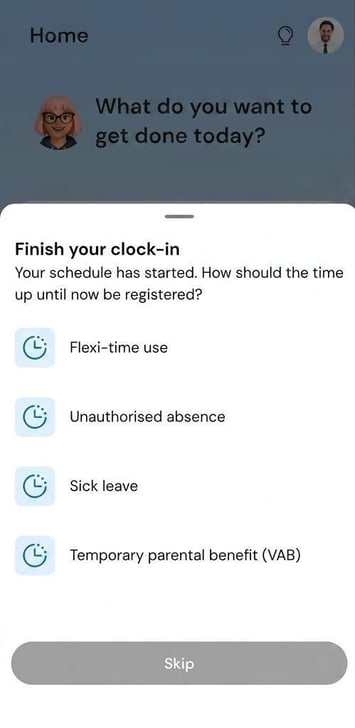
Here are some examples of when questions may appear:
-
Overtime: If you clock in before or out after your working hours (or flex frame), you need to select an Overtime marking.
-
Absence: If you clock in too late or leave too early, you need to specify a Reason for absence.
-
Empty days: If you clock in and there is missing time on earlier scheduled days, you will need to specify a Reason for absence for these.
-
Select date: If you work shifts that overlap, for example time 20:00–08:00 and 08:00–20:00, and clock at 08:00, you must select which date the clocking should belong to.
The settings for which follow-up questions are asked are managed in Flex HRM, for the entire company, by time group or by employee.
View your logged clockings
All clockings you do in the app Flex HRM are logged automatically. You can see them in the log of the time report, where they are shown with the source Flex HRM and a mobile icon.
Why can't I see the button to clock in?
If you are missing the button for clocking, it could be due to three reasons:
-
You need to have a licence for HRM Time and Time clocking.
-
You need to be set as a Day reporter.
You can check this yourself in HRM Time. If you see a folder called Day view in your time report, you are a day reporter. If you only see Weekly view and Monthly view you are a period reporter, and then the clocking function is not available to you. - In Flex HRM there is a setting to allow clocking in the mobile app (can be set at any of the following levels: Settings > Time and Plan > Time reports, Settings > Time and Plan > Time groups or Employees > Time).
Why can't I see the More clockings button?
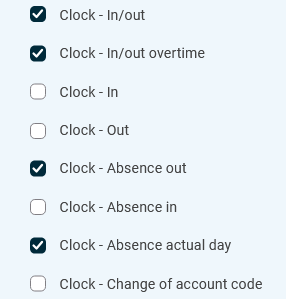
The light blue button next to Clock in/out allows you to clock out with absence, clock overtime, and change account coding such as cost center and project. If you are missing the button or any of the clocking options, your permissions need to be checked. The permission to clock overtime, absence, and cost center changes is governed by the same permission that controls the ability to clock in the timereport in the web version of Flex HRM.
The permission is located in the role tree under the node Time > Time report.
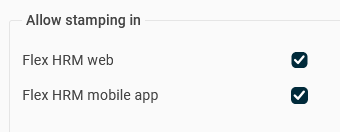
Do you want the ability to clock to be available only in the web interface or only in the app?
This can be configured under Settings > Time and Staffing > Timecards, Settings > Time and Staffing > Time Groups, or Employees > Time.
Can clocking in the app be restricted by location?
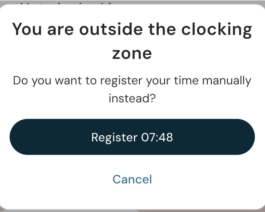
Yes. If you get an error message during clocking saying that location access is required, or that you are not within an allowed time clock position, it means there is a setting to restrict clocking only to certain locations. For clocking to work, you then need to allow location access in the app’s settings on your mobile device.
If clocking in and out is restricted by location and you are not at an authorized location, you will receive a message informing you of this. If you have permission to edit your timesheet, you can enter your time manually instead.
Please note: This article is AI-translated. This means that linguistic errors or misunderstandings may occur.