
Staff appraisal
When it's time for a performance review, it can be documented directly on the employee in HRM. Under the Staff appraisal icon , you will find the performance review/staff appraisal function.

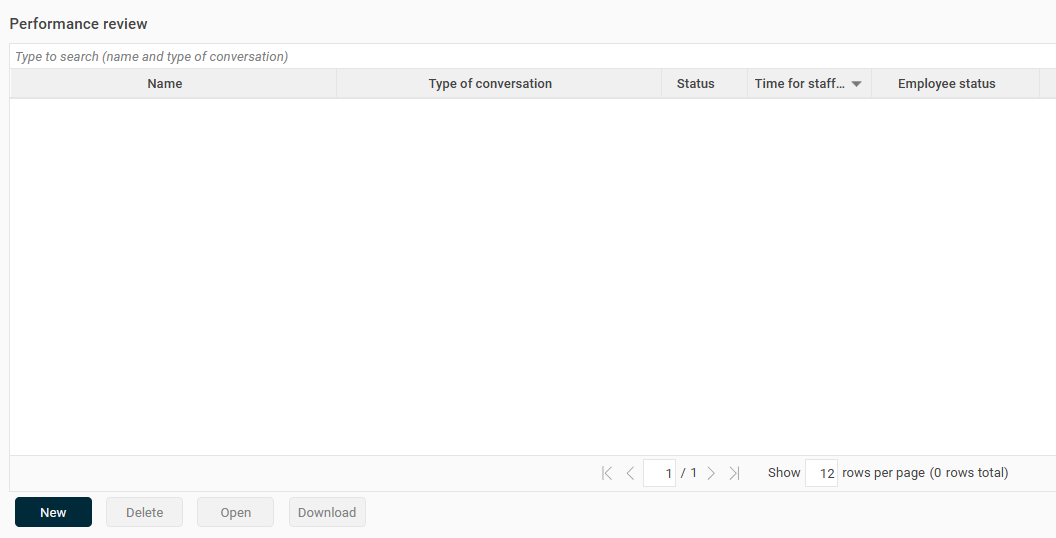
To create a new staff appraisal, click the New button below the list.
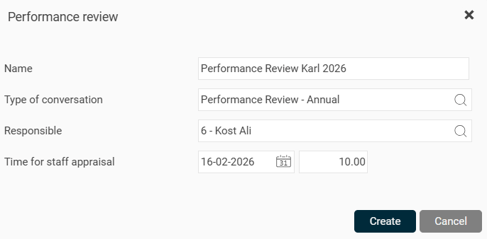
Then enter basic information, such as the name of the staff appraisal, the template you are using, the person responsible, and the date.
In the next step, you will come to the form itself with questions that open in a separate tab.
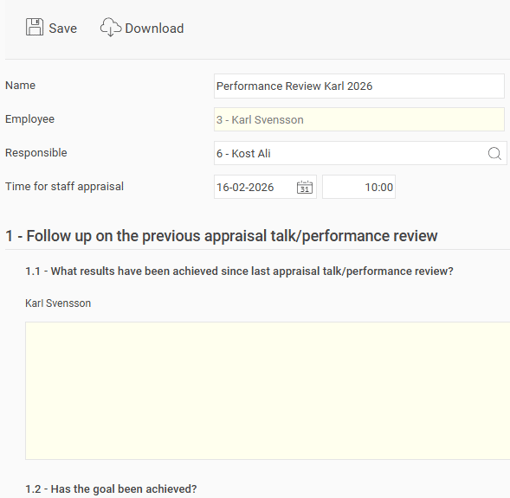
Once you have filled in the questions, save the employee interview using the button at the top.

If you make a change, the system logs information about when the change was made and by whom.
The new staff appraisal is then saved in the list. 
You can then open the staff appraisal at any time and view and continue filling in answers to the questions (as long as it is not signed).
If the template used for staff appraisal is set to allow the employee and you as the manager to answer the questions in separate boxes, it might look like this:
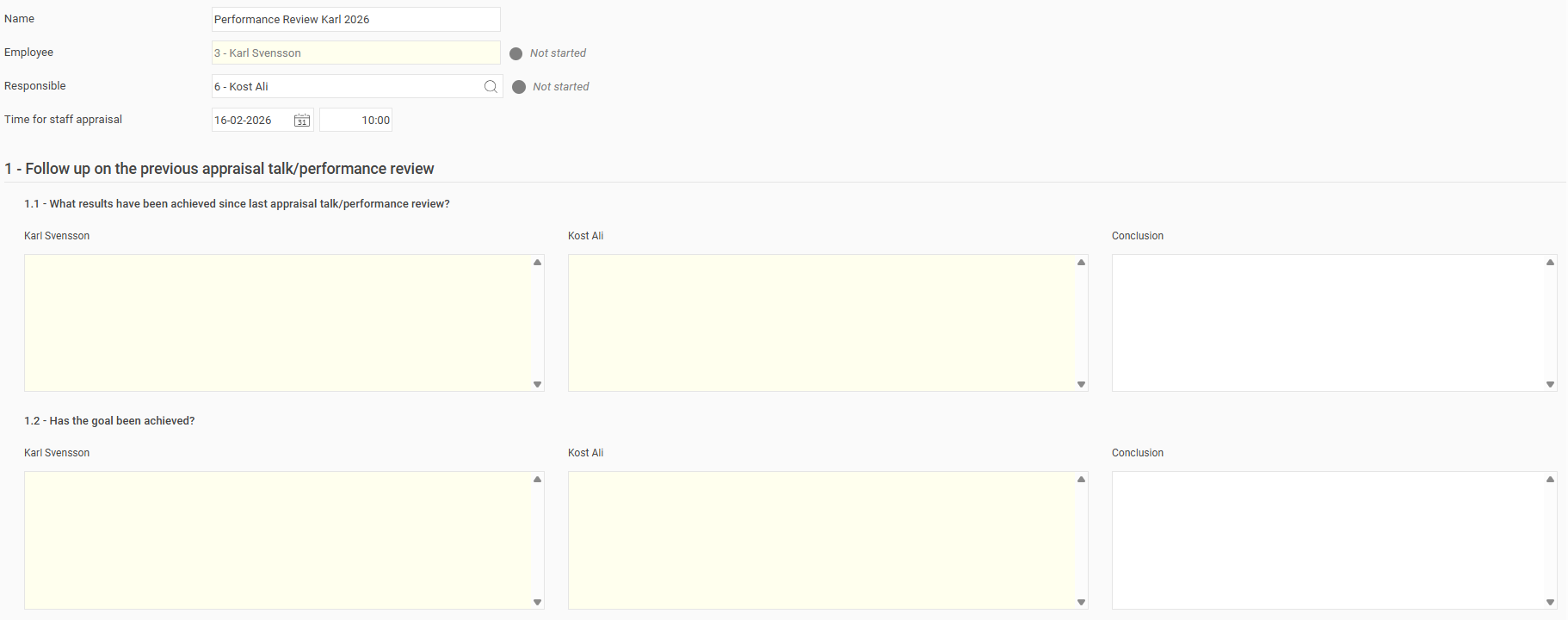
Employees then fill in their reflections and answers in box one and then share their answers with you as the manager. You as the manager have the same opportunity to fill in answers before the conversation in the middle box and then share those answers with the employee. The joint conclusion is written in box three and usually contains what was reached during the conversation itself.
Important things to consider when completing an staff appraisal
To ensure that neither you nor the employee lose your answers in the staff appraisal, it is important that you are not in the middle of the conversation and saving at the same time.
What happens if both parties save at the same time?
Only one person at a time can save changes to a staff meeting. If you try to save at the same time as the other party, you will receive a warning with the text: "The item is locked by another user."
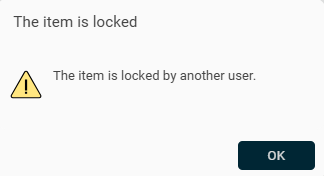
This means that the responses you have just typed cannot be saved and will be lost. You will then need to wait until the conversation is no longer locked, type your responses again, and then save. Remember to save often!
Our recommendation to avoid problems
To avoid the risk of unsaved responses being lost, we recommend that you follow this flow:
-
The employee fills in, saves, and shares their answers first.
-
When the employee is finished, you, as the responsible manager, join the conversation and fill in your answers.
This way you ensure that you are not working on the form at the same time.
Share and sign
If the conversation has the Share and/or Sign features enabled (system administrators enable it for the questionnaire in the settings), click Share to share the responses with the employee.

The Sign icon is used when the conversation is complete and you want to lock it for editing.

Please note that the answers must be shared by both parties before the call can be signed.
You can also choose to download the conversation via the Download icon .