
To be able to import/load transactions from a file, you first need to create an import template. This is done under Administration > Settings > Import/export > Import template.
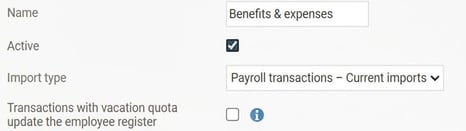
Give your new template a name and choose the import type Payroll transactions - Ongoing import. If the file contains transactions with a vacation quota, this will be updated in the employee register if the box for this is ticked.
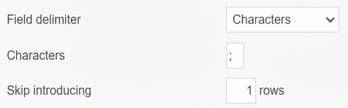
Specify how the field delimiter appears in the file. Characters and ; correspond to a comma-separated (.csv) file that can be created in Excel.
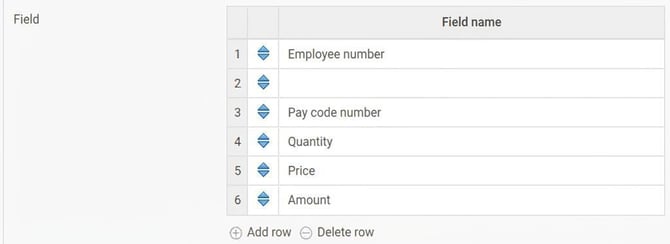
The next step is to specify which fields should be read and in what sequence they appear in the file. Make sure to read the description so your import file is correct! Each row corresponds to a column in the file, row 1 = first column, row 2 = second column, and so on.
If you want to see the full list of available fields, you can click on the magnifying glass in the field.

If your file, for example, contains the following columns: Employee number, Name, Pay code, Quantity, Unit price, Amount

your import template should contain the corresponding fields (since name is not a field in the payroll process, you add an empty field in the template so it ignores the values in that column in the file):
Save your template.

Please note: This article is AI-translated. This means that linguistic errors or misunderstandings may occur.