
In this article, we use comp balance as an example, but you can use the same method for any accumulator you want. We will go through the settings you need to make and how ongoing management works. We also explain what you need to consider if you have previously managed comp debt via pay codes.
The function is available from version 2022.13.
Settings in the Accumulator register

Pay code for final salary

Formula for debt calculation

Settings for accounting

Calculate debt on an ongoing basis (Debt management)

Create journal voucher

Manage final salary

Guide: Switching from comp debt on pay codes to the new function

Important in accounting of change
Settings in the Accumulator register
To be able to calculate a debt on an accumulator value, you first need to make some settings.
-
Go to Administration > Settings > Payroll > Accumulators.
-
Select the accumulator you want to use, for example the one for comp balance.
-
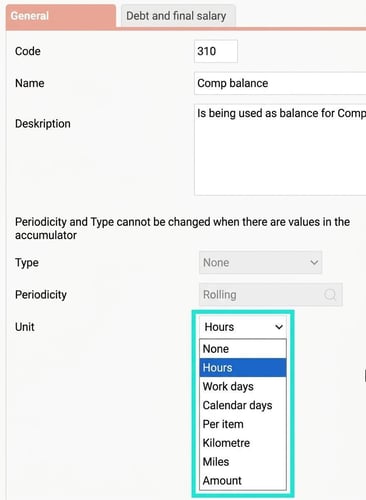
On the first tab you can specify a Unit (for example hours or amounts). This will help you in the next step when you need to create a formula for the debt calculation.
-
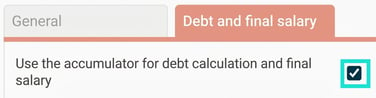
Go to the tab Debt and final salary.
-
Tick the checkbox Use for debt calculation and final salary.
Pay code for final salary
Specify the pay code to be used when any remaining balance is to be paid out as a final salary.

Important: The pay code you select must be set to decrease the accumulator's balance. It should also not have its own calculation formula, as the system calculates the final salary based on the booked debt.
Formula for debt calculation
Under Accumulators - the Debt and final salary tab, in the F ormula for A - price, enter a formula for the A-price in the debt calculation. If you need different formulas for different personnel categories, you can choose a category in the list and enter a specific formula for it.
Good to know: If the accumulator's unit is "Amount", you do not need a formula. The system will then use the entire accumulator value as the debt.
Settings for accounting
In order for the debt to be accounted for, you need to specify which accounts to use.
-
Go to Administration > Settings > Payroll > Accounting and debt management.
-
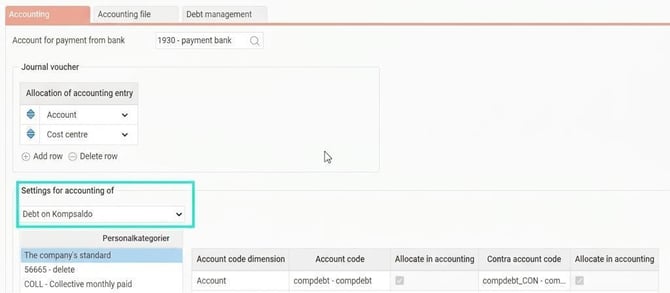
Under the heading Settings for accounting of first select which accumulator this refers to in the upper list.
-
Specify the accounting accounts you wish to use.
-
Tick the checkboxes to select which account code dimensions the debt should be allocated to.
-
To also account for employer's contributions on the debt, select the corresponding debt for employer's contributions in the list and make the same settings.
Calculate debt on an ongoing basis (Debt management)
The ongoing management of calculating and establishing the debt is done under Payroll > Debt management.
-
Select which debt you wish to work with under Type of debt.
-
Click on New to create a new debt calculation.
-
In the dialog box, choose type of calculation:
-
Accounting of debt: Used to establish the monthly debt which is then the basis for accounting.
-
Final pay employee: Used to see the total debt to an employee who is leaving. This can be used as a control in the final salary calculation.
-
-
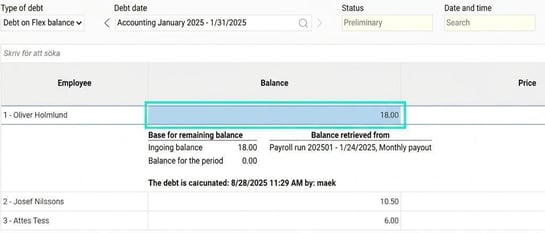
Once the calculation is created, a list is shown of all employees who have not received their final salary paid out.
-
You can click on a number in the list to see detailed information on how it has been calculated and from which payroll run the balance has been fetched.
-
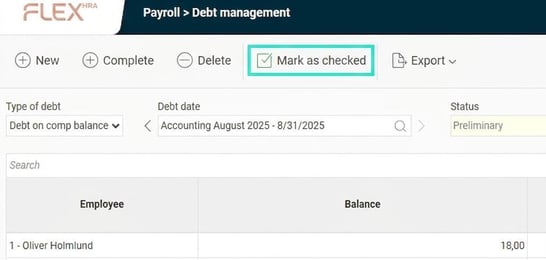
When you have checked that everything is correct, click on Mark as checked. The debt is now ready to be accounted for.
Create journal voucher
Once the debt is established, you can create a journal voucher for transfer to your financial system.
-
Go to Payroll > Accounting and click on New to create a new voucher.
-
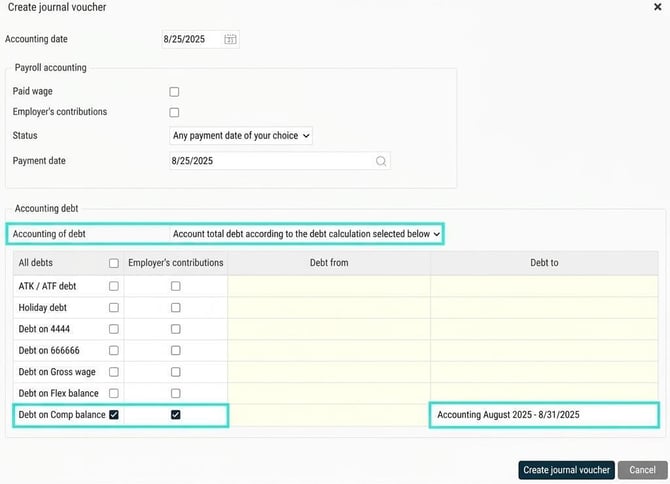
In the section Accounting debt tick the debts you want to include. Only debts with an established calculation are shown here.
-
Choose whether to account for the total debt for a particular month, or the change between two months.
-
Use the checkboxes to select whether the debt and/or the employer's contributions should be included.
-
Then choose which debt period or periods are to be accounted for.
-
When the voucher is created, you can print out a journal voucher and create an accounting file.
Manage final salary
When an employee leaves, you can easily pay out any remaining balance (for example, accrued comp time) using the final salary function in payroll preparation. The function displays the accumulators where you have activated the setting for debt and final salary.
After you have calculated the final salary, you can on the accumulator tab in payroll preparation see that the balance is set to zero. If required, you can pay out parts of the balance in different payroll periods.
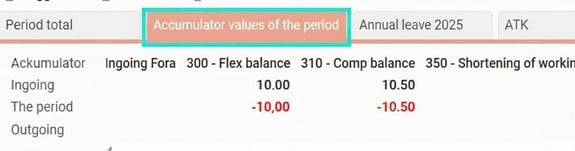
If something is wrong, you can remove the pay codes for the final salary directly in payroll preparation. The balances are then restored.
Guide: Switching from comp debt on pay codes to the new function
If your company has previously managed comp debt via passive pay codes in payroll preparation, it is important that you follow the steps below to avoid double accounting.
-
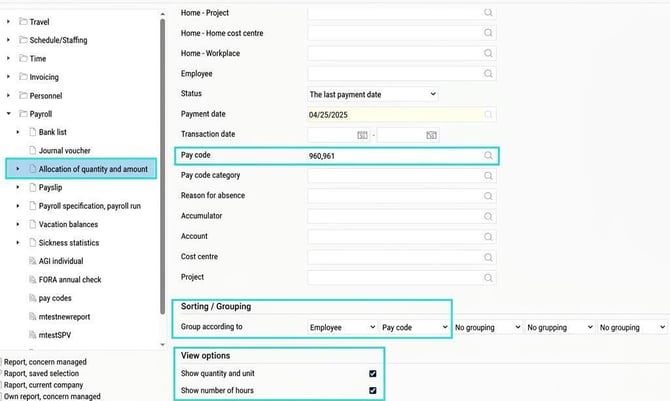
Bring up the latest comp debt. Create a report (preferably use the "Allocation of number and amounts" report) of the pay codes you have used for this (for example pay code 960 and 961 in this example).
-
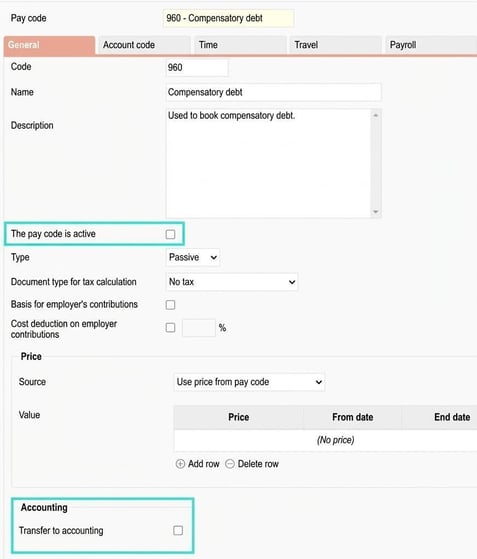
Deactivate the old pay codes. On the pay codes that have previously calculated the debt, go to the tab General and untick Transfer to accounting. Also set them as inactive.
-
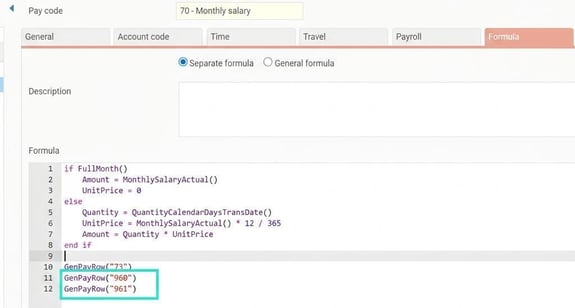
Remove the automatic link. Ensure that the pay codes are no longer generated automatically in payroll preparation (often the link is on the pay code for the monthly wage). Go into the pay code register on the selected pay code and remove the rows that generate these pay codes.
-
Create a new comp debt. Use the new function under Payroll > Debt management to bring up a debt for the same month.
-
Compare the debts to make sure they match.
Important in accounting of change
If you wish to start accounting for the change of the debt, you must first create a total debt for the previous month.
Example: To be able to account for the change in comp debt in December, you must first create and establish a total debt for November. After that you can create the voucher for December and choose to account for the change.
Please note: This article is AI-translated. This means that linguistic errors or misunderstandings may occur.