
How to use the Retroactive pay function
Go to Administration > Actions processed > Retroactive pay to start the process.
Make a selection for calculation
-
Specify the date from which the new salary should apply. The list to the right and the status information will update based on your chosen date.
-
Tip: Next time you use the function, Flex HRM will automatically propose this date.
-
-
Choose whether to do the calculation for a specific employee, a group, or for all. If you make no active selection, all employees who have received a new salary from the specified date will be included.
-
Click on Calculate.
Check the result
Once the calculation is complete, you will see the result in the list.
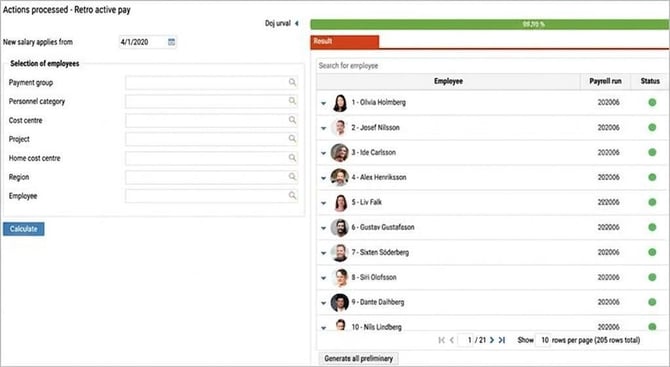
You can audit the details to ensure everything is correct:
-
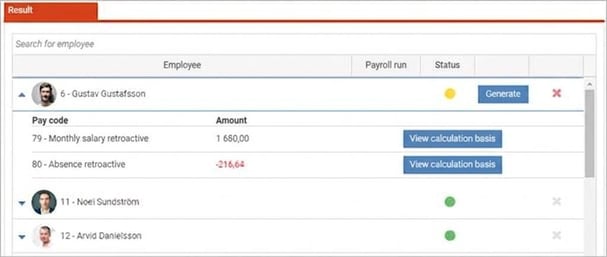
Click on the row for an employee to view their total retroactive pay.
-
Click on the blue arrow to view detailed results for each employee.
-
Click on View calculation basis to see exactly how the amount has been calculated. In the upper list you see the original transactions and in the lower list you see the calculation with the new salary.
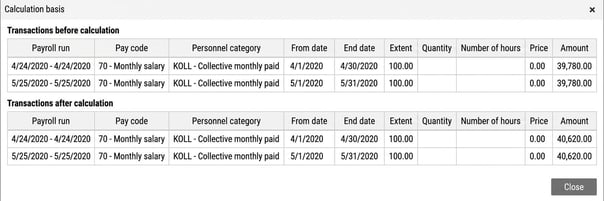
If you discover something wrong, you can adjust the information and click on Calculate again for the current person.
Generate retroactive pay
When you've checked that the specification is correct, it's time to transfer the amounts to the payroll run (to carry out this step, you need to have an open payroll run):
-
To generate for one person at a time: Click on Generate on the employee's row.
-
To generate for all at once: Click on Generate all preliminary below the list.
The retroactive pay is now added to the preliminary payroll run.
Status information and overview
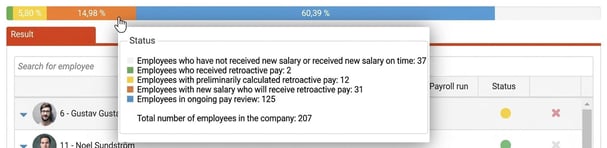
Above the list is a staple showing the status of this year’s salary review. The various colours show how far the employees have progressed in the process.
-
Hover over the staple to see what the colours mean and how many people are at each stage.
-
When the entire field is green, all retroactive pay has been paid and the review is complete.
-
Click on a colour segment to see a list of the employees included there. If you click on the orange section, you’ll see who has received a new salary but whose retro pay has not yet been calculated. You can then use the quick button at the bottom to start the calculation for these people.
View specification for pay codes
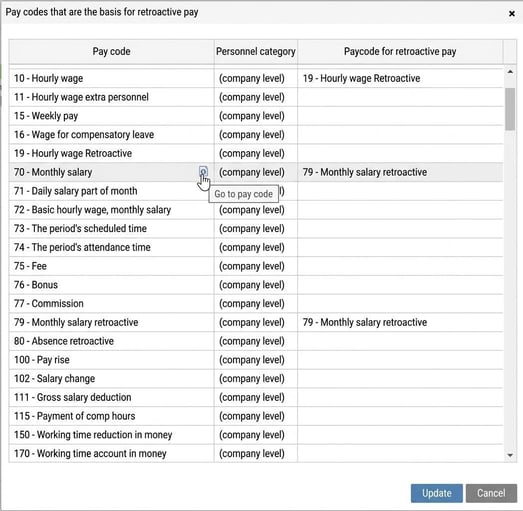
There is a button on the toolbar to view which pay codes are the basis for retroactive pay.

When you click on it, you’ll see:
-
A list of all affected pay codes.
-
Which pay code is used for payment of retroactive pay.
-
A shortcut to open the pay code’s settings in a new tab if you need to change anything.
Settings – Pay codes
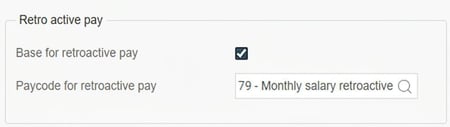
Setting is done in the salary type register under the Payroll tab in order to specify which salary types retroactive pay should be calculated on and which pay code retro pay should be posted to, on the Payroll tab:
Export to Excel
You can export the calculation basis for one or more employees to Excel to do your own checks. In the Excel file you will see:
-
Blue: The calculated retroactive amount.
-
Green: The specification before calculation with the new salary.
-
Yellow: The specification after calculation with the new salary.

Filter and error log
-
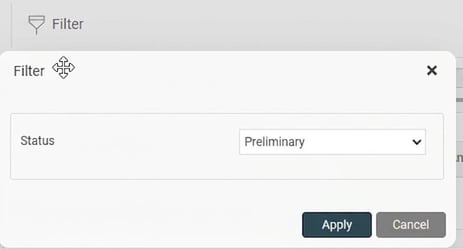
Filter: By default, only employees with the status Preliminary (those who have not yet been generated to a payroll run) are shown. If you want to see those who are already finished, change the status in the filter.
-
Error log: If something goes wrong during calculation or generation, you will get information about it. In the error log you can see which employees are affected and what the error is due to.
Please note: This article is AI-translated. This means that linguistic errors or misunderstandings may occur.