
Use the search function
The fastest way to find what you are looking for is to use the search function, which is always visible at the top of the programme. You do not need to type the full name of the page you are searching for. It is enough to enter part of the word or words to bring up relevant search results.

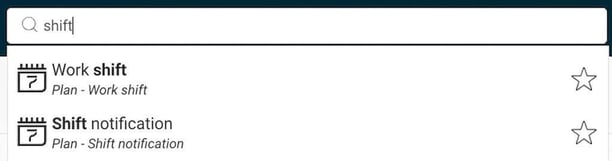
Click on a search result to go directly to that page. You can also right-click on a result and choose to open it in a new tab in your browser.
Note
The search results display a limited number of hits. If your search generates many hits, you will not see all menus containing your search term. The results are based primarily on exact matches, and secondly on your last visited views.
Create favourites
You can mark pages as favourites by clicking the star to the right of the link in the search results. When you click in the search field, your favourites and last visited pages are always displayed straight away, before you start searching.
Use the side menu
All functions in the system are divided into icons which you find in the side menu to the left. Which icons are shown depends on which modules you use and your authorisation.
Collapse and expand the side menu
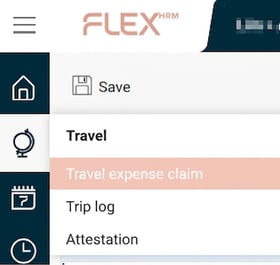
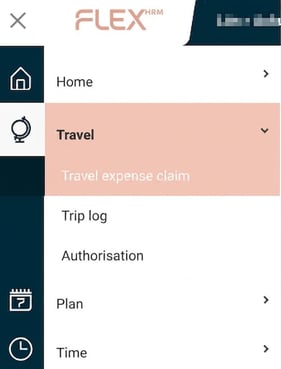
You can choose whether the side menu should be collapsed or expanded.
To switch between the modes, click on the three lines at the top left of the page.
|
|
|
|
|
|
Please note: This article is AI-translated. This means that linguistic errors or misunderstandings may occur.