
Settings in the Volvo Cars app
Create a CSV from the Volvo Cars app
Before creating the CSV file, I should first categorise my journeys in the app as either work trips or personal trips so that I can easily select only the work trips when I am ready to create and send the CSV file.
- Categorise the journeys as “Work”
- Optional choices include merging journeys from the same date into one journey, or merging all journeys from the month into one journey. If I do not merge, each journey will be kept separate.
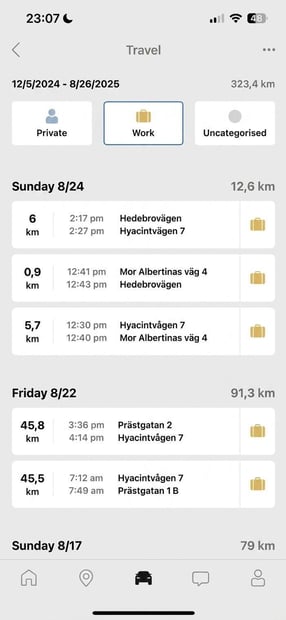
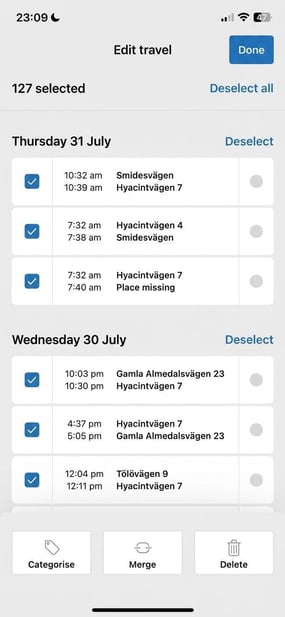
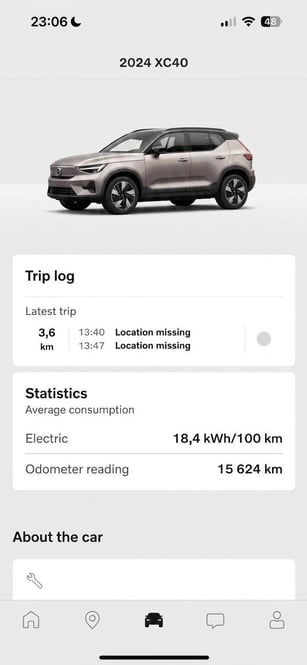
When I am ready to create a CSV file with the period's journeys, I open the app and select the Trip log option, then Export.
Click on Trip log Choose Export
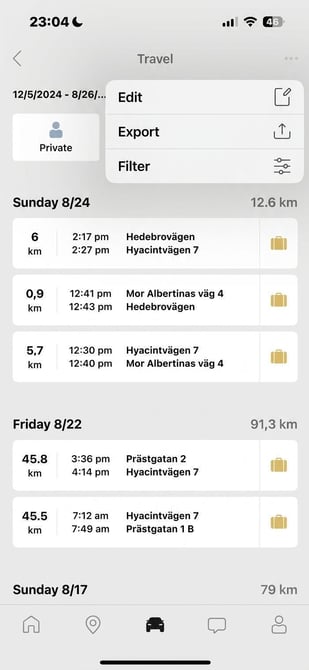
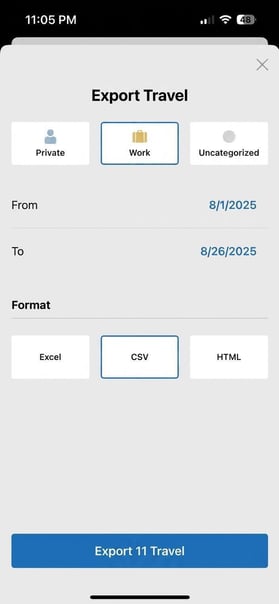
Select “Work” and specify the dates to export and tick CSV. Click on Export
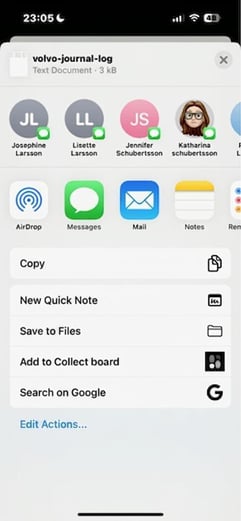
Select Mail and send the file to your email address
Importing car trips in Flex HRM Travel
Import car trips
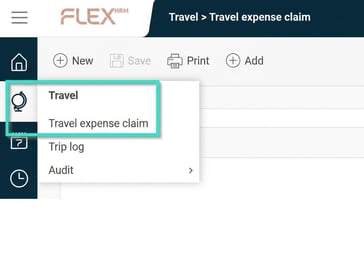
Open Flex HRM Travel - Travel expense claim
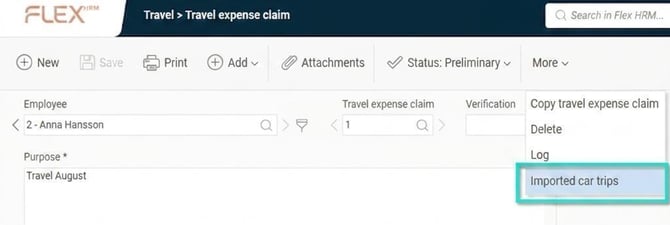
Create a new travel expense claim. Select the option “Imported car trips” under the menu entry “More”
Click on Fileimport
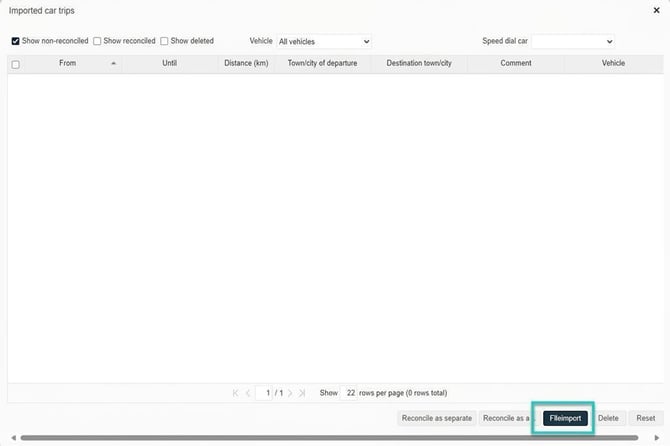
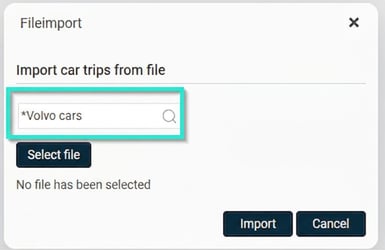
Select the import template “Volvo Cars”, then “select file”. Choose the saved file from the Volvo Cars app and click “import”.
Select my vehicle under “Speed dial car”
Then choose whether I want to manage each journey separately (Reconcile as separate), or merge several (Reconcile as one).
If I have already merged my work trips in the Volvo Cars app, select the option “reconcile as separate”.
If I have not merged the journeys in the app, I can choose to do so at this stage and mark the journeys I want to “reconcile as one”.
Click on either of the options “Reconcile as separate” or “Reconcile as one”
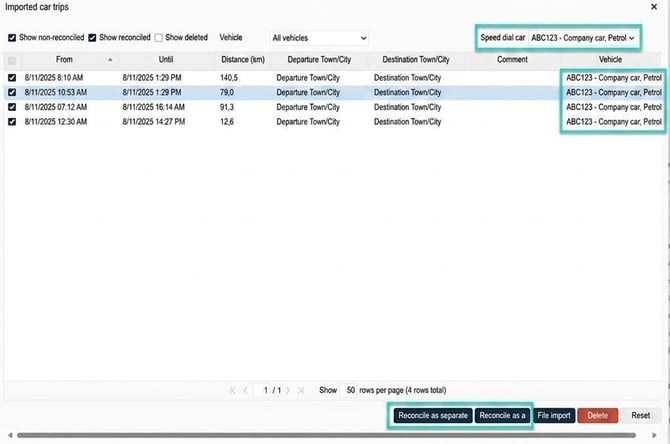
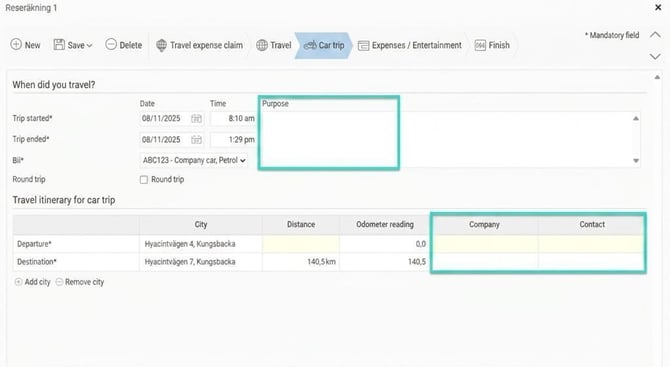
My journey/journeys will be added to the travel expense claim.

If necessary, I can edit the journeys and add, for example, purpose, company or contact person.
Remove imported transactions
If I have imported car trips that I will not report or claim allowance for, I can choose to remove them from the list.
Mark the journeys to be removed and click the “Remove” button
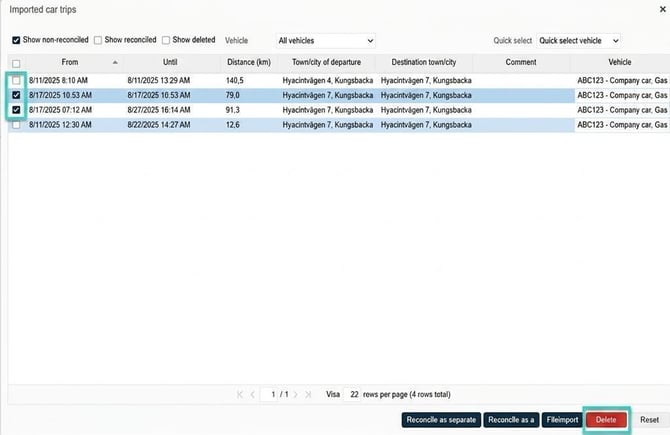
View/retrieve deleted car trips
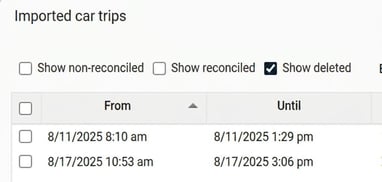
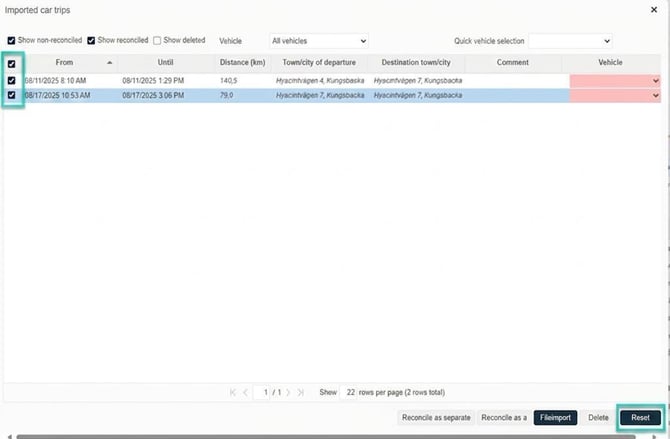
If I want to see which journeys have been removed, I can tick “Show deleted”. Here I can also retrieve deleted journeys.
Tick Show deleted
Mark the journeys I want to retrieve and click on “Reset”
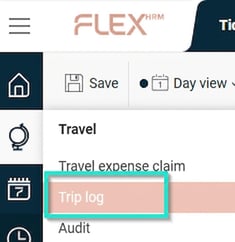
Report - Trip log
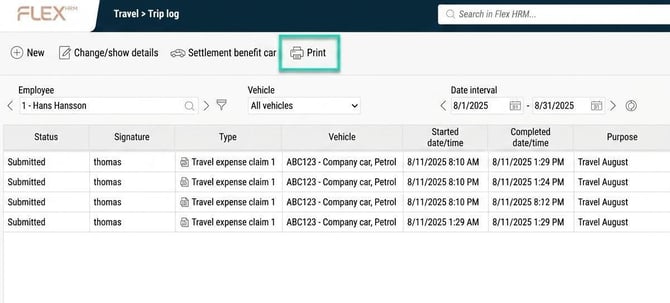
If you want to print a trip log, go to Travel - Trip log
Click on the “Print” icon
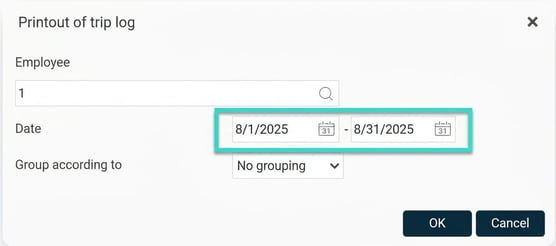
Select from and end date. Click OK
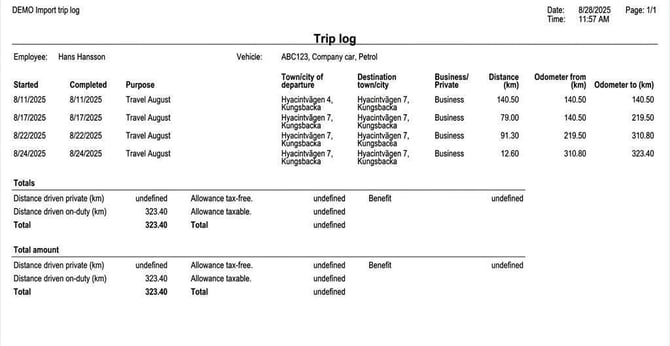
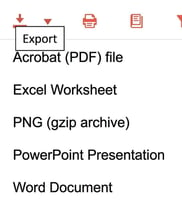
You can download the report as a PDF or print directly to the printer.
Tip! If you want to read about how to set up an import template in HRM Travel, Click here
Please note: This article is AI-translated. This means that linguistic errors or misunderstandings may occur.