
The report Annual leave schedule
Check auditing of time reports
The report Annual leave schedule
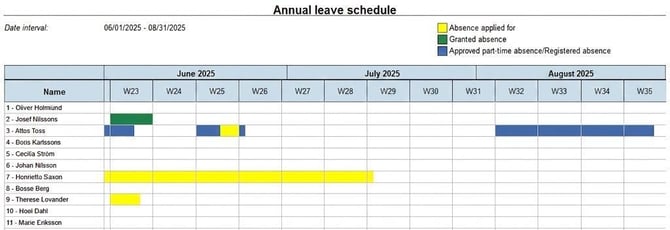
With the Annual leave schedule report you can quickly get a total overview of applied for and granted absence for a certain period.
-
Go to Reports > Time.
-
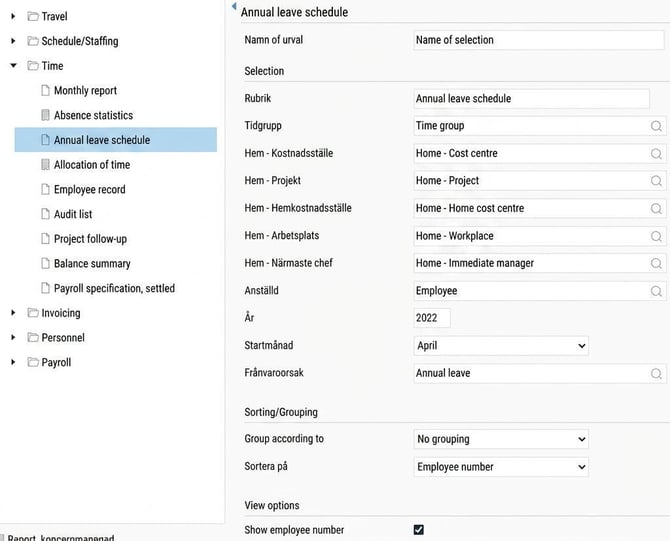
Select the report Annual leave schedule.
-
Make a selection of year, start month and reason for absence (for example annual leave). The report will always show three months from the start month you choose.
Calendar
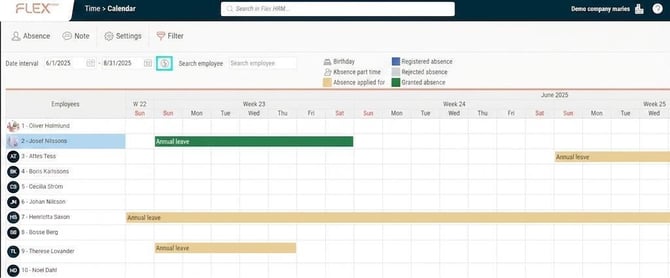
The calendar gives you a visual overview of absences without having to print a report. Here you can see absence periods, reasons and status for each employee. You can also manage absence applications directly in the view.
Here's how to do it:
-
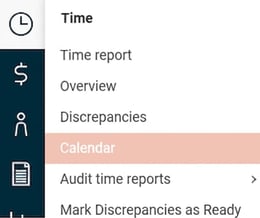
Go via Time > Calendar in the menu to the left.
-
Specify the date interval you want to view (you can show up to one year). Click the round icon with arrows to refresh the view.
-
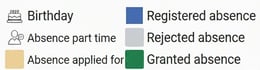
In the summary the employees’ absence is displayed. The coloured bars show the status of the absence (for example applied for, granted or rejected), according to the colour scheme in the top right.
Note!
-
Your calendar view may look different depending on which authorisations your user role has. These settings are made under Administration > Users/Authorities > Roles > Menus.
-
What the audit levels are called (for example Approval, Granting) and what colours their icons have may differ between companies. This is configured under General > Audit levels > Absence applications.
-
For the audit levels to work, they must be activated for the company under Settings > General > Audit levels > Absence applications.
Check auditing of time reports
To see the status of time reports and ensure they are audited on time, you can use the audit view.
-
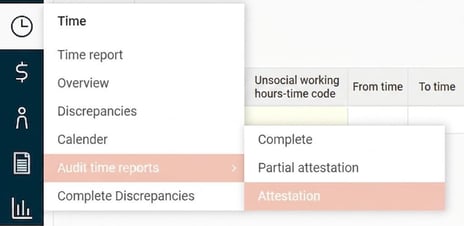
Go to the Time module and select an audit view, such as Approval or whichever is applicable to your company.
-
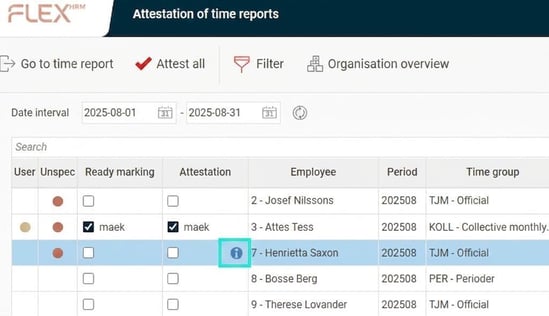
There you will see a list of the time reports you are authorised to access and their current status.
-
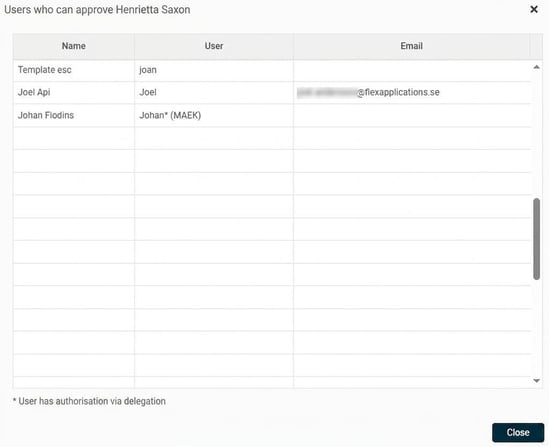
If you click the i-icon in the approval column, you can see which user or users are authorised to approve that particular time report.
Please note: This article is AI-translated. This means that linguistic errors or misunderstandings may occur.