
In Flex HRM you can display key contacts in a panel on the front page. This makes it easy for employees to see who to contact for different matters.
You can manage contacts under Administration > at two levels:
-
Company level: The contacts are only shown for the current company. You manage them under Administration > Register > Contacts.
-
System level: Contacts can be displayed for all or selected companies in your installation. You manage them under Administration > System register > Contacts.
How contacts are shown on the front page
In the panel on the front page, you can display the following information about the contacts:
-
Photo (if no photo exists, the person’s initials are displayed)
-
Name and Position
-
Phone and mobile number
-
Email address
-
Optional text to clarify the person's role
The number of contacts displayed is up to you.
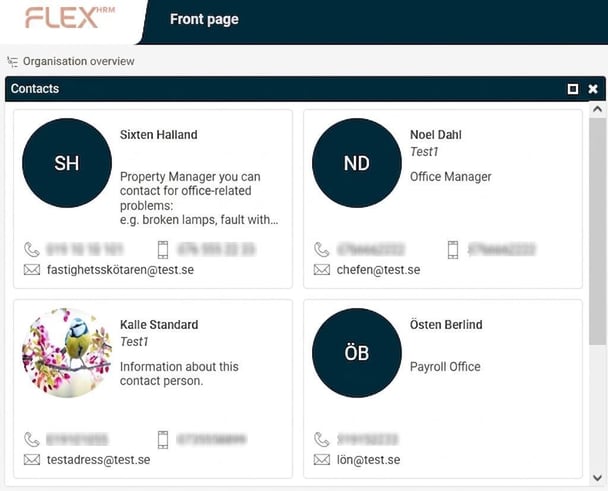
Add and edit contacts
Go to Administration > Register > Contacts to manage contacts for the company.
On the left you will see a list of existing contacts. On the right you add new ones and manage their details. Contacts added at system level are also shown in the list, but in italics. You can also choose the sequence in which contacts are displayed in the panel on the front page by setting the sequence number for them.
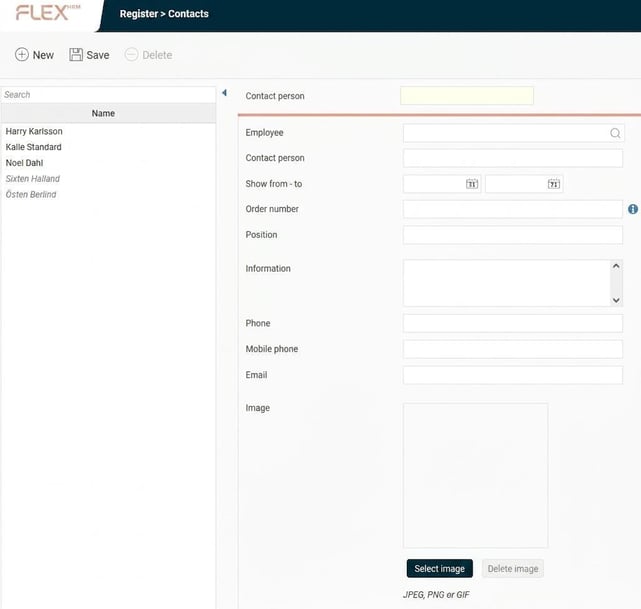
Select type of contact
You can either select an employee from Flex HRM or add a contact manually.
-
Employee in Flex HRM If you select an employee, the system will automatically retrieve details such as name and contact information from the employee register. Only the Information field is filled in manually. The details are updated automatically if any changes are made in the employee register.
-
External contact If you add a contact who is not an employee, you will fill in all the fields manually and must update them yourself if details change in the future.
Please note: This article is AI-translated. This means that linguistic errors or misunderstandings may occur.