
Here you can subscribe to the schedule
How the schedule is displayed in your calendar
Display each work shift as a separate calendar entry
End or reset your subscription
You can subscribe to your schedule in Flex HRM and view it as a calendar in your calendar application.
Note
For subscription to work, the basic settings need to be configured. See the basic settings in the following article: Administrator settings for subscribing to schedules.
Here you can subscribe to the schedule
You can find the option to subscribe to the schedule in the following three places in Flex HRM:
-
In HRM Mobile go to My schedule and select Subscribe in the side menu.
-
On the front page in Flex HRM you'll find the panel My Calendar. Click on the button Subscribe at the bottom right.
-
In the schedule view you can click on an employee's name. In the window that opens with contact information, there's a button Subscribe. As a manager, you can for example use this feature to subscribe to your employees' schedules.
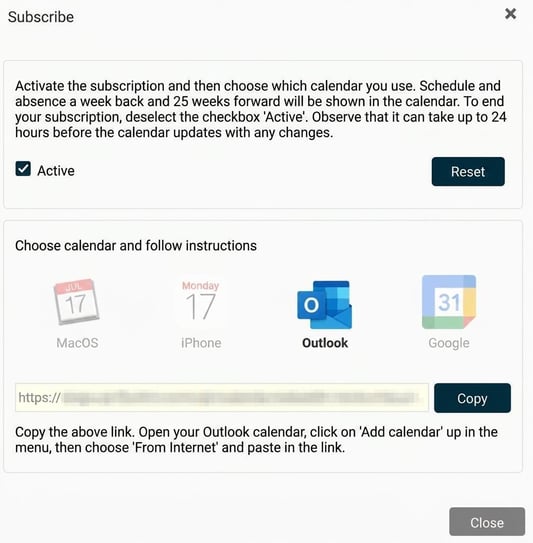
When you click Subscribe at any of these places a window will open. There you can activate the subscription and will get instructions on what to do in the four different calendar applications that support this (MacOS, iPhone, Outlook, and Google).
How the schedule is displayed in your calendar
In your calendar application, a new calendar will be created called Flex HRM. It contains calendar entries for all your scheduled days.
In the scheduled calendar entries, the heading will by default show Schedule . If you have absence for the entire day, the absence reason will appear in the heading instead of Schedule. If you have absence during part of the day, this will be shown in the details within the calendar entry.
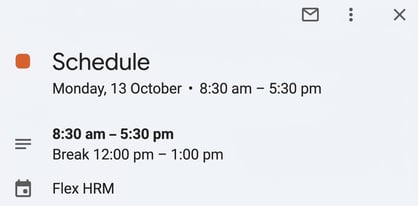
The schedule is fetched and displayed for one week back and twenty five weeks forward, counting from today's date.
Display each work shift as a separate calendar entry
By default, the entire day is shown as a single calendar entry. If you want to see each work shift as its own calendar entry you can enable a detailed view. This can be useful if you are scheduled in different positions or projects on the same day.
To activate this, add &showDetailedDay=true at the end of the link you paste into your calendar when you start the subscription.
Example
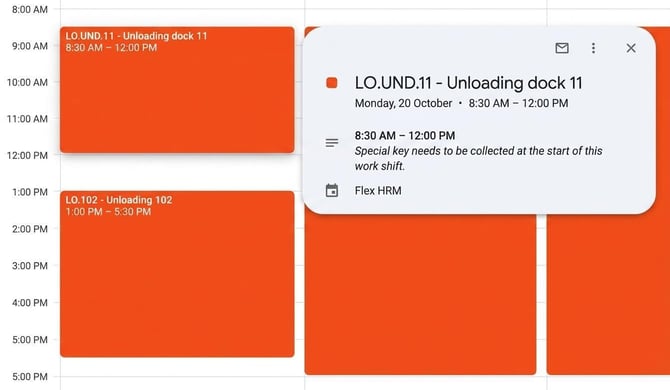
An employee works October 20 from 8:30 AM - 5:30 PM with a break 12:00 PM- 1:00 PM. The morning shift and afternoon shift are planned on two different projects.
The usual subscription shows one entry in the calendar, 08:30-17:30. To see details about times, project and break, click on the calendar entry.
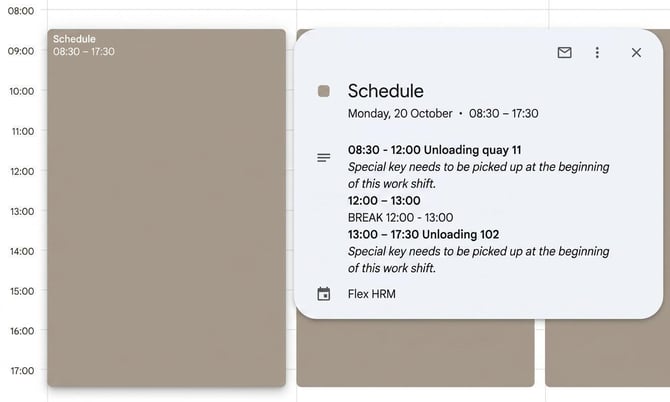
In the subscription below we have added &showDetailedDay=true at the end of the link. The calendar entries show 08:30-12:00 and 13:00-17:30. A gap is left for the break. Also in this case you can click on a calendar entry to view details such as comments on the shift.
End or reset your subscription
You can easily end your schedule subscription or reset the subscription link.
End subscription
To endyour subscription, untick the Active box in the schedule subscription window.
Reset subscription link
If you click on the button Reset your existing subscriptions will stop working. A new link will be generated, and you must use the new link for the subscription to work again.
Please note
It may take up to 24 hours for the calendar to update with changes.
Please note: This article is AI-translated. This means that linguistic errors or misunderstandings may occur.