
Allocate the time
Time in a time report can be tagged with account codes, such as project, cost centre, etc. This can be done in two different ways. Either select the account code for each registered time, or use the account code allocation to allocate a day or several days based on number of hours or percentage of the working day.
Use account code allocation
You’ll find account code allocation under More-menu in the time report: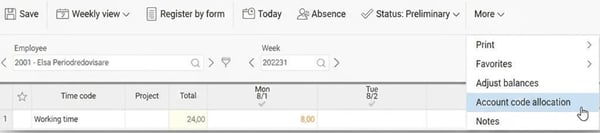
When you click on Account code allocation by default, the day you last visited is loaded.
In the example below, 23/6 is allocated in hours. As time is entered, the Hours left to be allocated which initially displayed the number of allocatable hours for the selected day, is reduced.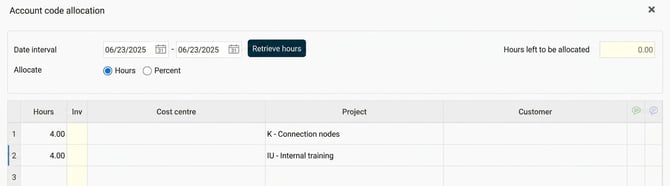
In the next example, all hours that have been reported on 23/6 are allocated as a percentage of the working day instead of in hours.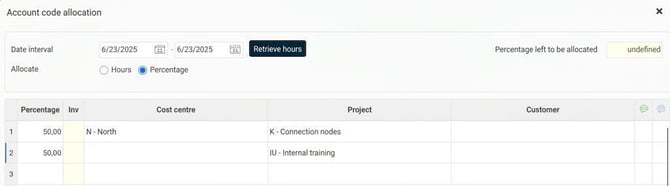
In both cases, the time report is split like this: half of the day’s working time to cost centre N and project K, the other half to project IU.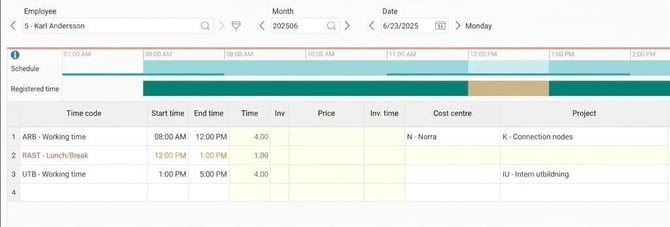
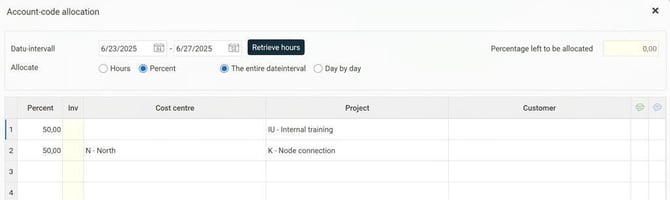
If you allocate several days at once, there is a setting for whether the split should be the same every day, or if the split should be done for one row at a time in the account code allocation. An example of the latter is shown below. The allocation is done for a week, 50% is to be allocated to project IU, 50% to project K. In the time report, 2.5 days are allocated to project IU and 2.5 days to project K.

Allocate each time row
If the day already has registered time, you can specify the account code for each row by entering the post you want to search for directly in the respective account code field. If the times or number of rows don’t match, you can create new rows with the correct time and account code.
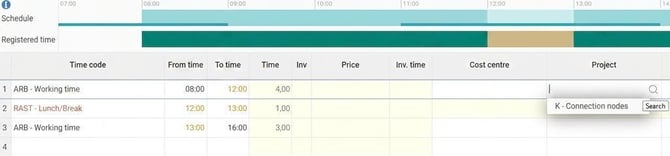
If you have an empty day, you can enter the correct account code at the same time as you report the times.
Please note: This article is AI-translated. This means that linguistic errors or misunderstandings may occur.