
Total amount of allocated licences
You can check your licences using a Company report, but you can also see the total amount of licences per module under Administration > General > System register > Licence.
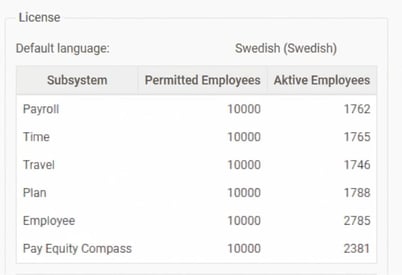
Enable the option to download Company report
The option to download the Company report is authorisation-controlled. You activate it under Administration > Users/Authorities > Roles for the roles you want to have access to the report.
- Go to Administration > Users/Authorities > Roles.
- Select the role you want to grant access to the report
- Tick the checkbox for Download Company report under Administration select Company
- Click on save
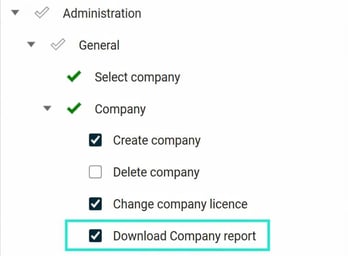
Download Company report
You will find the report under Administration > General > Company.
When you download the report, you can specify a wanted name and choose whether to download it at the system, company or employee level. The report is downloaded as an Excel file (.xlsx).
What can you see in the Company report?
In the Company report, you will find an overview of the companies in the database. You can also see the number of employees in each company that use the respective subsystem and additional module.
When you generate the report at the Employees level, you will see details of which licences each employee uses.
Please note: This article is AI-translated. This means that linguistic errors or misunderstandings may occur.