
Payroll connection settings
Time code settings for transfer to payroll
Note
It is important that these settings are checked all the way into the payroll system. We recommend that you get assistance from a consultant when setting up a new payroll connection or adjusting an existing one.
When time reports have been registered and reviewed, they are transferred to a payroll system to ensure that the correct wage is paid. If you use HRM Payroll this is done in Payroll preparation, otherwise under Actions processed > Transfer of time reports to payroll.
Payroll connection settings
Under Settings > Payroll > Payroll connection you have specified the payroll system you use. This setting determines how the files created during the transfer are formatted, so the payroll system can import them correctly.
Under the tab Time the contents of the files can be customised. The settings for what can be transferred and how it is transferred vary depending on the payroll connection.
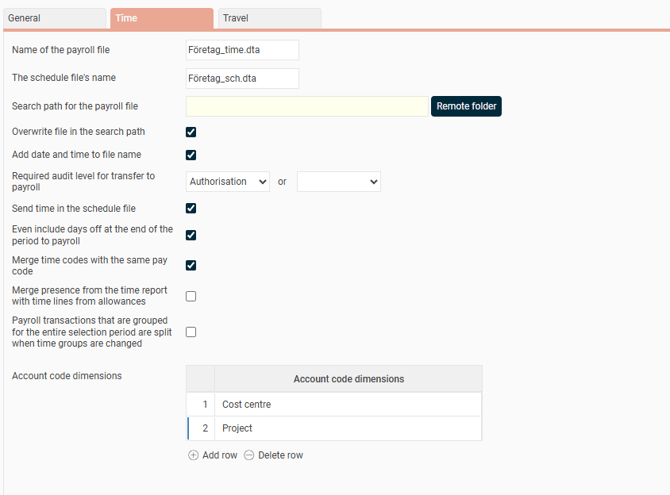
Search path for the payroll file
If the payroll file is to be saved in a remote folder during the transfer to payroll, this can be specified here. If a search path has been set up, the system will by default save to this path, but it can be deselected for specific transfers.
Required audit level for transfer to payroll
Here you specify the audit level required for the time report to be transferred to the payroll system. Note that you can specify two alternative audit levels, for example that the time report needs to be either submitted or authorised.
Also transfer time off days at the end of the period to payroll
Tick this box if work-free days at the end of a period should also be transferred to the payroll system. If an employee has sick leave at the end of a month and the last of the month is a Saturday, then Saturday will also be transferred to payroll (provided the time code for sick leave is configured to include time off days).
Merge time codes with the same pay code
If this box is ticked, time codes with the same pay code will be merged, in order to decrease the number of rows.
Payroll transactions grouped for the entire selection period are split when changing time group
Tick this setting if you want payroll transactions grouped for the entire selection period to be split into several transactions with date intervals following dates when time group changes occur. This applies in general for all payroll connections that are able to send transactions for the whole selection period.
Account code dimensions
Here you can specify any account code dimension that should be included in the payroll file. If several account code dimensions are specified, you can specify their sequence in the payroll file by entering the wanted sequence number in the box to the left.
Time code settings for transfer to payroll
Under Settings > Time and Plan > Time codes > Transfer to payroll there are settings that control how information from time reports should be transferred in payroll files. As with the payroll connection settings, the available options vary depending on the payroll system.
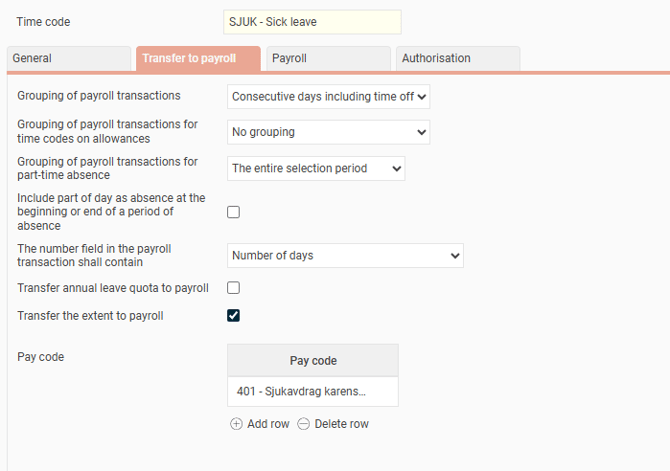
Grouping of payroll transactions, grouping of payroll transactions for time codes on allowances
Here you set how the current time code should be totalled in the payroll transaction file.
The following options are available:
| No grouping | No grouping of registered time rows occurs; each row in the timesheet becomes a separate payroll transaction. |
| Day | Grouping is done per day. If there are multiple time rows in the timesheet with the same time code, they are grouped into a single payroll transaction. |
| Day, including time off | Functions like the 'Day' option above, with the difference that non-working days covered by e.g. extended leave are included in the payroll transactions with quantity = zero. Cannot be used for allowance time codes. |
| Consecutive days | Multiple consecutive days with the same time code are grouped into a single payroll transaction. |
| Consecutive days including time off |
Multiple consecutive days are grouped into a single payroll transaction. Non-working days covered by e.g. extended leave are also included in the grouping. |
| The entire selection period | All time rows with the same time code across the entire date range transferred to payroll are grouped into a single payroll transaction. |
Include part-day absences at the start or end of an absence period
This box is displayed if any of the options Consecutive days or Consecutive days including time off are selected above. Here you specify if absence at the start or end of an absence period should be included when the time code is totalled in the payroll transaction.
The number field in the payroll transaction should contain
Here you can specify what should be entered in the number field in the payroll transaction file. The following options are available: Number of hours, number of days, number of days calculated against schedule time, and number of calendar days.
Transfer annual leave quota to payroll
Here you can choose if the vacation quota should be sent with annual leave transactions. The vacation quota is calculated using the formula Number of weeks in the schedule * 5 / Number of work days in the schedule. The schedule refers to the employee's default schedule and does not take into account any manual schedule changes on specific days.
Transfer the extent to payroll
If this box is ticked, the extent will be sent with the transactions.
Pay codes
Here you specify the pay code or pay codes that should be linked to the current code. Time codes lacking a pay code will not be transferred to payroll.
Reason code
Is being used by certain payroll systems and is entered in the file with or instead of pay code.
Please note: This article is AI-translated. This means that linguistic errors or misunderstandings may occur.