
Which app should I use?
|
The mobile app HRM Mobile has been available for some time now. We are currently developing a brand new, fast, and user-friendly Flex HRM app with a completely fresh design. The new app is being developed and will continuously gain more functions. You can read more about it in the article What is the Flex HRM app and why are there two apps? |
 |
View absence
Create absence
Edit absence
Delete absence
How do I view my absence?
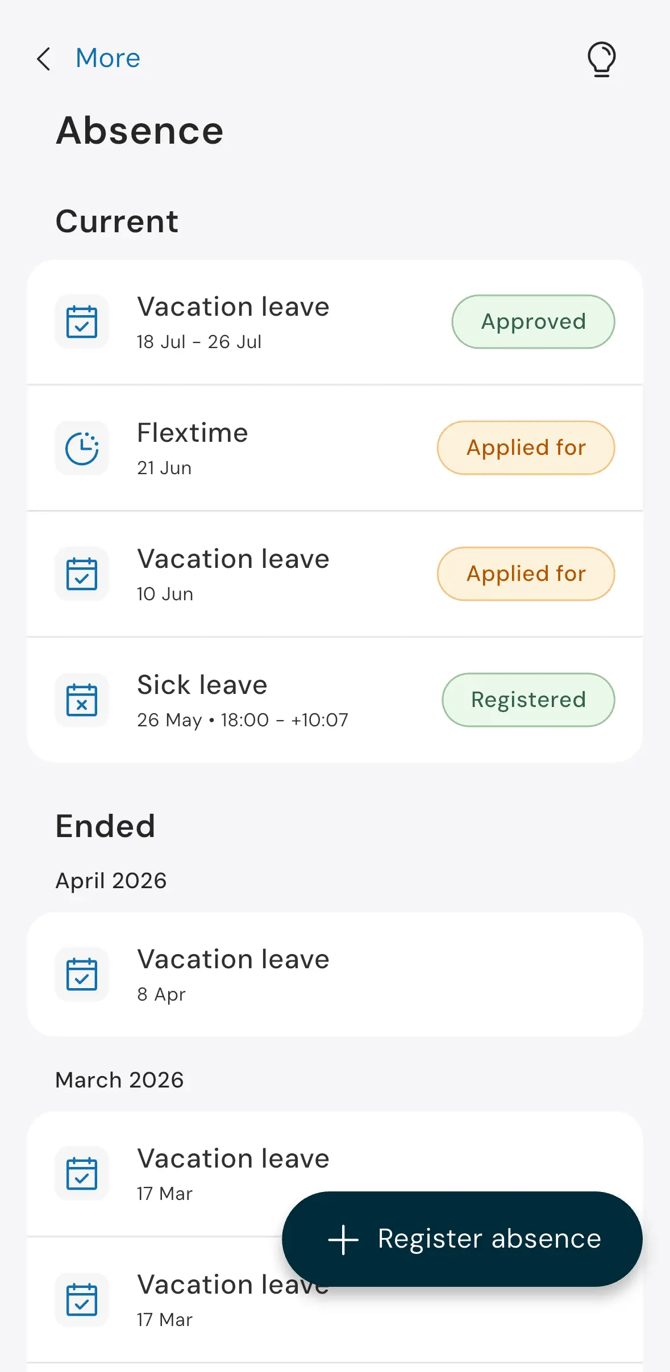
In the view Absence you will find both your current and completed absence records. Scroll downwards to load more historical data. Click on a specific absence to view information about the status, duration and when it was registered.
|
Absence is divided into two categories:
The end date determines where an absence is listed. For example, an absence spanning November 30 – December 1 will be listed under Current during the month of December. |
|
Here we use the term Approved for absence that has been authorised. It may be referred to differently in your organisation.
How to register a new absence?
Can Flexie create absence for me?
Yes. You can ask Flexie to create your absence instead of registering it manually. The absence will be saved and shown as usual. Absence requiring approval will need to be approved by your manager, just as usual.
If you wish to report absence manually, follow these steps:
| 1. Click Register absence. | 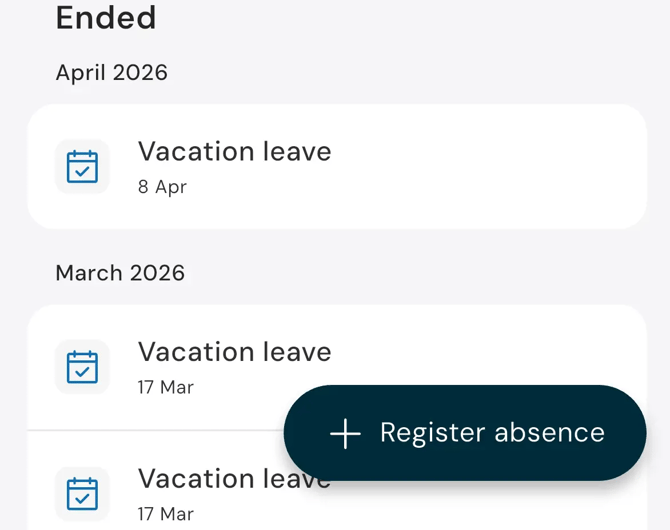
|
| 2. Select an Absence reason. Your most frequently used options are displayed immediately, and you can choose to view all absence reasons. | 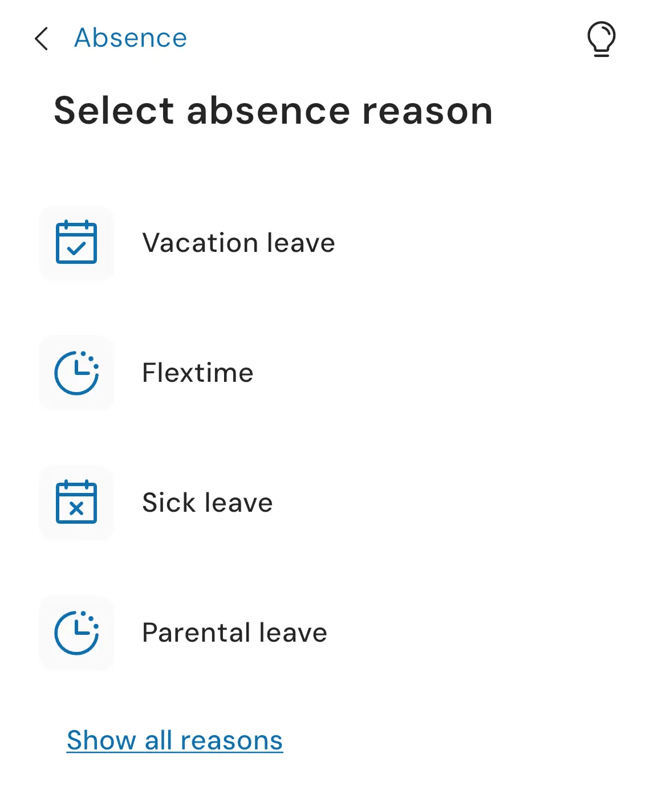
|
|
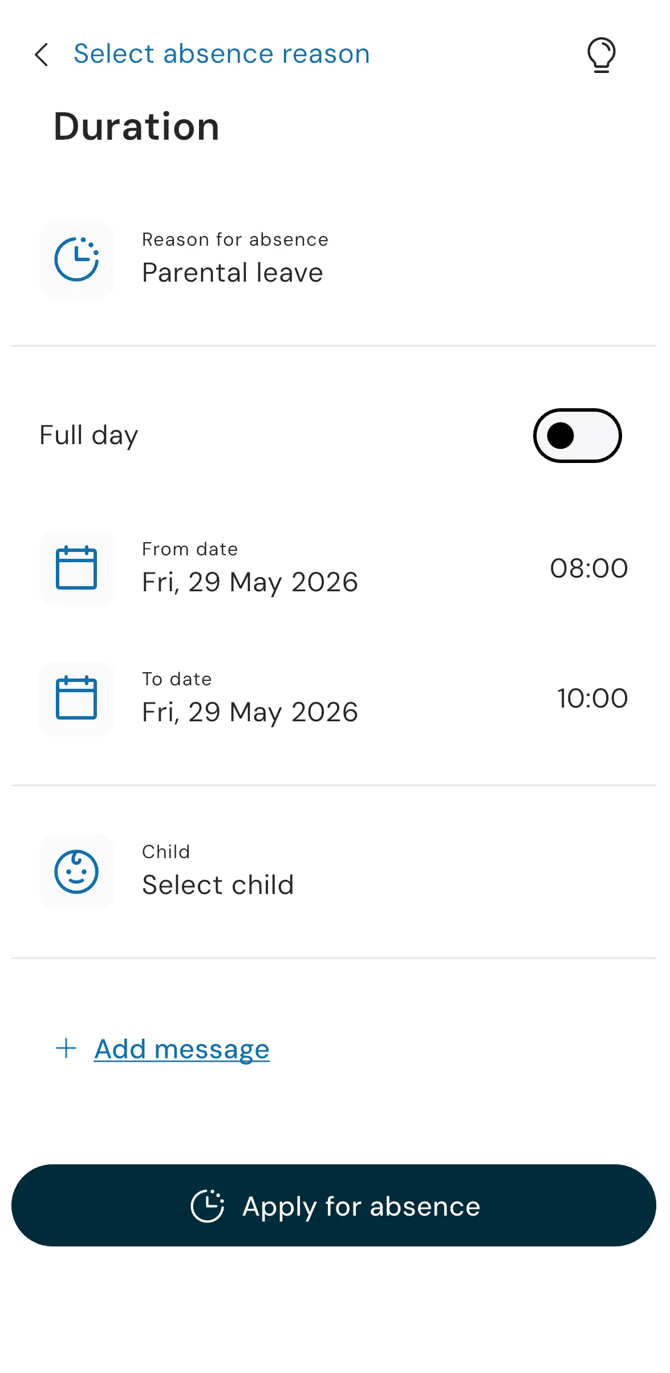
3. Enter the dates. By default, the full day option is selected and today's date is pre-filled. If you change the start date, the end date will update automatically. 4. If you will only be absent for part of the day, uncheck Full day and enter the specific times. 5. Write a message (optional). 6. For absence reasons configured to allow or require child selection (such as parental leave), you can select a child from your existing child registry in Flex HRM. If a child must be specified and you do not have a child registry set up, you or your administrator will need to resolve this directly in the Flex HRM web interface. It is not possible to edit the child registry within the app. 7. Click Register absence or Apply for absence to save. The text on the button varies depending on whether your absence requires approval or not.
|
|
If the absence needs to be approved, it will be given the status Applied for and sent to your manager. As soon as the absence is approved, it will be generated in the time report. If the absence does not require approval, it will receive the status Registered and appear in your time report immediately.
Are you missing the option The entire day?
It is only shown for those reasons for absence that can be used for both full days and part of a day.
For example, Annual leave is usually only used for whole days, so there is no need to specify the time.
Is the save button greyed out?
Check your details to see what is preventing the absence from being saved. It is often because you have accidentally entered an incorrect time interval, for example an end time earlier than the start of the absence.
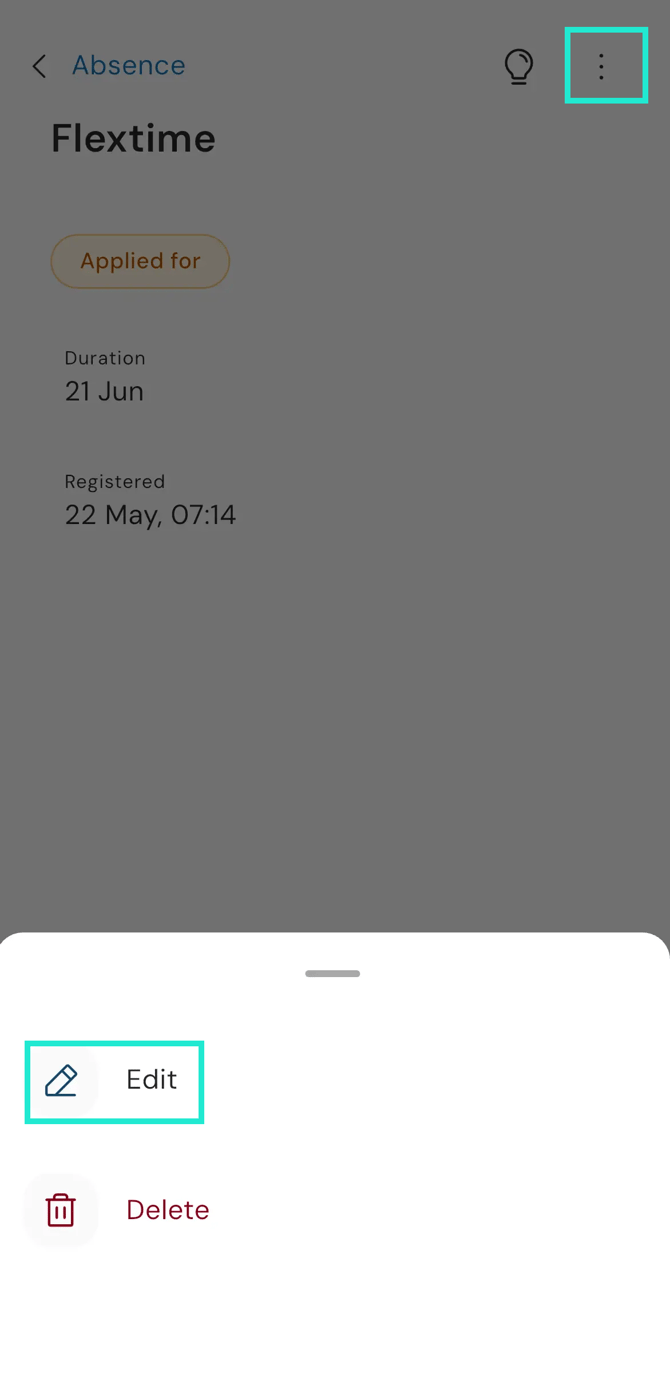
How do I edit a registered absence?
|
If you need to modify an existing absence, follow these steps:
If the three dots are not visible, it means the absence cannot be modified. This may be because your manager has already approved it and you lack the permissions to change reviewed data. |
|
How do I delete an absence?
If you have entered an incorrect absence you can remove it:
-
Select the current absence.
-
Click on the three dots in the upper right corner.
-
Choose Delete.
If the three dots are missing, the selected absence cannot be deleted.
Why is the Absence menu missing?
If you do not see the menu Absence check the licence and authorisation. To view absence in the Flex HRM app, you need a licence for HRM Time and/or HRM Plan and be authorised to register absence.
Please note: This article is AI-translated. This means that linguistic errors or misunderstandings may occur.