
If you want to see what has been recorded to a specific account in the accounting, you can preview the accounting documentation.
By using different settings for the preview, you can specify exactly which information you wish to see.
For example, to see which pay codes have been posted to a certain account, do the following:
- Go to Payroll > Accounting and select the relevant accounting documentation in the list. Then click Print.

-
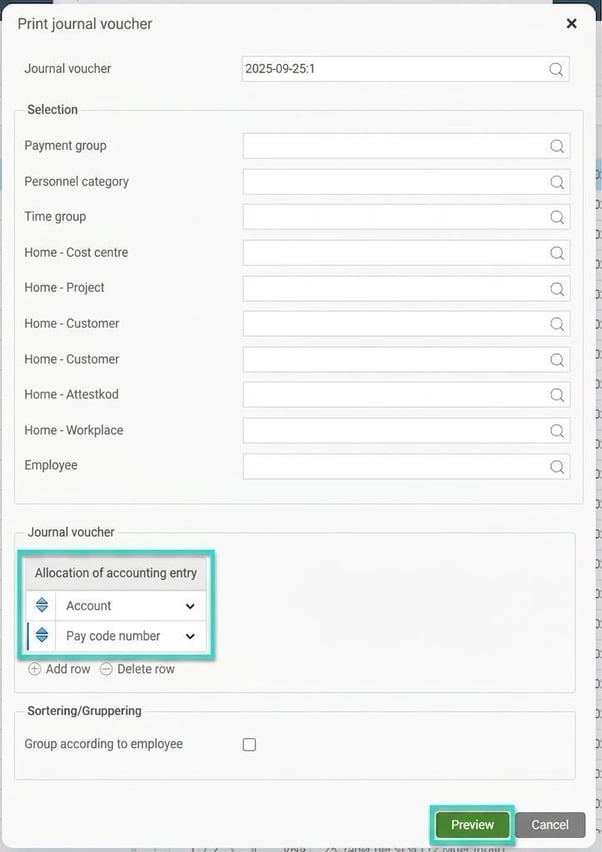
Under the setting Allocation accounting entry, choose to display Account and Pay code number. Then click Preview.
In the preview, you will then see which pay codes have been posted to each account.
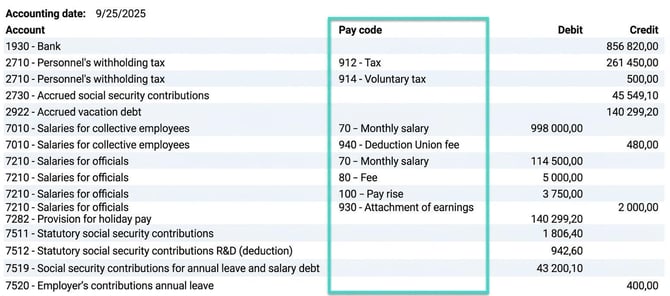
Tip: If you would rather see account codes, for example for a specific cost centre or per employee number, you can choose to display those account code levels in the allocation entry. Here you can remove and add fields based on your requirements; this only affects how the view is printed/previewed. Your original settings will return the next time you go into Print.
Amounts without a pay code are recorded according to the settings under Accounting and debt management (liabilities, employer's contributions, deductions on employer's contributions, payment to bank).
The account for payment to bank summarises all pay codes set to be sent to accounting and that do not have a contra account specified under the Account code tab in the Contra account code field.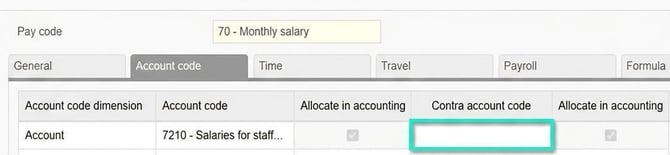
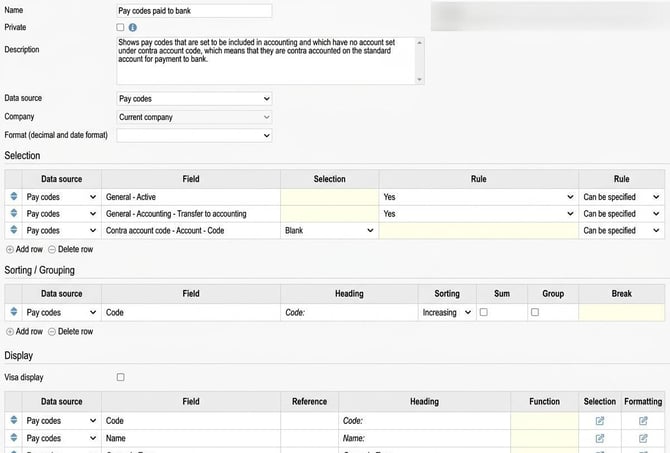
To see which pay codes are included in the accounting and do not have a contra account, a report in the Report generator can be used.
1. Select Data source Pay codes.
2. Make a selection of active pay codes with the setting to be transferred to accounting and leave the field for Contra account code - Account - Code blank.
3. Sort on the code for the pay code.
4. Choose to display the following fields: The code for the pay code and name, pay code type, and the field for contra account code - account - code.
Please note: This article is AI-translated. This means that linguistic errors or misunderstandings may occur.