
Automate the calculation of debts during payroll run
You can get help to automatically create calculation bases for debts when you settle a payroll run. This applies to debts such as vacation debt, comp debt and ATK / ATF debt.
How to calculate a debt
-
Go to Payroll > Debt management.
-
Select which type of debt you want to calculate in the field Type of debt and then click on New.
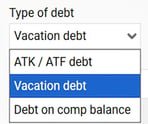
-
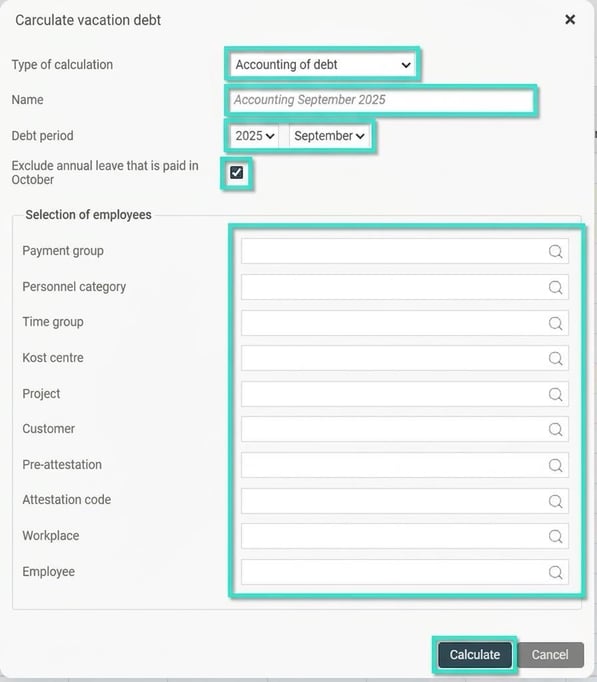
In the window that opens, fill in the settings for your calculation:
-
Type of calculation: Choose Accounting of debt.
-
Debt period: Specify which period the calculation concerns.
-
Include withdrawn annual leave: If you are calculating a vacation debt, specify here whether withdrawals from the current payroll period should be included (provided you have enabled the setting "Exclude annual leave paid out the month after the debt date" under Settings > Payroll > Accounting and debt management).
-
-
-
Selection: You can also make additional selections, for example by personnel category or account codes, if you do not want to calculate for all.
-
Create multiple debts for the same period
To be able to create several debts for the same period, you first need to activate a setting.
Go to Settings > Payroll > Accounting and debt management and select the tab Debt management. Tick the box Allow multiple debts of the type 'Accounting of debt' with the same debt date.
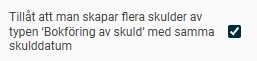
Example:
After the payroll run in December, a vacation debt has been created for December.
In January, I want to make a new debt calculation for December for the year-end closing, which includes days withdrawn in December that have been payroll calculated in the January payroll.
Preparations
Before you create the debt calculation, you need to do the following:
-
Open the payroll run for January.
-
Import deviations for December.
Create new vacation debt
Create the new specification:
-
Go to Payroll > Debt management.
-
Choose to create a new vacation debt for December.
-
Specify a name for the specification. Remember that you need to give the specification a unique name, as you cannot use the same name as an existing specification.
- Tick that the debt should 'Exclude annual leave paid out in January'.
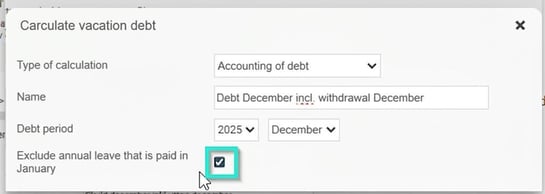
Audit the calculation
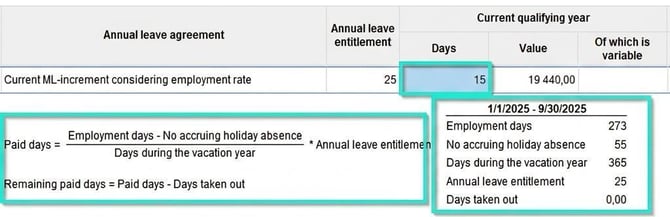
When the calculation is completed, a debt list will be displayed where you can see the employee's annual leave agreement and annual leave entitlement, along with associated debt values. To see how the system has arrived at the different values, you can click in the list.
Click a specific value in the list to see the formula and the various parameters included in the calculation. The formula for calculating the value of the days comes from the annual leave agreement.
Mark the debt as checked for use in journal voucher
To be able to generate a journal voucher for the debt, you finally need to mark the debt list as checked. You do this by clicking the Mark as checked button.
Automate the calculation of debts during payroll run
You activate the function under the menu option for payroll runs:
- Go to Settings > Payroll > Payroll runs.
- Click the tab Automation.
- Activate the setting Create debts automatically.
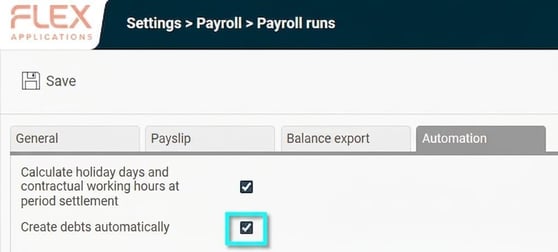
When the setting is enabled, the system calculates and creates debts for your employees every time you settle a payroll run.
Manual processing and adjustments
- If you have already created a debt manually: The system will skip that type of debt and let your manual entries remain. Other debts are created as usual. You thus retain control even when you let Flex HRM do the work.
- Complete afterwards: You can complete and modify the automatically created debts afterwards if you detect anything that needs adjusting.
When does automation run?
Automation currently starts when settling the payroll run. If you create your debts at other times, the function does not match your current working method. We are working to adapt the function so it will suit more ways of working in the future.
Please note: This article is AI-translated. This means that linguistic errors or misunderstandings may occur.