
Additional module
Create export file for salary basis for COINS
To be able to export a file with assignments to COINS, you first need to create an export template. In the export template, you select which assignments are to be included in the file.
Create export template
-
Go to Administration > Settings > General > Export templates.
-
Choose to create a new export template.
-
Select the export type Salary basis for COINS.
-
Make your selections under the headings Selection and Export field.
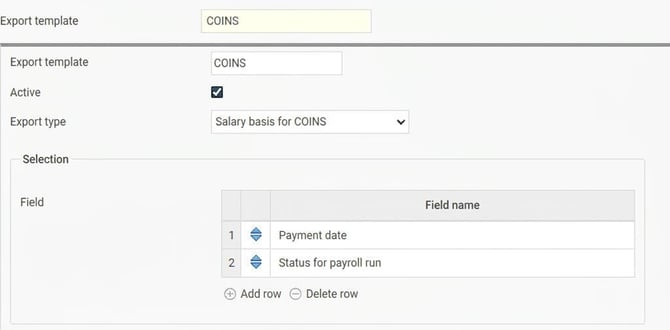
Selection
In Selection you choose which fields you want to be able to filter by when creating the export file.
-
Payment date: We recommend that you always include selection on payment date. This allows you to easily create a file showing only payments for the most recent month.
-
Payroll run status: You can also choose to filter by payroll run status. This enables you to export preliminary payroll runs.
Export field
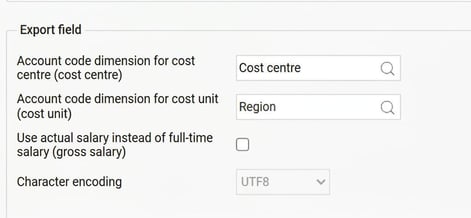
Under Export field you determine which specific assignments will be included in the file.
| Option for Export Field | Description |
| Account coding dimension for cost centre (cost center) | If you want to include details regarding the employee's cost centre, specify here which account coding dimension it corresponds to in Flex HRM. |
| Account coding dimension for cost unit (cost unit) | If you want to include details regarding the employee's cost unit, specify here which account coding dimension it corresponds to in Flex HRM. |
| Use actual salary instead of full-time salary (gross salary) | Normally, the full-time salary is exported in the gross salary field. If you prefer to export the actual salary for part-time employees instead, you can select that option here. |
| Character encoding | Must always be UTF-8 and cannot be changed. |
Grouping field
Here you choose which assignments will be sent in the file's so-called grouping field.
-
Grouping number: Usually starts at 1 for the first grouping field. This value appears in the field id in the file.
-
Description: Enter the text that will be placed in the field typeDesc in the file.
-
Retrieve value from: Select which type of assignment is to be retrieved. It is common to include, for personnel category.
-
You can also export any account code dimension or value from your own field. You must then specify which account code dimension/which own field is to be exported in the two following columns.
-

Create the export file
Once you have created your export template, you can create the actual export file.
-
Go to Administration > Actions processed > Service routines > Export.
-
Select name and file name for the export.
-
Select the export template you created for COINS.
-
Choose the selection you wish to apply.
Things to consider when creating the export file
-
File extension: The file should preferably have the extension .xml.
-
Payment date: We recommend that you always use a selection on payment date. If you do not, all payments will be exported.
-
If you for example want to create an export file for last month's payment, make the appropriate selection for the date.
-
-
Payroll run status: If you selected to include a selection for payroll run status in the export template, you can here choose whether to include only settled, only preliminary or both.
Schedule the export
You can also automate the retrieval of the export file by scheduling the export. Go to Administration > Settings > General > Scheduled task runs.
What is included in the file?
The file contains a number of assignments about the employee retrieved from the employment register, as well as all payroll transactions from the current payroll run. Here we describe the key details of the assignments exported.
Which employees are included?
An employee is included in the file if any of the following criteria are met:
-
They have had paid salary during the selected period.
-
They have ended their employment within six months before the selected period (this is to include information about those who have left).
-
They have an employment during the selected period (this is to include new employees).
Multiple employment numbers for the same national ID number
If a person has multiple employment numbers with the same national ID number, the payroll transactions for these will be merged and reported under one of the employee numbers.
-
The employee number used is the one with the most recent employment period.
-
In the case of parallel employments, the employee number with the highest contractual working hours is used.
Multiple payments in one month
If there are several payments during the selected period, all will be included in the export. They are entered on the highest payment date to include extra payments in the same month.
Important: Take care to not include multiple months in the selection. There is then a risk of double-reporting specifications, which can be difficult to detect.
Absence periods from HRM Time
If you use HRM Time, approved absence applications for the employees are also exported for:
-
Sickness
-
Leave of absence
-
Parental leave
These are exported twelve months forward and are entered in the field employmentStatus in the file.
Please note: This article is AI-translated. This means that linguistic errors or misunderstandings may occur.