
Create and submit an employers certificate
As an employer, you are obliged to provide an employers certificate to former employees so they can apply for allowance from an unemployment insurance fund (a-kassa). To make this as straightforward as possible, Sveriges a-kassor have created the digital service arbetsgivarintyg.nu, which allows you to send the specification digitally. You do this in Flex HRM Payroll under Administration > Actions processed > Employers certificate.
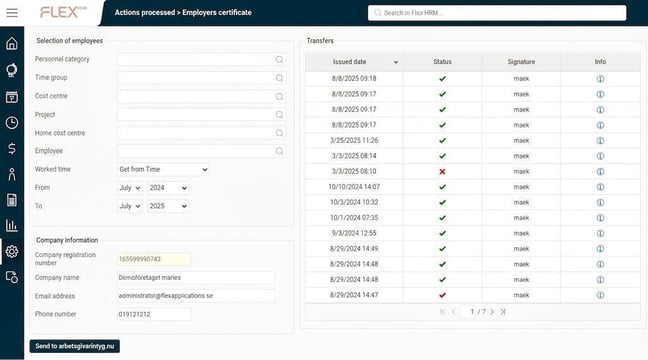
Selection of employees
At the top, you specify which employee or employees you wish to send an employers certificate for. If you want to send certificates for a group of employees at the same time, you can do so.
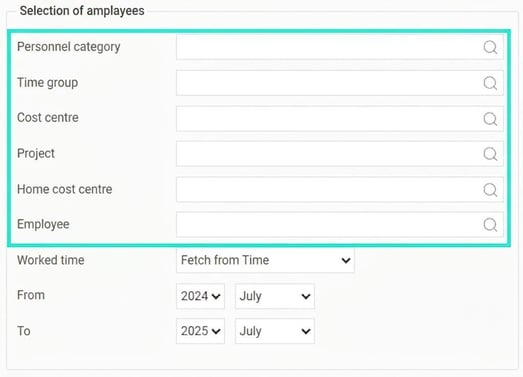
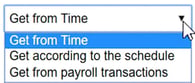
You then specify from where the system should collect information about worked time, absence, overtime, and additional time. Here, there are three different options as follows:
- Retrieve from Time
If you use Flex HRM Time for time reporting, you can choose to retrieve information on worked time, absence, overtime, and additional time directly from time reports. In this way, you can generate certificates even before payroll for worked time and absence is paid. - Retrieve according to the schedule
This option means that worked time is taken from the schedule. Absence is taken from the calendar and is then deducted as worked time from the schedule. Overtime and additional time are retrieved from pay codes marked as overtime or additional time respectively. - Retrieve from payroll transactions
If you select this option, worked time, overtime and additional time are taken from payroll transactions according to settings on the pay codes. Time absent is retrieved from the calendar, but is not deducted from the time present. Time absent from the calendar that is set to be counted as time present (based on the absence cause setting), such as annual leave, is added to worked time.
You then select which period the worked time should be summed for in the employers certificate. The system always suggests the latest 13 months, which is the recommendation from Sveriges a-kassor.
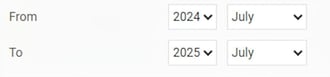
If the employee has had several employment periods during the interval, they will be reported separately or merged according to the guidelines from Sveriges a-kassor. Employment periods that are consecutive and have the same type of form of employment will be merged. Probationary period and permanent employment are counted as the same form of employment.
During the first quarter of 2026, Sveriges a-kassor will adapt the employers certificate so that
the details of worked time and income (point 11 and 12) will no longer need to be completed
for the certificate to be submitted.
As the information manager, you do not need to take any specific action. When the changes have taken effect, this will be shown on arbetsgivarintyg.nu as well as in the certificate.
What will change?
You should only provide details about worked time and income (point 11 and 12 in the certificate)
if you have been expressly asked to do so.
Such a request may come:
* directly from the former employee, or
* via an automatic email.
If the information has not been requested, you submit the certificate without it.
If the details of worked time and income are not to be forwarded to the a-kassa, go to arbetsgivarintyg.nu and clear the data from the certificate before submitting it. You will be able to do this using a dedicated button.
If you do not need to include income details, there is no reason to wait for the payment of the final wage before creating the certificate.
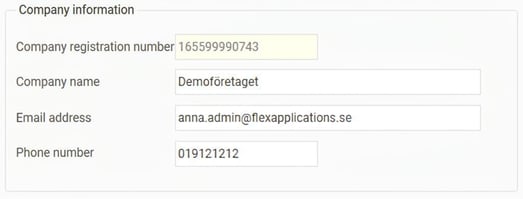
Company information
Below the employee selections, company information including contact details is shown. The system automatically suggests the contact information for the logged-in user.
Submit the specification
When all selections have been filled out, click the button to send the specification to arbetsgivarintyg.nu.
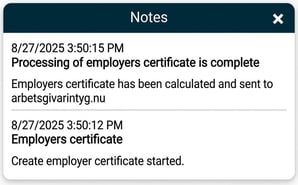
Once the specifications have been sent, you will receive a notification about this and the certificates will then be available on arbetsgivarintyg.nu.
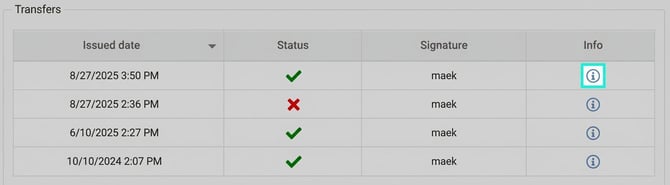
In the Transfers list to the right, you can see information about all transfers made. To get more information about which employees certificates have been sent for, and any error messages, you can click the info icon.
Related articles:

Which settings do I need in order to send an employers certificate to Arbetsgivarintyg.nu?
Please note: This article is AI-translated. This means that linguistic errors or misunderstandings may occur.