
Send for e-signing
- Add recipient - Check/select the recipients’ details, such as correct email address, social security number and signing method. Adjust who should sign first if needed, using the blue icon.
- Under Documents to sign you should preview the contract of employment to see how it will look before it is sent.
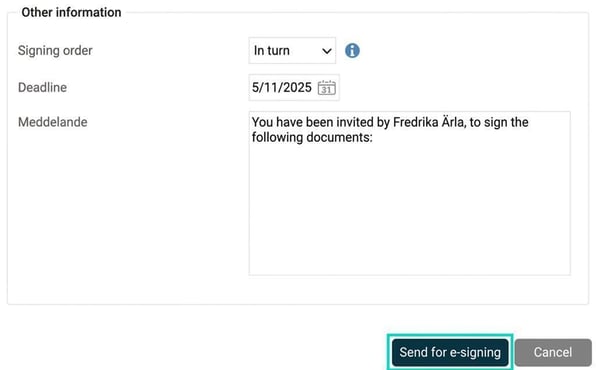
- Select under Other information Signing sequence, deadline and any message.
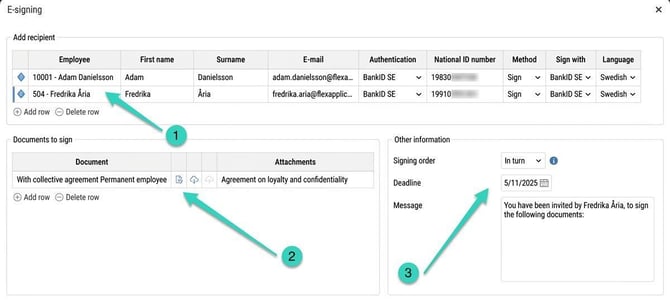
If your company allows, a document can be manually adjusted before it is sent for e-signing. Under Documents to sign click first on the icon in the middle Download, edit the document and save it on your computer. Then click on the Upload icon to the right to upload the edited document you want to send for signing.
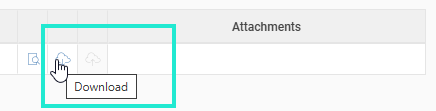
The upload icon will not become active until you have first downloaded the document.
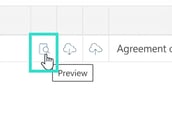
Once an edited document has been uploaded, you can view the edited document via the icon Preview.
Choice of signing order means you can choose whether recipients should sign in sequence, or if all can sign the document parallelly.
After the date for deadline has passed, the document can no longer be signed.
Once the document and settings have been audited, you can send it for signing.
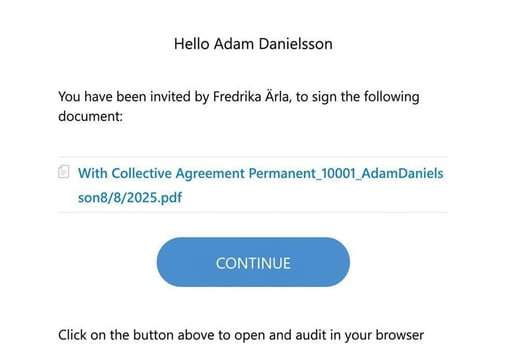
The recipient who is to sign a document receives an email that looks similar to the image below. To audit and sign the document, they follow the instructions in the email.
The document now appears under Documents for the employee. Here you can follow the document status during the signing process.
Please note: This article is AI-translated. This means that linguistic errors or misunderstandings may occur.