
Settings for Payroll Connection
To view or adjust the settings for your Payroll Connection, go to Settings > Payroll and select Payroll Connection in the menu.
You will then see a window with two tabs: Time and Travel.
The Time tab
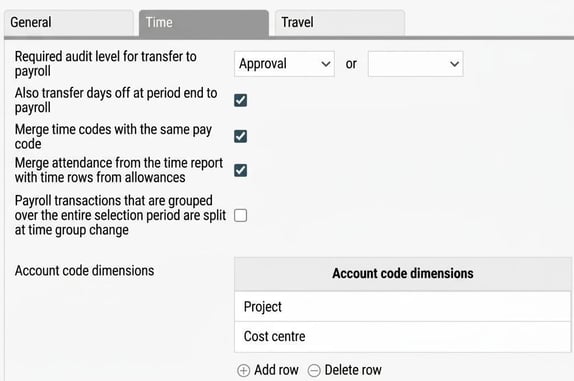
Required audit level for transfer to payroll
Here you specify which audit level is required for a time report to be transferred to payroll. You can also set two alternative levels, for example that the time report needs to be either submitted or approved.
The following options are available:
-
No level is required
-
Submitted
-
Approval
-
Certification
(The names of the options may vary, as they depend on how the audit levels are configured in your company.)
Also transfer non-working days at period end to payroll
Tick this setting if you want non-working days at the end of a period to be transferred to payroll as well.
Example: If an employee is off sick at the end of a month and the last day of the month is a Saturday, which is not a workday in the employee's schedule, Saturday will also be transferred to payroll. (This assumes that the time code for sick leave is also set to include non-working days.)
Merge time codes with the same pay code
Tick this setting if you want time codes with the same pay code to be merged in payroll.
Payroll transactions grouped over the entire selection period are split when timegroup changes
Tick this setting if you want payroll transactions (grouped over the entire selection period) to be split into several transactions. The split follows the dates for any changes in time group.
Account code dimensions
Here you can specify which account code dimensions should be sent to payroll. Do the following:
-
Click on Add.
-
Enter the requested account code dimension in the field, or click on the magnifying glass to fetch it from the register. In the example above, we send project and cost centre from the time report to payroll.
The Travel tab
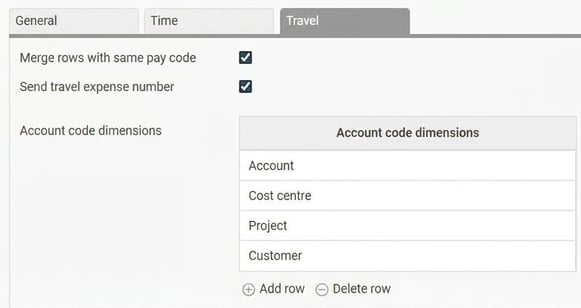
Merge rows with the same pay code
Tick this box if you want to merge rows which have the same pay code. This can reduce the number of rows in payroll preparation.
If the setting is enabled, rows with the same pay code, account code, travel expense claim number and unit price will be merged. This only happens in the payroll file and does not affect other areas, such as reports.
Send travel expense claim number
Tick this box if you want the travel expense claim number to be sent to the payroll run as a comment. This will then be visible on the payslip.
If you combine this setting with selecting (on the pay codes) to merge pay codes with the same comment, you can merge all payroll rows that come from the same travel expense claim. This makes it easier for the employee to reconcile the total amount on the payslip against their travel expense claim.
Account code dimensions
Here you can specify which account code dimensions should be sent to payroll. Do the following:
-
Click on Add.
-
Enter the requested account code dimension in the field, or click on the magnifying glass to fetch it from the register. In the example above, we send the account codes for account, cost centre, project and customer.
Please note: This article is AI-translated. This means that linguistic errors or misunderstandings may occur.