
Account code combinations in Flex HRM are a tool that helps you control how different account codes can be combined. It is useful when you want to limit which options can be selected together.
An example is if a project can only be combined with three specific articles. Instead of having to search through the entire article register in the time report/expense claim, after selecting the project you will only be given the three permitted articles as a proposal.
To set up account code combinations in the system, follow the steps below:
1. Choose which dimensions to use
First, you must activate the function for the account code dimensions you want to use.
-
Go to Settings > General > Account code dimensions.
-
Under the tab General, tick the account code dimensions to be included in account code combinations. Here, you can also decide whether wildcards (*) should be allowed, but note that this may impact the system's performance.
2. Activate the account code combinations view
To be able to manage the combinations, you must have authorisation to access the view.
-
Go to Users/Authorities > Roles.
-
Under the tab Menus, activate the view Account code combinations for the roles that need access.
3. Add permitted combinations
Once the view is activated, you can start defining your combinations.
-
Under Register > Account code combinations you can enter combinations manually.
-
It is also possible to add combinations via fileimport or via API.
-
You can add permitted combinations row by row. If you do not use wildcards, each permitted combination must be specified individually.
-
You can also use the column Rule type to select "Do not allow". This is useful if you want to block specific combinations, for instance if you have allowed all combinations with a wildcard but want to exclude a single combination.
-
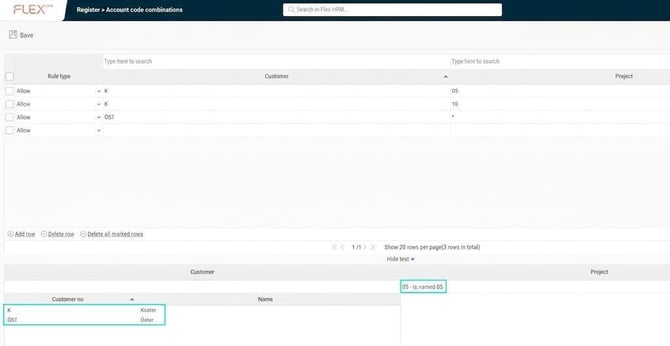
Example: In the image below, we have set up Customer ÖST to be combined with all projects, while Customer K can only be combined with projects 05 and 10.
During registration, only projects 05 and 10 are displayed when Customer K has been selected.

- Example: In the image below, we have set up all customers to be combined with all projects, but Customer K is not permitted together with projects 05 and 10. During registration, all projects except 05 and 10 are shown when Customer K has been selected.

4. Test your settings
After you have added your combinations, it is advisable to test them to ensure they work as expected.
-
In the view Account code combinations, click the button "Show test" at the bottom.
-
Use the test view to check that your rules provide the wanted result.
Important information:
-
When the function is activated, the system will only permit the combinations you have specified.
-
During registration in the system, only permitted combinations will be proposed.
-
The system will warn you if you attempt to save a forbidden combination.
-
Be aware that certain settings, such as those in the account code register and invoice settings, are not checked against these rules, which in rare cases can lead to forbidden combinations appearing in, for example, time reports.
Please note: This article is AI-translated. This means that linguistic errors or misunderstandings may occur.