
To be able to view payslips on the front page in the system, your user must have the correct authorisation.
Set authorisation for payslipsAn Administrator specifies which roles are authorised to view payslips under General > Roles. On the Home tab, authorisation for Payslips and income statements is activated. When you assign such a role to a user for one or more employees, the user is authorised to view payslips for the selected persons.
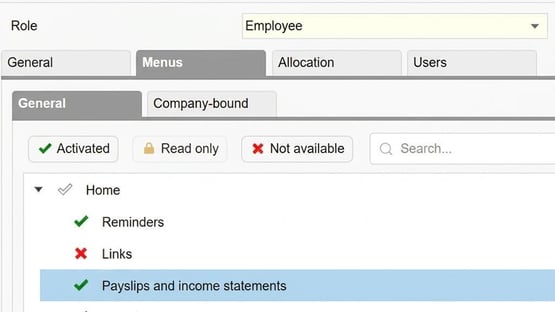
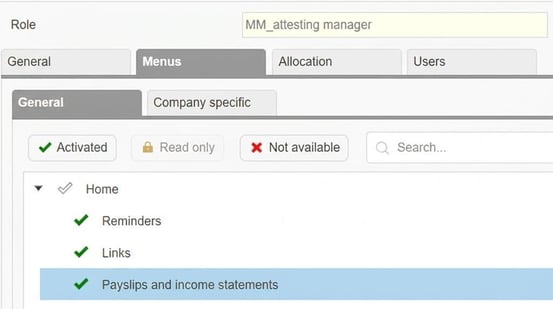
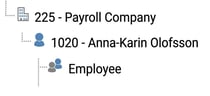
Example employee who has been authorised to view only their own payroll specification:
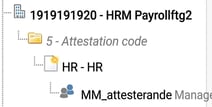
Example manager who has been authorised to view their team’s payroll specifications via attestation code.
If you are only authorised to see your own payslips, your latest payslip will appear at the top of the panel on the front page. You can open it easily by clicking on it.
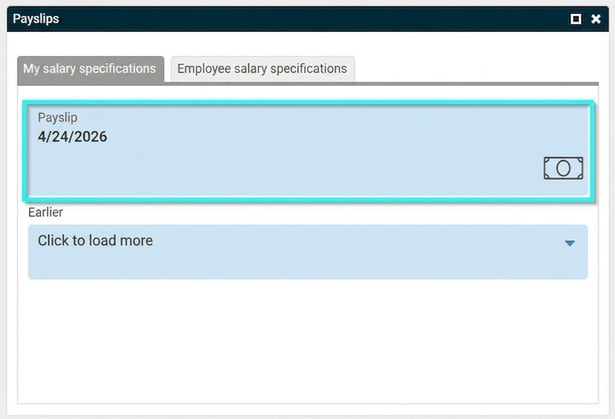
If you want to see earlier specifications, click on "Click to load more".
View other people's payslips (managers and administrators)If you are authorised to view both your own and other people's payslips, two tabs will be shown:
- My salary specifications: Here you can see your own payslips.
- Employee salary specifications: Here you can view payslips for other employees. The information is loaded when you click on the tab.
The payslip is published on the front page when two conditions are met:
- The payroll run is settled.
- The chosen number of days before the payment date has been reached, based on the setting under Settings > Payroll > Payroll runs, tab Payslips.

Please note: This article is AI-translated. This means that linguistic errors or misunderstandings may occur.