
You can access the settings via the menu Settings > Payroll > Annual leave agreement.
The list on the left shows the annual leave agreements that have been set up. When you select an agreement, its information is displayed on the right.
The General tab
Under the tab General you enter the basic details for the annual leave agreement:
-
Name: Enter the name of the annual leave agreement.
-
Description: Here you can add a description of the agreement.
-
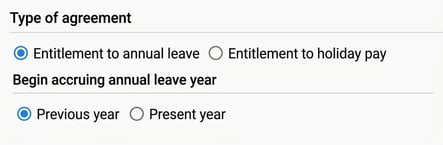
Type of agreement: Choose between entitlement to annual leave or entitlement to holiday pay. For employees who receive holiday pay directly on earned wage, we can accumulate the amount and make a payment at a later date.
Annual leave year starting -
Begin accruing annual leave year: Specify whether the system should count the present year or the previous year as the year in which annual leave is accrued.
-
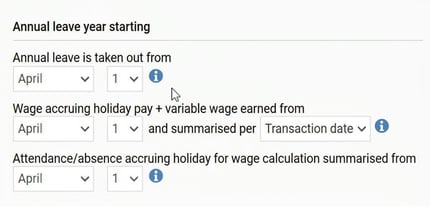
Annual leave year starting: This field changes automatically depending on which year you have chosen for accruing annual leave.
-
Annual leave is taken out from: Specify the start date of the annual leave year, e.g. 1 January or 1 April.
-
Wage accruing holiday pay + variable wage accrues from: Specify from which date wage accruing holiday pay / variable wage is to be totalled on the annual leave year. For example, 1 January or 1 April.
If you have an agreement where holiday pay is calculated as a percentage of wage accruing holiday pay, the system needs to adjust the wage for the period in which the employee has had absence for the base of accruing holiday. To ensure correct calculation, a proper average wage for worked time must be determined.
You can choose whether the total should be calculated per Payment date or Transaction date:
-
Payment date (cash principle): May sometimes include wage for work carried out during other periods, which can result in a misleading average.
-
Transaction date: Often provides a more accurate average calculation as wage and attendance match up in time.
Important: Consider your decision carefully before changing the principle. If you switch from the cash principle to transaction date at a vacation change, there is a risk that some transactions (for example in March with payment in April) do not end up in any annual leave year at all. This can result in the employee receiving too low a wage accruing holiday pay.
Click on the i-icon in the system to get more information on how you should consider these date selections.
-
-
Wage accruing attendance/absence for wage adjustment is totalled from: Specify from which date wage accruing attendance/absence is to be totalled on the annual leave year. For example, 1 January or 1 April.
-
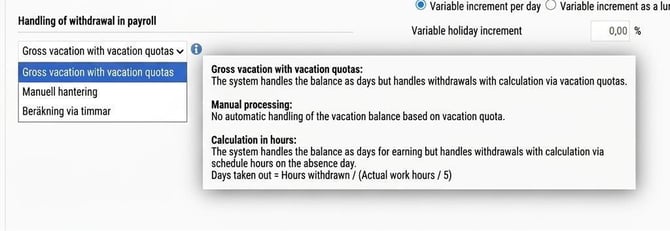
Handling of withdrawals in payroll: Specify how the system should calculate taken out annual leave in the payroll preparation. This is especially important for employees who work irregularly and have a vacation quota. Choose Calculation in hours if you want the system to manage the balance in hours instead of days. Click on the i-icon in the system for more information on how you should consider these options.
Outcome in payroll run when calculating in hours:
Employee with weekly working time of 40 hours per week but irregular daily working time:
Scheduled hours Monday 1/9 are 11 hours
Scheduled hours Tuesday 2/9 are 5 hours
Calculation formula: Days taken out = Hours withdrawn / (Actual working time / 5)
Annual leave on Monday 1/9 would then be according to the formula:
11 / (40 / 5) = 1.375 which is rounded to 1.38 daysAnnual leave on Tuesday 2/9 would then be according to the formula:
5 / (40 / 5) = 0.625 which is rounded to 0.63 days
-
Annual leave entitlement: Specify how many holiday days are included in the agreement.
- Show balance as: Specify how the balance should be displayed on the payslip. In the payroll preparation and in the employee register the display can be controlled per user via a drop-down option.
It is not possible to create a personal annual leave agreement with a deviating setting for Show balance as.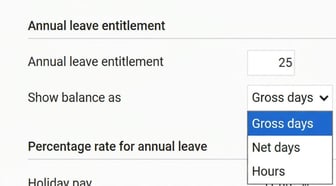
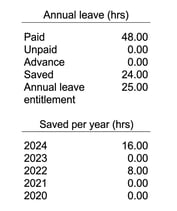
Show balance as Hours
To have the system display the annual leave balance as hours instead of days, use the 'Hours' option under the 'Annual leave entitlement' heading. This is set directly on the annual leave agreement and it is not possible to make personal exceptions to this in the employee register for individual employees.
To display the annual leave balance as hours, we use the formula:
Gross days * (Actual working time per week / 5)
Rounding for show as hours:
When displaying the annual leave balance as hours, the system will automatically round the hours upwards to the next whole hour. This rounding is to avoid displaying decimals to employees and only affects the display.
Show balance as Net days
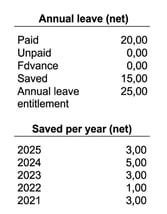
For the system to show the annual leave balance as net days instead of gross days, use the 'Net days' option under the 'Annual leave entitlement' heading. This is set directly on the annual leave agreement and it is not possible to make personal deviations to this in the annual leave agreement for individual employees.
With the option to show the balance as Net days, the annual leave balance will be displayed as net days on the payslip for employees who have the relevant annual leave agreement.
Rounding for show as net days:
When the annual leave balance is displayed as net days, the system will automatically round up to the next whole day. This rounding shows the employee how many actual days off they can take.
-
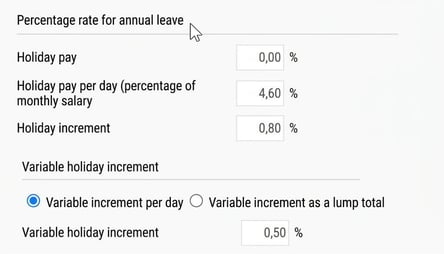
Percentage rate for annual leave: Enter the percentage rates for holiday pay, holiday pay per day (as a percentage of monthly wage) and holiday increment.
-
Variable holiday increment: Choose whether the software should calculate the variable increment per day or per year. You also enter the percentage rate for the variable increment here.
The Vacation debt tab
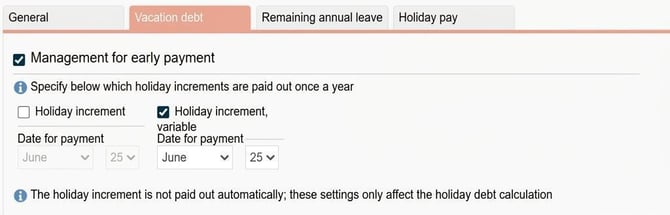
Under the tab Vacation debt you manage the settings for the annual payment of both the ordinary holiday increment and the variable holiday increment.Here you specify the date when the payment is to take place. This date is important for the system's calculations:
-
Impact on the vacation debt: After the date you specify here, increments will no longer be included in the vacation debt calculation.
The Remaining annual leave tab
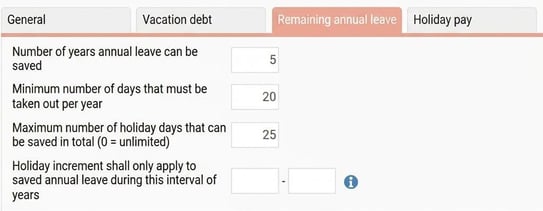
Under the tab Remaining annual leave you set the rules for how employees can save their holiday days over several years.-
Number of years holiday days may be saved: Specify how many years an employee may keep their saved days.
-
Lowest number of days that must be taken each year: Here you specify how many annual leave days the employee must take each year, and thus may not save.
-
Maximum number of annual leave days that may be saved in total: If you have an agreement with a limit for how many days an employee may have in their pot for remaining annual leave, specify the number here. If you leave the field as 0 (zero), it is possible to save an unlimited number of days.
- Holiday increment should only apply to saved annual leave within this interval of years: If the holiday increment on saved days should only be included for a certain interval of years, for example if you pay out the holiday increment in a lump sum after a certain year, the interval is specified here. For the holiday increment to be included for saved days in the specified years in the interval, this must also be calculated in the formula using the formula function SemTillaggProc().
The Holiday pay tab
Under the tab Holiday pay you link the correct calculation models to your annual leave agreement.-
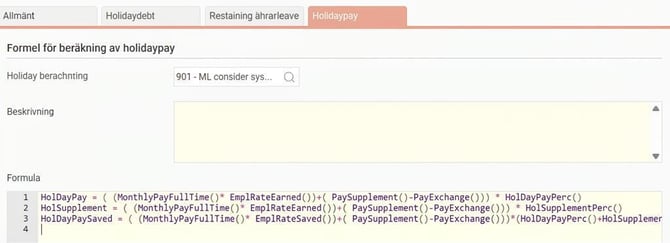
Formula for calculation of holiday pay: Here you specify which formula should be used for calculating the holiday pay in the current agreement. You can view and create these formulas under Settings > Payroll > Holiday pay formulas.
-
Holiday calculation (magnifying glass): If you click on the magnifying glass you get a list of predefined formulas available in the register for Holiday pay formulas.
- Description and Formula: In the list you see any specified Description of the formula and in the column Formula you see the technical construction of the actual calculation.
-
-
Holiday calculation: The system uses the saved value that was calculated at the latest vacation change. This value is then displayed in the employment register.
-
Withdrawal of annual leave: The system makes a new calculation every time annual leave is taken out. The current calculated value will then be displayed in the employment register.
-
-
Reduce contractual working hours in case of no base for accruing holiday for absence part time:
If absence part time with no base for accruing holiday should decrease the value of the holiday days, this setting is used to calculate an average employment rate on attendance during the annual leave year. The formula function SyssgradIntjanande() is then used to retrieve the average employment rate.
Please note: This article is AI-translated. This means that linguistic errors or misunderstandings may occur.