
Settings for payslip
You customise the appearance and content of employee salary specifications under the menu Administration > Settings > Payroll > Payroll runs, on the tab Payslip.
Selection and standard settings
-
Personnel categories: Here you choose which personnel category you want to set up settings for. Categories that do not follow the company’s standard are marked with a yellow colour in the list.
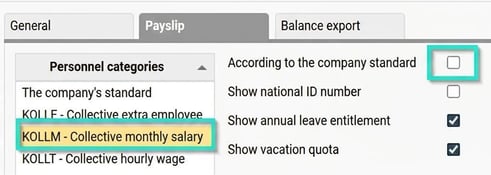
- Show national ID number, annual leave entitlement and vacation quota: Tick the box if you want these details to be printed on the specification.
-
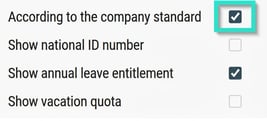
According to the company standard: Tick this box if the selected category should use the company's common settings. If you tick the box, the other fields will be locked for editing.
Balances
In the table Balances you set which values, in addition to vacation balance (always shown), will be displayed for the employee:
-
Value type: Choose whether you want to show Value for the period, Outgoing value or Ingoing value.
-
Balance Type Here you specify which accumulators or ATK/ATF balance should be fetched. You can search the register by clicking the down arrow. The accumulators are defined under Administration > Settings > Accumulators.
-
Alternative text: If you want the balance to be called something else on the payslip, enter that name here.
- Hide balance if empty: If the setting is enabled, the balance will be hidden on the payslip if it is empty.

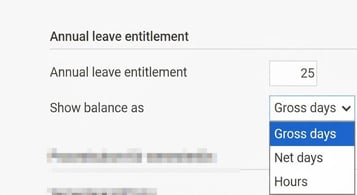
- Vacation balance - the display of vacation balance on the payslip is controlled via the setting in the vacation agreement. Available options are to show the balance as gross days, net days or hours.
Account code and sorting
-
Account code dimension: Here you can select a dimension (for example project) that will be shown on the payslip. This makes it possible for the employee to see, for example, number of hours worked and hourly wage per project.
Note: You must also specify which pay codes are to show the account code. This is done under the tab Payroll in the pay code register.
-
Sort on: Select in which sequence the payroll rows should be displayed. You can sort on Pay code number (standard), Date or the selected Account code.

Publishing and accessibility
The system automatically handles publication of payslips to the front page in Flex HRM and to HRM Mobile.
-
Number of days before payment date: Specify how many calendar days before payment the payslip should be available for the employee.

-
Publish payslips from: Here you control from which date specifications from HRM Payroll should start being displayed. This is useful when starting up if there are historical payroll runs that employees should not see.
-
If you leave the field empty, all available specifications in the system will be shown.
-
You can have different start dates for different personnel categories.

-
Note: Users who are authorised to print payslips via payroll preparation or reports can still view and print specifications for all payroll runs, regardless of the publication date.
Please note: This article is AI-translated. This means that linguistic errors or misunderstandings may occur.