
Whistleblowing
Whistleblowing refers to when a person reports misconduct in authorities, companies or society in general. This may involve matters that are illegal, unethical or inappropriate. According to the Act (2021:890) on the protection of persons who report misconduct, all employers with more than 50 employees must have a reporting channel for this.
HRM therefore has a connection to Aunetic Whistle, which is a cloud service created by corporate lawyers offering a secure platform to process, assess and work with submitted whistleblowing cases. Whistleblowing cases are handled completely anonymously, so you can confidently and safely report misconduct in your workplace.
Activation in Flex HRM
Licence
Once you have signed an agreement with Aunetic you need to log in and activate a licence in HRM. Contact us at Flex Applications if your licence is not available.
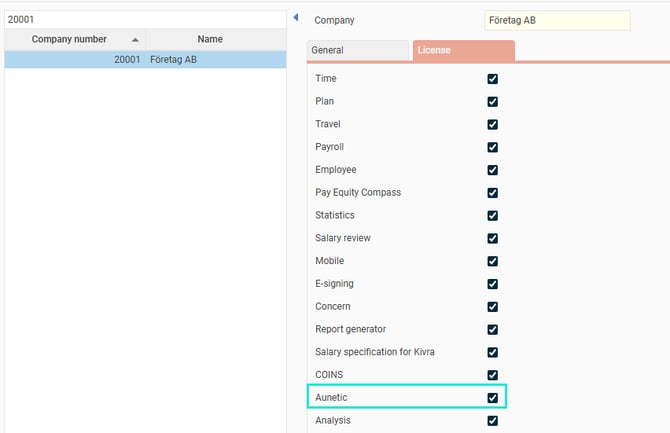
Go to General > Company and select the current company from the list on the left. Choose the Licence tab and then tick Aunetic.
Program link
To activate the function, you need to create a new program link by clicking on New and selecting Aunetic Whistle:
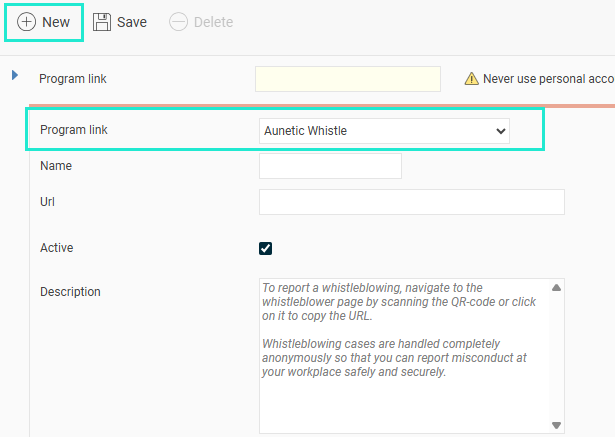
Then fill in the other information as follows:
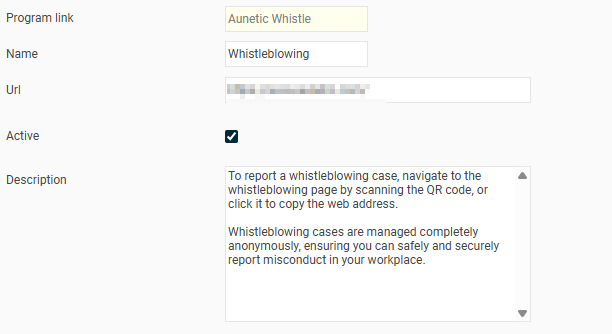
Name – here you enter a name that is only visible in this view.
Url – this is the address you will find under Settings in Aunetic's customer portal.
Description – if you want something else to be shown instead of the above, make the change here.
Detailed description – if you feel the above description is not sufficient. This text will appear under the previous one in the widget on the front page in HRM.
Notice: If you do not see the program link for Aunetic and you have assigned the licence for it, this may be because settings need to be made in System register > Integrations. However, we recommend that you seek the assistance of a consultant from Flex Applications to set up these settings.
Authorisation
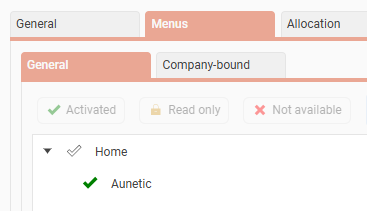
For a user to access the widget on the front page and to report from HRM (according to the instruction below), you first need to activate it on the roles that should have the authority. Ideally this is added to the employee role, which is commonly held by all employees. Under Home find Aunetic and activate.
Report via Flex HRM
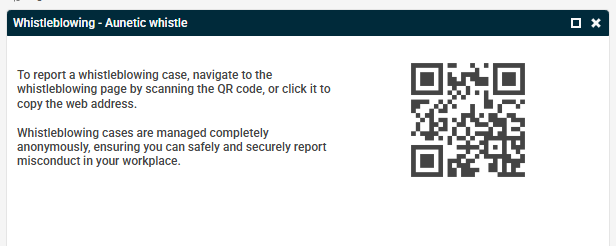
To report from HRM, scan the QR code on the front page, or alternatively click to copy the web address so you can paste it in your browser.
Then follow the instructions in the form you land on.
Please note: This article is AI-translated. This means that linguistic errors or misunderstandings may occur.