
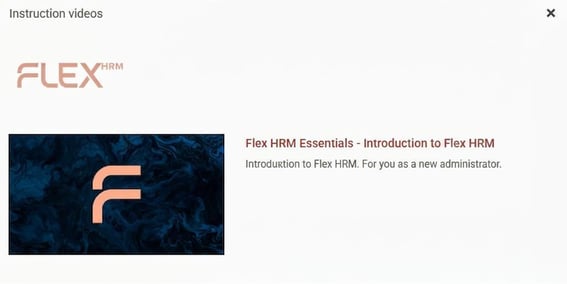
You can easily make instruction videos available to employees so they can watch them directly in Flex HRM.
Upload videos
You manage the videos in the settings.
-
Go to Settings > General > Instruction videos.
-
Click on New.
-
Fill in the fields:
-
Language: Select the language of the video. If you choose All the video will be shown regardless of which language the user has set in Flex HRM.
-
Video number: Specify a unique video number. The number also determines the sort order in which videos are displayed.
-
Please note! Video number 0 (zero) is reserved for the heading and description. This appears as a heading to the right of the Flex HRM logo in the viewing window, and you cannot specify a URL for it.
-
-
Heading and Description: Specify the video's heading and description.
-
URL: Specify the address (URL) where the video is located, for example a link to YouTube.
-
Tip! You can find the address of a YouTube video by clicking on the Share icon and copying the link.
-
-
View for: Select which users should be able to view the video.
-
-
Click on Save.
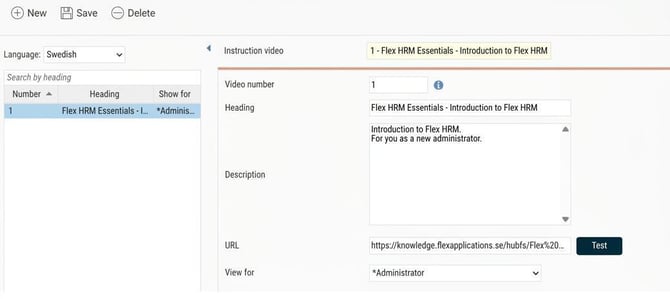
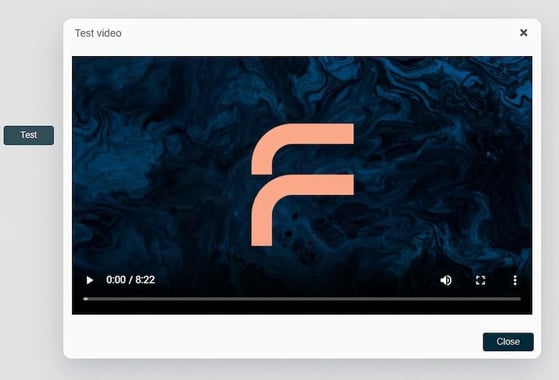
You can check that the link works by clicking on Test.
Watch instruction videos in HRM
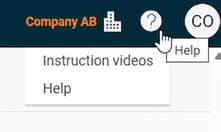
Users in Flex HRM can view the instruction videos via Help, click on Instruction videos.
Set videos to play for users at startup
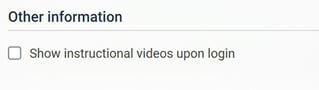
You can set instruction videos to play automatically at startup for a user. This means the window with the uploaded videos appears immediately when the user logs in.
You’ll find the setting Show instruction videos at startup/login under:
- User templates
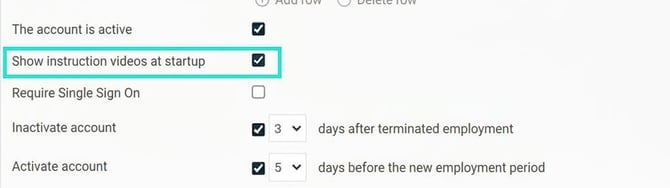
- User
Please note: This article is AI-translated. This means that linguistic errors or misunderstandings may occur.