
Integration with BKY
Thank you for ordering our module with a connection to Authorisation control Comercial traffic (Behörighetskontroll yrkestrafik) BKY, which is a digital system for checking driver authorisations and traffic permits. It has been developed by Svenska Taxiförbundet and Transportstyrelsen in cooperation with Sveriges Bussföretag and Sveriges Åkeriföretag. BKY is an aid for companies to meet the authorisation requirements set by legislation for commercial traffic. You can read more at www.bky.se.
Activate connection to BKY
To get started with a connection to BKY, your company must have Transportstyrelsen’s approval for Direct Access to the Road Traffic Register. When you apply at www.bky.se , two applications are created:
- One application for Transportstyrelsen’s approval for Direct Access to the Road Traffic Register and another agreement for BKY, which is signed with Svenska Taxiförbundets Service AB, the system owner of BKY.
- Once Transportstyrelsen has made their decision, an email will be sent to your company and BKY receives a copy of the decision. An approval activates the agreement in BKY and a system-generated email is sent to the responsible user with login information and instructions.
Activate function in HRM
To activate the connection to BKY, you first need to follow the steps below.
Competence register
To activate the function, you must first add competences for the authorisations you wish to check against BKY. This is done under Competences in HRM.
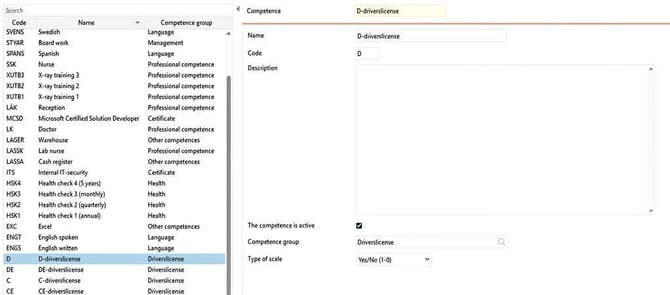
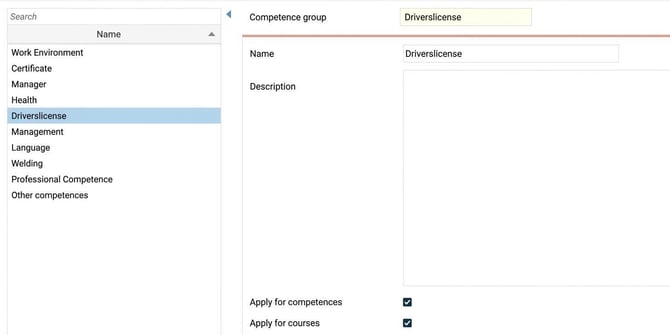
Each competence above must also be linked to a competence group, which you create under Competence group.
Licence
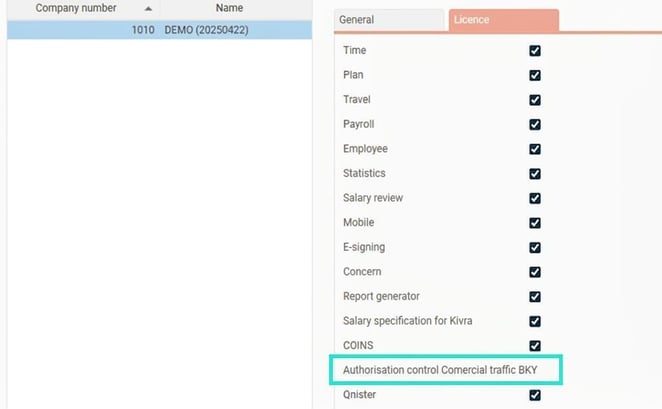
Go to Company and the Licence tab for the company you want to connect the integration to. Check that the licence is:
Program link
Add a new program link under Program links where you fill in the following:
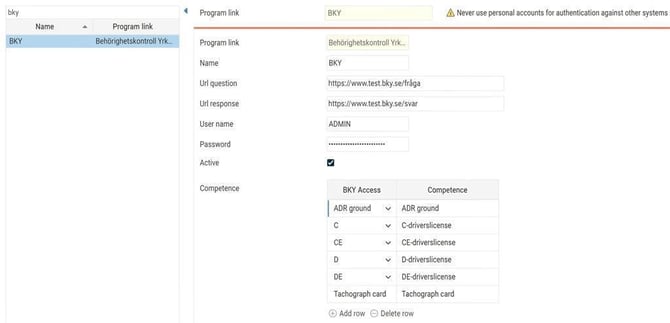
- Program link
Select Authorisation control Comercial traffic BKY - Name
Specify a name. - URL Question and Response
Enter the following addresses in the respective fields.
Question: https://bkyfraga.bky.se/FB_BKY40Fraga/BKYFraga.svc
Response: https://bkysvar.bky.se/FB_BKY40Svar/BKYSvar.svc - User name and password
Go into the Control Panel on BKY.se using the credentials you received when your application was approved: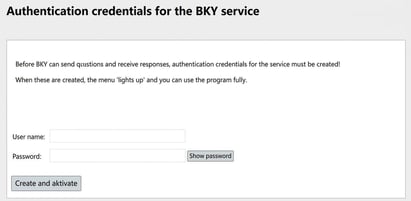
Click on Create and activate and then on Show password and enter the password and user name in HRM. The recommendation is to copy the information and paste it in.
- Active
Tick this option when you want to activate the program link. - Competence
Here you map which BKY authorisations correspond to which competences in HRM. Click on Add row and select from the list in the column BKY Access which authorisations are relevant for your company to ask about and link each to the correct competence.
Log
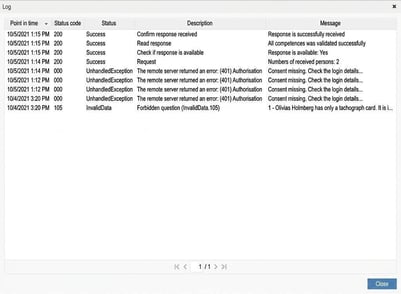
As everything happens in the background, a log has been created to track the requests and any errors that may occur. The log can be found at the top of the BKY program link view via the Show log button
Everything that happens is logged here, such as when the response is No to a competence – it generates its own row per employee concerned.
Competences for employees
Add the authorisation(s) each employee has under the Competences tab.
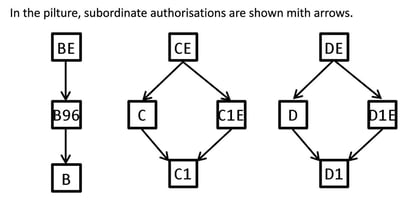
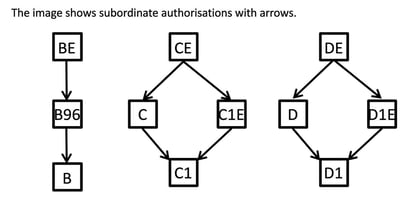
NOTE! It is important here to add the highest authorisation, according to the hierarchy below, that the employee holds. For example, if the employee has CE authorisation, you cannot just enter C authorisation as a competence.
Tachograph card
When you ask about a tachograph card, this is done via a 16-digit tachograph card number. You may only ask about tachograph cards if at least one other BKY competence is active for the employee. This is handled automatically by HRM.
To know which competence in HRM is specifically for tachograph cards, you need to link that competence to 'tachograph card' in the program link according to the instruction under the heading Program link.
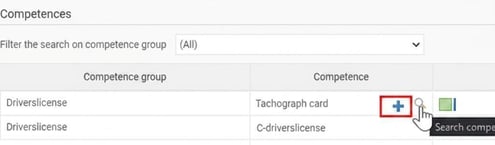
You then need to enter the correct tachograph card number for each employee by clicking the plus sign that appears when you have linked the BKY authorisation in the program link. The number consists of 16 characters. Tachograph card numbers are entered manually in HRM, even if you otherwise import competences from another system.
Valid National ID number
For an employee to be included in the controls, they must have a valid Swedish National ID number or Swedish coordination number. Therefore, review and check this for the relevant employees.
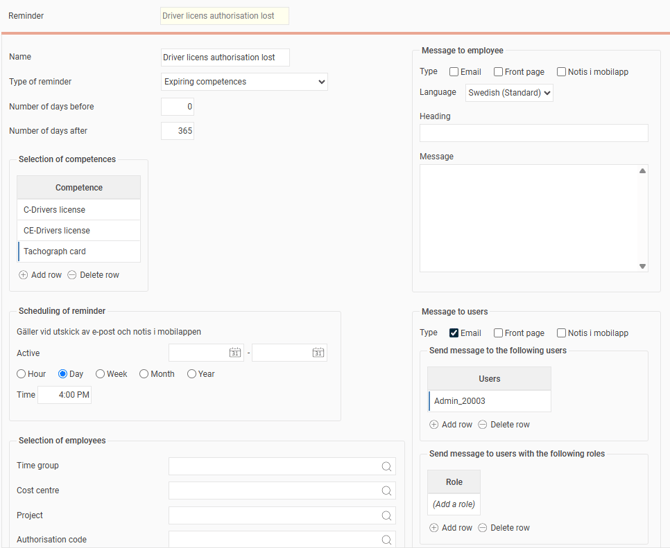
Reminders
To receive reminders when an employee loses their authorisation, you need to activate the reminder Expiring competences, i.e., for those competences that correspond to a BKY authorisation. This is the same reminder that has existed previously but is now also linked to BKY authorisations and is sent out as soon as you get the response that an authorisation has expired.
You can choose to set up different reminders for the various BKY authorisations by selecting different competences under Selection. This is helpful if you want different headings and descriptions in the emails and notes that are sent out.
The reminder is authority-controlled, which means that if you send to a role, those with the chosen role will only receive reminders and notes for the employees they are authorised to see.
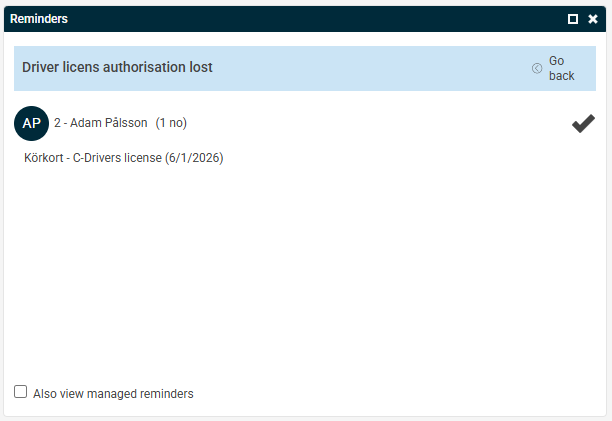
If you set the reminder to display on the HRM front page, you get an overview of which employees’ competences have expired:
Technical information
A question about whether employees’ authorisations are still valid is sent every day between 15.00 and 17.00, and the response can be retrieved before 06.00 in most cases. This happens automatically via HRM.

Questions to Transportstyrelsen
A question may only be asked about an authorisation that the employee has indicated they hold, and which you have linked to a BKY authorisation in the program link. This means that the employee must have an active competence row, in the Competences tab of the employee register, for the competence being queried.
If the response is No to the question about the authorisation, you must not ask again until the employee has stated that they have regained the authorisation. This means, in HRM, that we only send questions for active competences.
The question may, and will, only be asked about the highest authorisation according to the hierarchy below. If, for example, an employee has all B authorisations BE/B96/B, the question will only be asked about BE.
Background job
When a program link is active, a background job will be triggered in HRM when a question is sent, and this then triggers a job that retrieves responses, running regularly until you get an answer. The process then compiles the questions from the employees’ active competences.
Response from Transportstyrelsen
After a response has been fetched, it is read into HRM. For employees who have not lost any authorisations/competences, nothing happens. However, if an employee receives a negative response, this means the relevant competence for the employee is deactivated by setting the 'to'-date on the row to yesterday’s date. In the “Log” column, it is set that the change was made by the BKY integration. If an Expiring competences reminder is active, a note is also sent to those affected.
Please note: This article is AI-translated. This means that linguistic errors or misunderstandings may occur.